
Your Lock Screen sits there dim and washed out, close to black, and no brightness setting seems to touch it.
That is Always-On Display doing precisely what it was built to do, and Apple ships it switched on, so none of this is your doing.
Let me show you the switch, and then help you decide whether you actually want it off.
Dimmed is the design
Apple says it in the setting's own description, on Keep the iPhone display on longer: the setting "allows a dimmed version of your Lock Screen to stay visible, even when your iPhone is locked."
So the dimming is deliberate rather than a failing display. It is the feature.
The point, in Apple's words, is that you can "check essential information, like notifications, the date and time, and information in your widgets" at a glance.
Two consequences follow:
- It is on by default. Apple says so directly, which is why this starts happening to people who never changed a setting.
- It only exists on some iPhones, and the list grew recently. Apple says "supported models" without naming them, but this is no longer Pro-only: the standard iPhone 17 and the iPhone Air both list an Always-On display in Apple's tech specs, so a lot of people met a permanently dimmed Lock Screen for the first time that way. No Always On Display row means your iPhone does not have it.
The eight conditions that blank it completely
Dimmed and fully black are different complaints, and the second has a documented list behind it that almost no page quotes in full.
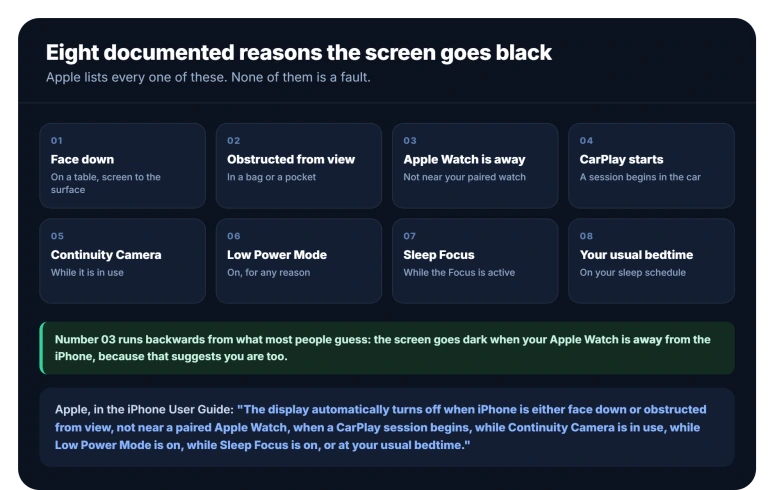
Apple states the display "automatically turns off when iPhone is either face down or obstructed from view, not near a paired Apple Watch, when a CarPlay session begins, while Continuity Camera is in use, while Low Power Mode is on, while Sleep Focus is on, or at your usual bedtime."
Pulled apart, that is eight separate triggers:
- The iPhone is face down.
- The iPhone is obstructed from view, such as in a bag or a pocket.
- It is not near a paired Apple Watch, which only applies if you wear one.
- A CarPlay session starts.
- Continuity Camera is in use.
- Low Power Mode is on.
- Sleep Focus is on.
- It is your usual bedtime.
Read that list before troubleshooting anything. A screen that goes black in the car, at night, or on a low battery is not broken.
The Apple Watch one is the least intuitive, because it works the opposite way round from the obvious guess: the screen goes dark when your watch is away from the phone, not when it is near.
Apple states the condition without explaining it, so treat any reasoning you read about why as someone guessing.
If the wallpaper is there but smeared
If your photo is clearly still on the Lock Screen but looks like it sits behind frosted glass, this is your section. Separate control, and new in iOS 26.
iOS 26 blurs the wallpaper while the display is dimmed, and it does it by default.
The switch is called Blur Wallpaper Photo, and it sits under a Customize heading inside Settings > Display & Brightness > Always On Display.
Turn it off and your photo comes back sharp on the dimmed screen.
One caveat, and it matters: Apple does not document this control. Its own page for Always-On display lists Show Wallpaper and Show Notifications and nothing else.
The name, the location and the default all come from several independent hands-on reports, so treat the wording as reported rather than official.
If your iPhone came from iOS 18 or earlier, this is also the answer to why the Lock Screen suddenly looks worse than it used to. The blur did not exist before iOS 26.
If the wallpaper is gone entirely
Two toggles control what the dimmed screen shows, and both are easy to miss, because they only appear once you are inside the Always On Display row.
- Open Settings, tap Display & Brightness, then tap Always On Display.
- Turn Show Wallpaper on or off.
- Turn Show Notifications on or off.
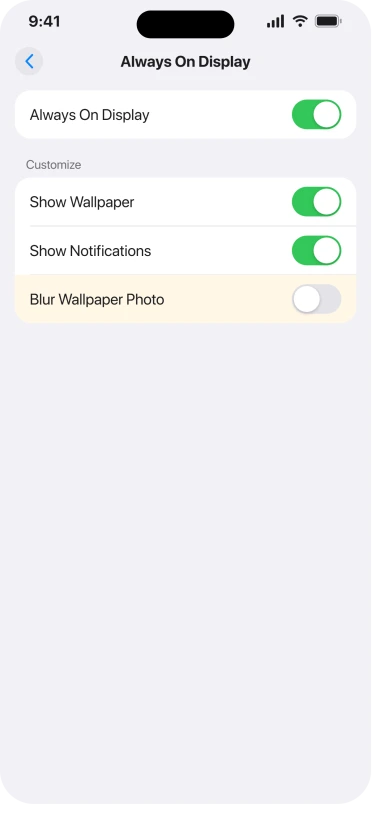
Apple frames these as a choice about what stays visible: "you can choose whether to show your wallpaper or notifications on your Lock Screen."
If your Lock Screen photo has vanished and left a mostly black screen with just the clock, look at Show Wallpaper before anything else.
That produces exactly the "my wallpaper turned black" description, and it is one switch to undo.
If you want the whole thing off
If the permanently lit, dimmed screen is the problem rather than the wallpaper, switch the feature off.
Open Settings, tap Display & Brightness, tap Always On Display, then turn off the Always On Display switch at the top of that screen.
The screen then behaves the way iPhones did before the feature existed: black when locked, lit when you wake it.
What you give up is the glance. No time, no notifications and no widgets without picking up or tapping the phone. That is the entire trade, and the same switch puts it back.
Sleep Focus and bedtime, the two that surprise people
These two get their own section because they are the pair that arrive on a schedule, which is what makes them read as something developing over time.
So an iPhone with a normal Lock Screen all day and a black one every evening is not developing a fault on a schedule. It is following your sleep schedule.
If that is unwanted, the place to look is the sleep schedule rather than Display & Brightness. Open Health, tap Browse, tap Sleep, then edit Full Schedule & Options.
To switch off the Focus itself, go to Settings > Focus > Sleep. One caution: Apple lists Sleep Focus and your usual bedtime as two separate conditions, and never defines the second one.
So changing the schedule may not settle it on its own, and Apple does not promise that it will.
If the screen dims while you are still using it
A different complaint in the same words, and unrelated to Always-On Display, because it happens while the iPhone is unlocked and in your hand.
Apple describes the normal behavior on the same page: the display "stays on while you're looking at it, but it dims and eventually locks (for your security) when you look away for a while."
The control is the timer, not the brightness:
- Open Settings, tap Display & Brightness, then tap Auto-Lock.
- Choose a longer length of time.
Apple attaches one caution, and it matters before you choose Never: "Delaying or preventing Auto-Lock may increase power consumption." That is the only thing Apple says about the cost, so treat any specific percentage elsewhere as unsourced.
If it only looks like this while charging
One more lookalike. If the dark screen with a clock on it shows up specifically while the iPhone is charging, that is StandBy, a separate mode rather than Always-On Display.
Apple's conditions for it are more particular than most descriptions suggest.
StandBy has to be switched on in Settings > StandBy, the iPhone has to be locked and connected to a charger, and Apple's own step is to "set it down on its side, keeping it stationary".
Wireless charging counts, so "plugged in" is the wrong test.
There is also a timer at Settings > StandBy > Display. On Automatically the screen "turns off when iPhone isn't in use and the room is dark", which is its own route to a dark screen while charging.
You can switch the whole mode off at Settings > StandBy, and our guide to StandBy widgets changing on their own covers the widget side.
When it is genuinely not Always-On Display
A few dark-screen reports really are something else, and they need separating from the list of triggers.
- The screen is dark but the phone is awake and responding. Always-On Display only affects the locked state, so this is brightness, and it has its own set of causes. Our guide to an iPhone screen that keeps dimming works through them, from Adaptive Power and heat to the two settings hiding under Accessibility.
- Text is hard to read rather than the screen being dark. That is the iOS 26 glass material rather than the display dimming, and our guide to dialing Liquid Glass down covers it.
- The clock changed size or style rather than the screen dimming. Different control entirely, covered in our guide to the Lock Screen clock suddenly looking huge.
If none of this applies and it is still black
Work the list, then stop. If Blur Wallpaper Photo is off, Show Wallpaper is on, Always On Display is on, Low Power Mode is off, and none of the other conditions apply, nothing on this page will change it.
At that point take it to Apple rather than toggling further.
Be clear about one thing when you ask: a screen that started this after a particular update is a different argument from one that always did it, so say which yours is.
What does not help
- Setting a new wallpaper. If Show Wallpaper is off or Always-On Display is dimming the screen, a new photo gets dimmed or hidden exactly like the old one.
- Restarting to fix an evening blackout. A screen that blanks at bedtime is following a schedule, and it will do it again tomorrow.
- Turning off Low Power Mode purely for the display. It does restore the Always-On screen, but if you are in Low Power Mode your battery is the actual problem, and our iOS 26 battery drain guide is the better place to start.
- Assuming a missing Always On Display row is a bug. Apple limits the feature to supported models.
Status: current for iOS 26.6. Apple's dimmed-Lock-Screen description and its list of blanking conditions are unchanged since iOS 26 shipped. The wallpaper blur is new in 26.
Why does my iPhone Lock Screen look dim instead of bright?
Because Always-On Display is meant to look that way. Apple describes the setting as keeping a dimmed version of your Lock Screen visible while the iPhone stays locked, so you can read the time, your notifications and your widgets at a glance without waking it.
It is on by default on supported models, which is why it starts happening to people who changed nothing.
Why does my Lock Screen go completely black sometimes?
Apple gives one sentence listing them, which unpacks into eight: the iPhone is face down, obstructed from view, away from a paired Apple Watch, in a CarPlay session, using Continuity Camera, in Low Power Mode, in Sleep Focus, or at your usual bedtime. Apple does not number them itself.
How do I get my wallpaper back on the Lock Screen?
Open Settings, tap Display & Brightness, tap Always On Display, and turn Show Wallpaper back on. With it off you get a mostly black screen showing just the clock, which is exactly what people describe as the wallpaper turning black. If the wallpaper is there but looks smeared instead, that is a different switch on the same screen.
Does turning off Always-On Display save battery?
Apple gives no number for this, so treat any specific percentage you find elsewhere as unsourced. What Apple does say is that Low Power Mode switches the feature off automatically, which tells you the two are related without telling you by how much. If battery is your real concern, turning the whole feature off is the certain version.
Does every iPhone have Always-On Display?
No. Apple limits it to supported models, so if Settings, Display & Brightness has no Always On Display row, your iPhone does not have the feature and a dark Lock Screen is something else. Auto-Lock and screen brightness are the places to look instead.
The Short Version
- A dimmed Lock Screen is Always-On Display working as designed, and it is on by default on supported models.
- Fully black has eight documented triggers: face down, obstructed, away from a paired Apple Watch, CarPlay, Continuity Camera, Low Power Mode, Sleep Focus, or your usual bedtime.
- Wallpaper there but smeared? That is Blur Wallpaper Photo, under Customize on the same screen, new in iOS 26 and on by default. Apple does not document it.
- Wallpaper gone entirely with the clock still there? Settings > Display & Brightness > Always On Display > Show Wallpaper.
- To stop it entirely: Settings > Display & Brightness > Always On Display, then the switch itself. You lose the at-a-glance clock, notifications and widgets.
- An evening blackout is your sleep schedule doing its job, so fix it there.
- No Always On Display row at all means your iPhone model does not support the feature.
Where to Next
A dim Lock Screen is almost always Always-On Display doing its job, not a fault and not a failing screen.
Decide whether you want it. It is genuinely useful for glancing at the time, and it is genuinely a battery cost.
If yours is dim with Always-On Display already off, that is a different question. Tell me in the comments and I will point you at the right setting.

Isaac Smith is the founder and editor of PC Glance, a website that covers computers, laptops, and technology. He is a tech enthusiast and a computer geek who loves to share his insights and help his readers make smart choices when buying tech gadgets or laptops. He is always curious and updated about the latest tech trends.