
Your Mac is set to Auto appearance, the evening comes, and the screen stays light. So you switch to Dark Mode by hand, night after night.
On a Mac, Auto does not watch the clock by itself. I compared one owner's macOS 27 thread with Apple's appearance and Night Shift guides, and the answer sits in two settings you may never have linked.
What the owner saw
The person asking had a MacBook Pro with an M4 Pro chip, which stopped turning dark on its own once macOS 27 was installed.
Their workaround pointed straight at the cause, as it turned out. A custom Night Shift schedule, from 22:00 to 7:00, forced the dark look. With the schedule turned off, or set to run from sunset to sunrise, the Mac stayed light.
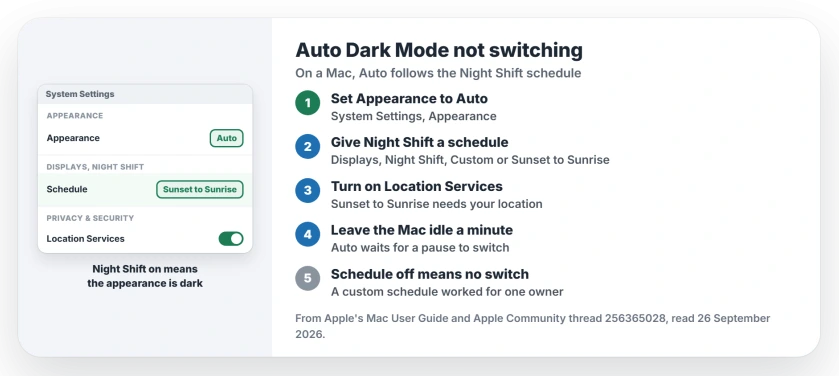
Status: macOS 27, checked 26 September 2026. Apple says Auto follows the Night Shift schedule, and Sunset to Sunrise needs Location Services. A custom schedule worked for one owner.
1. Give Night Shift a schedule
This is the link between two settings that catches owners out. Apple says in its appearance guide: "Auto switches the appearance from light to dark based on the Night Shift schedule you set."
Its Night Shift page adds the rule plainly: "When Night Shift is on, the appearance is dark." So with the schedule off, Auto has nothing to follow, and your Mac stays light. That reading is ours, not a line from Apple.
Open System Settings, click Displays, then Night Shift, and choose Custom or Sunset to Sunrise from the Schedule menu.
2. Turn on Location Services for Sunset to Sunrise
A custom schedule works from the clock alone, with no location. Sunset to Sunrise also needs to know where you are, and Apple is plain about it: "To use this option, you must turn on Location Services."
Open System Settings, then Privacy & Security, then Location Services, and turn it on. Apple's location guide tells you to scroll "to reveal System Services, then click the Details button".
Look there for the time zone setting, and turn it on if it is off. Apple's older Night Shift guide named it Time Zone & System Customization, and newer versions of macOS may word it differently.
3. Leave the Mac idle for a minute
Even with a schedule, the switch waits for a pause. Apple states: "Auto won't switch the appearance until your Mac has been idle for at least a minute."
The Sequoia version of the guide gave a second reason it can wait: "or if an app is preventing the display from sleeping, such as during media playback." So a video left playing can hold the light look.
4. Check Auto is really selected
Confirm the setting yourself rather than assume the update kept it. Open System Settings, click Appearance, and select Auto.
A Level 10 volunteer in the thread gave the same order: check Auto first, then the Night Shift schedule under Displays, and keep Location Services on for the sunset option.
5. Restart, then test a new user account
If the schedule is set and nothing changes, a Level 9 volunteer's first question applies: "Have you rebooted your Mac? If not, that's the first step."
Their next step: "If that does not correct the issue, test in a new user account." If it fails there too, send the details to Apple through its Feedback page.
Other Mac and Dark Mode problems
If your screen saver jumps in during a film, the screen saver fix shows how to hold it off. And if your iPhone goes dark when you do not want it to, the iPhone Dark Mode page lists the switches that do it.
Why won't my Mac switch to Dark Mode automatically?
Auto follows your Night Shift schedule, Apple says. With the schedule off, or Sunset to Sunrise missing your location, it stays light.
Does Auto appearance need Night Shift on a Mac?
Yes. Apple ties Auto to the Night Shift schedule you set, and the Mac turns dark while Night Shift is on.
Why does Sunset to Sunrise not work on my Mac?
Apple says that option needs Location Services. Turn it on, then check the time zone setting under System Services.
Can I use Dark Mode at night without the yellow tint?
Night Shift has to run for Auto to switch. Drag its color temperature slider toward Less Warm to keep the tint mild. That tip is ours.
The Short Version
- Auto follows the Night Shift schedule.
- Schedule off means no switch.
- Sunset to Sunrise needs Location Services.
- A custom schedule worked for one owner.
- The switch waits for a minute idle.
- Restart, then try a new account.
Where to Next
Open Displays in System Settings now and check the Night Shift schedule. If it says Off, that is your answer.
Found another setting that stopped Auto on macOS 27? Tell me in a comment, and I will check it against Apple's guides.

Isaac Smith is the founder and editor of PC Glance, a website that covers computers, laptops, and technology. He is a tech enthusiast and a computer geek who loves to share his insights and help his readers make smart choices when buying tech gadgets or laptops. He is always curious and updated about the latest tech trends.