
You are watching a full-screen video on your Mac, and the screen saver drops over it. You have not touched anything, but the video was playing, so the Mac should know you are there.
Your Mac does not count a playing video as you being there. I read one iMac owner's thread and Apple's screen saver pages, and a hot corner fixed it for them without switching the screen saver off.
What one iMac owner saw
The owner runs an iMac Pro on macOS 15.8. Their report: "Screen Saver comes on even though my screen is ACTIVE, with PBS news running on full screen."
It was new to them: "Screen Saver has never interrupted streaming before." Their first workaround was to switch the screen saver off entirely, which works but loses it for good.
A Level 7 volunteer shared a better habit, and the owner took it. In their words: "Have set a Hot Corner to disable Screen Saver."
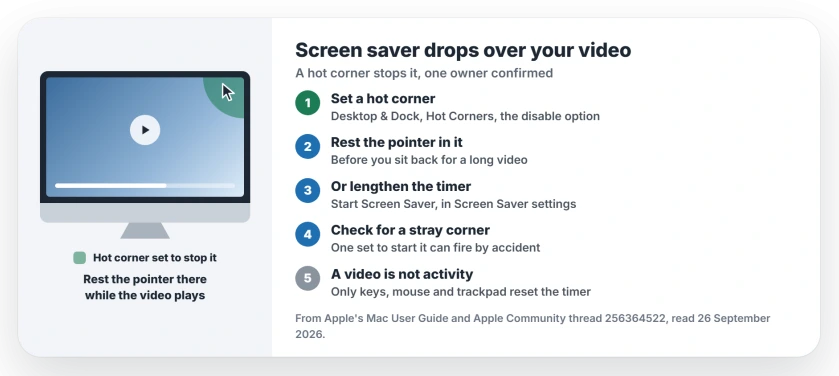
Status: macOS 15.8, checked 26 September 2026. Playing a video does not count as activity for the screen saver, a volunteer explained. A hot corner that stops it worked for the owner.
1. Why a playing video does not keep it away
Apple's screen saver guide says it "automatically starts whenever your Mac sits idle for the amount of time you choose". Idle here means no input from you at the keyboard, mouse or trackpad.
A Level 9 volunteer said it directly: "Just having a video playback on the screen does NOT count as 'active'." So a long video with your hands off the keyboard can reach the timer.
Why this owner only saw it after the update is not clear. Their timer had not changed in years.
2. Set a hot corner that stops the screen saver
Apple says you can "start or stop the screen saver when you move the pointer to a screen corner". Open System Settings, click Desktop & Dock, then click Hot Corners.
Pick a corner and, in its pop-up menu, choose the option that disables the screen saver, then click Done.
The volunteer's own routine: "I set a Hot Corner to disable Screen Saver if I don't do any mouse movements while watching a lengthy video." Rest the pointer in that corner before you sit back.
3. Or give the screen saver a longer timer
If you watch long videos often, a longer wait may suit you better. Apple's Screen Saver settings include "Start Screen Saver", which sets how long your Mac can be idle first.
Pick a time longer than most of what you watch. That trade-off is ours to suggest, since the screen saver also hides your screen when you walk away.
4. Check no corner starts it by accident
The Level 9 volunteer also suggested checking your hot corners. A corner set to start the screen saver can fire when the pointer drifts there during a video.
Apple notes that the bottom-right corner is set to Quick Note by default. Anything else there was changed from the default.
5. Get your video back
When it does start, Apple's way out is simple: "Press any key, move the mouse, or touch the trackpad." Then set the hot corner so the next video runs clear.
Other display problems
If your Windows monitor goes black instead of showing a screen saver, the black monitor page covers that. For Windows screen savers, the screen saver page explains why Microsoft points you to sleep instead.
On a Mac set to Auto appearance, idle time matters too: Apple says Auto waits for a minute of it before switching. The Auto Dark Mode page covers that and the Night Shift schedule behind it.
To change what appears during idle time, use one photo for the Mac screen saver with a dedicated image source.
A phone or laptop that dims during a video in Chrome 154 has a Chrome bug instead, and the Chrome dimming page names the fixed version.
Why does my Mac's screen saver come on during a video?
Your Mac counts input from the keyboard, mouse or trackpad, not a playing video. Once the idle time passes, the screen saver starts.
How do I stop the screen saver while watching a video on a Mac?
Set a hot corner that stops the screen saver, then rest the pointer in that corner. It is what one owner settled on.
Where is the screen saver timer on a Mac?
In System Settings, open Screen Saver, which Apple's current guide places under Wallpaper. Start Screen Saver there sets how long your Mac waits.
Is turning the screen saver off completely a good idea?
It works, and the owner did it first. A hot corner keeps the screen saver for the times you walk away.
The Short Version
- A playing video does not count as activity.
- A hot corner can stop the screen saver.
- Rest the pointer there while you watch.
- Or lengthen Start Screen Saver.
- Check no corner starts it by accident.
- Any key or mouse move ends it.
Where to Next
Set the hot corner now, before your next long video. It takes a minute in Desktop & Dock.
Did the screen saver start for you after an update too? Tell me your macOS version in the comments. I want to see whether 15.8 changed something.

Isaac Smith is the founder and editor of PC Glance, a website that covers computers, laptops, and technology. He is a tech enthusiast and a computer geek who loves to share his insights and help his readers make smart choices when buying tech gadgets or laptops. He is always curious and updated about the latest tech trends.