
watchOS 26 finally put Notes on your wrist. You open it, and it is empty, or missing the notes you actually wanted. It looks like a sync that never fired.
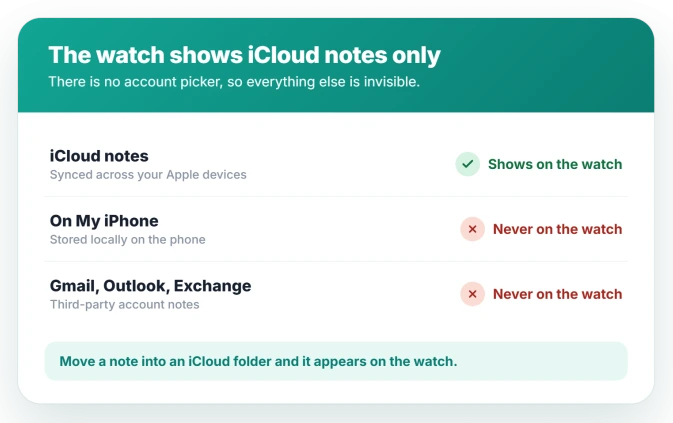
Often it never could. The watch shows iCloud notes and nothing else, so anything kept in On My iPhone, or in a Gmail or Outlook account, is not visible there. There is no account to switch to.
So the real question is not why they will not sync, but whether they are iCloud notes at all. That is a disappointing answer if you came expecting a fix, so let me help you check which kind yours are.
Point your notes at iCloud
The watch Notes app is a single iCloud list, with no folders and no account picker. If a note is not in iCloud, the watch has no way to show it, no matter how long you wait.
Three checks put your notes where the watch can reach them.
- Turn on iCloud for Notes. Open Settings, tap your name, then iCloud, tap See All, tap Notes, and turn on Sync this iPhone. With this off, notes never leave the iPhone.
- Set the default account to iCloud. Open Settings, Apps, Notes, Default Account, and choose iCloud. This one is simple to overlook: with it on On My iPhone, every new note you create on the iPhone saves locally and never syncs.
- Move the notes you already have. In the Notes app on the iPhone, open a note, tap the more button, choose Move, and pick a folder under iCloud. Local and third-party notes have to be moved, not just toggled.
Apple frames the whole feature around iCloud in Create and view notes on Apple Watch.
Remove an old notes app from the watch
If you owned an Apple Watch before watchOS 26, you may have installed a third-party notes app back when the watch had none of its own. Left behind, it sits alongside Apple Notes and is easy to mistake for it.
Removing it clears up the confusion. On the watch, press and hold the app until the icons jiggle, then tap the remove button. Or open the Watch app on the iPhone, find the old app, and turn off Show App on Apple Watch.
Give the first sync a nudge
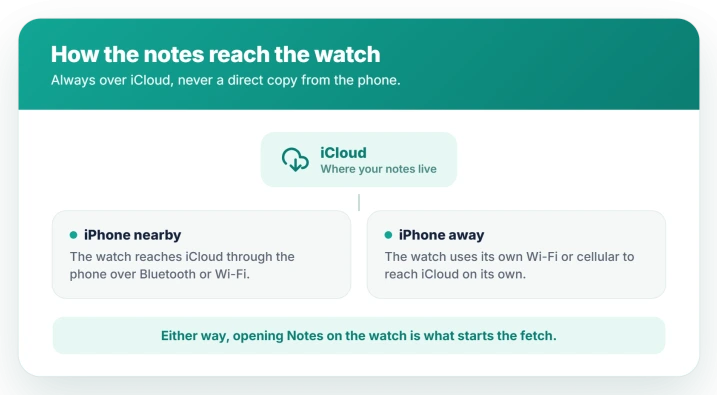
Once your notes are iCloud notes, the watch still has to pull them in. It does that through iCloud, either over the iPhone when it is close, or over the watch's own Wi-Fi or cellular when it is not.
Open the Notes app on the watch with the iPhone nearby and Wi-Fi on. Opening it prompts the watch to check iCloud, so a cold first open can look empty for a moment.
A brand-new note can take minutes to arrive, not the instant you might expect.
If it stays flaky, update the watch. watchOS 26.1 was reported to make Notes sync more reliably and faster, so an older build is worth leaving behind.
When the watch simply cannot show it
The watch app itself has limits the iPhone does not, and they are easy to blame on sync.
- You cannot edit an existing note on the watch. You can read it, tick checklist items, and make new notes, but not change the text of one already there.
- Tables, audio, PDFs, and heavy formatting do not appear. A note built around those can look blank or stripped down on the watch even though it synced.
- No Notes app at all means the watch is older than Series 6 or the SE from 2022, or it is not on watchOS 26 yet. That is availability, not syncing.
If the whole watch is out of step with the iPhone, that is an Apple Watch not connecting problem, and another iCloud service lagging is Safari bookmarks not syncing.
Status: the watchOS 26 Watch Notes app reads iCloud notes only, so On My iPhone and third-party notes cannot sync. Move them to iCloud; 26.1 was reported to improve sync reliability.
What will not fix it
When the notes are not in iCloud, a few bigger moves change nothing.
- Unpairing and re-pairing the watch. It rebuilds the connection, not the account a note lives in, so local notes stay off the watch.
- Resetting the watch. Same story. A note in On My iPhone or Gmail is still not an iCloud note afterward.
- Restarting over and over. If iCloud Notes is off, or the note is local, no number of restarts will surface it.
- Waiting longer. A local or third-party note is not slow to sync. It is not syncing at all, by design.
Why is my Apple Watch Notes app empty?
It shows only notes stored in iCloud, and it has no folders or account picker. Anything you kept in On My iPhone, or in a Gmail, Outlook, or other account, does not appear on the watch.
Turn on iCloud for Notes and move those notes into an iCloud folder to see them.
Do On My iPhone notes sync to Apple Watch?
No. Local On My iPhone notes never reach the watch, and neither do notes in third-party accounts. Only iCloud notes do.
To stop it happening with new notes, set Settings, Apps, Notes, Default Account to iCloud so everything you jot down lands where the watch can see it.
Which Apple Watch models have the Notes app?
Every model that runs watchOS 26 gets it: Apple Watch Series 6 and later, the SE from 2022, and all Apple Watch Ultra models, paired to an iPhone on iOS 26.
Older watches cannot run watchOS 26, so they never show the app.
Can I edit notes on my Apple Watch?
Not existing ones. You can read notes, tick items in a checklist, and create new notes, but you cannot change the text of a note already made. Tables, audio, and PDFs inside a note also do not show on the watch.
The Short Version
- The watch shows only iCloud notes. Anything in On My iPhone or a Gmail or Outlook account never appears, and there is no account to switch to.
- Turn on iCloud for Notes in Settings, your name, iCloud, See All, Notes, Sync this iPhone, and set Settings, Apps, Notes, Default Account to iCloud so new notes go there.
- Move existing local or third-party notes into an iCloud folder in the Notes app on the iPhone.
- Open Notes on the watch with the iPhone nearby and Wi-Fi on to start the first sync, and update to watchOS 26.1 or later, where sync was improved.
- Remove any old third-party notes app from the watch so it is not confused with Apple Notes.
Where to Next
And if Stocks has stopped updating its prices, that is rarely anything on the device.
Music syncs by a different route again, and fails in its own way. Apple Watch music not syncing on watchOS 26 walks through where it stalls.
- The whole watch not syncing with the iPhone: Apple Watch not connecting to iPhone
- Another iCloud service not syncing: Safari bookmarks not syncing on iOS 26
- Alerts not reaching the watch: Apple Watch not getting notifications

Isaac Smith is the founder and editor of PC Glance, a website that covers computers, laptops, and technology. He is a tech enthusiast and a computer geek who loves to share his insights and help his readers make smart choices when buying tech gadgets or laptops. He is always curious and updated about the latest tech trends.