

You tap into a note or a message on iPadOS 26, the keyboard slides up, and it lands on top of the line you are writing. You cannot see what you type.
The first thing to check is not in the keyboard settings at all. It hides in Display and Brightness, under a zoom option with no obvious link to typing.
The tell is simple: if the keyboard looks oversized with a space bar only about two keys wide, that is the one. If it looks normal but still hides your text, a different cause is at work.
It is a maddening little fault, and I will show you both.
Set Display Zoom back to Default
Open Settings, Display and Brightness, then Display Zoom. If it is set to Larger Text, that is almost certainly why the keyboard is swallowing the screen.
Choose Default instead, or More Space if your iPad offers it. The screen blinks and re-lays out, and the keyboard returns to a normal size that sits under the field again.
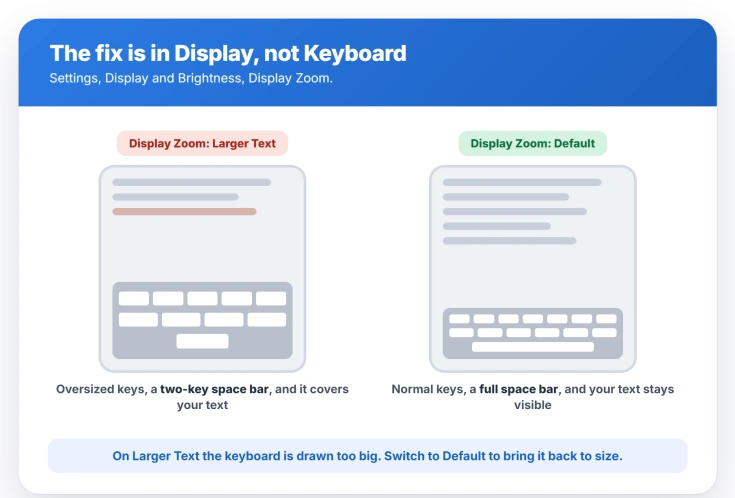
On Larger Text, the iPad draws the keyboard too big for the app to work around, so it covers the input line, with those oversized keys and the stubby space bar as the giveaway.
Not every iPad has Display Zoom, so if you do not see it, move on.
Un-split or dock a floating keyboard
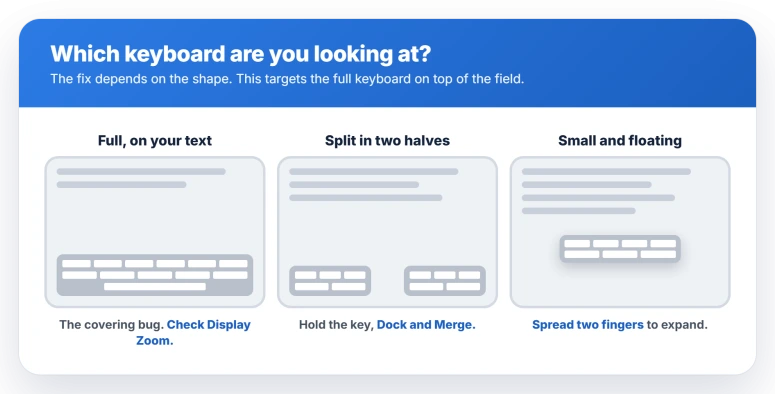
If the keyboard is torn into two halves, or shrunk into a small pad floating over your text, that shape is a keyboard layout you can switch back in a couple of gestures.
Touch and hold the key in the bottom-right corner, the one with the keyboard or globe symbol, and choose Merge or Dock and Merge to set it back at the bottom in one piece.
To expand a floating keyboard, spread two fingers apart on it, or drag it by its base down to the bottom of the screen.
To stop it splitting again, open Settings, General, Keyboard, and turn off Split Keyboard.
Apple lists these gestures in Move the onscreen keyboard.
When the keyboard will not follow the cursor
A separate iPadOS 26 bug leaves the full keyboard in place but stops it tracking your cursor, so as you type down a page the words slide under it.
This one shows up most in Notes and Messages, and it is a genuine fault, not a setting.
Rotating the iPad to landscape and back nudges the view to reset, which clears it for that note or message, though only until the next one.
For notes kept in an old email account rather than iCloud, moving them into the iCloud account has helped some people.
Apple has not named this one in its release notes, and it was still around as of iPadOS 26.3, so keep the iPad updated but do not expect a single switch to end it.
This is the keyboard, not the window. If the app window itself is opening as a tiny box, that is an iPad window shrinking.
A few less common triggers
If none of those fits, a handful of narrower causes remain.
For initial hardware setup, follow the iPad keyboard connection steps before diagnosing the onscreen layout.
- A Bluetooth keyboard. A paired hardware keyboard can leave the on-screen one behaving oddly. Disconnect it in Settings, Bluetooth to test, and turn on Settings, General, Keyboard, Show On-Screen Keyboard if you need the software keyboard back. On iPhone the equivalent switch sits elsewhere, which we cover in iPhone keyboard not showing up. If the external keyboard's own keys or trackpad are failing, that is a separate Magic Keyboard trackpad problem.
- Hover Typing. A few people cleared an erratic keyboard by turning Hover Typing on, then off, then restarting. It lives in Settings, Accessibility, Keyboards and Typing.
- VoiceOver typing. VoiceOver users hitting keyboard trouble can switch between Standard and Touch typing in Settings, Accessibility, VoiceOver, Typing, which resolves it for some.
Status: on iPadOS 26, a keyboard covering the field is usually Display Zoom set to Larger Text, which you can fix now. A separate scroll bug in Notes and Messages is not fully fixed through 26.3.
What will not fix it
For the covering problem, some common attempts do nothing.
- Reinstalling the app. The keyboard layout is a system behavior, so a fresh copy of Notes or Messages acts the same.
- Resetting or restoring the iPad. It will not change a Display Zoom setting you never touched, and it will not patch the scroll bug.
- Buying a different keyboard. This is the on-screen keyboard, so new hardware is beside the point unless a hardware keyboard was the trigger.
- Waiting for a single fix. The Display Zoom cause is a setting you can change now, so nothing is pending there, and the scroll bug has no one switch to flip.
Why is my iPad keyboard covering the text I'm typing?
Most often, Display Zoom is set to Larger Text, which makes the keyboard too big and drops it on top of the field. Setting Display Zoom back to Default fixes it.
If the keyboard is a normal size but still will not move as you type, that is a separate iPadOS 26 bug, worst in Notes and Messages.
How do I make the iPad keyboard smaller on iPadOS 26?
Open Settings, Display and Brightness, then Display Zoom, and choose Default, or More Space on iPads that offer it.
Larger Text inflates the whole layout, including the keyboard, so switching away from it brings the keys back to their normal size.
How do I fix a split or floating iPad keyboard?
Touch and hold the keyboard key in the bottom-right corner and choose Merge or Dock and Merge. To grow a small floating keyboard, spread two fingers apart on it.
To stop it splitting, turn off Split Keyboard in Settings, General, Keyboard.
Did iPadOS 26 fix the keyboard covering text?
Partly. iPadOS 26.0.1 fixed a floating keyboard that moved on its own, but the bug where the keyboard will not scroll the field into view was not in those notes and was still reported through 26.3.
The Display Zoom fix, though, works right now.
The Short Version
- Check Settings, Display and Brightness, Display Zoom first. If it is on Larger Text, set it to Default. The sign is an oversized keyboard with a space bar only about two keys wide.
- If the keyboard is split or floating, hold the keyboard key and choose Merge or Dock and Merge, or turn off Split Keyboard in Settings, General, Keyboard.
- The genuine bug, where the keyboard will not follow the cursor down a note, is worst in Notes and Messages. Rotating to landscape and back clears it for that note.
- Disconnect a Bluetooth keyboard to rule it out, and VoiceOver users can switch between Standard and Touch typing.
- The scroll bug is not fully fixed through iPadOS 26.3, so keep the iPad updated, but the Display Zoom fix does not need an update.
Where to Next
And if capitals stop happening on their own, that is a setting rather than the keyboard.
Where a shortcut you saved refuses to expand into its phrase, that has six fixes of its own.
- An external keyboard's trackpad or keys not working: Magic Keyboard trackpad not working on iPadOS 26
- App windows opening tiny or laid out wrong: iPad window shrinks to a tiny box
- The menu bar missing when you swipe down: iPad menu bar not showing on iPadOS 26

Isaac Smith is the founder and editor of PC Glance, a website that covers computers, laptops, and technology. He is a tech enthusiast and a computer geek who loves to share his insights and help his readers make smart choices when buying tech gadgets or laptops. He is always curious and updated about the latest tech trends.