
Your Lock Screen wallpaper keeps changing on its own and you never asked it to. If you have looked this up already, you have been told it is Photo Shuffle.
And if you never turned Photo Shuffle on, that advice leaves you stuck. I think that is why this one is so maddening to search for.
There is a second thing that swaps the whole Lock Screen, and it can fire on a timer, in a particular place, or the moment you open one app.
Your wallpaper changes at six every evening
Then again at seven the next morning. Nothing in Wallpaper settings does that.
A Focus does. Photo Shuffle gives you a new photo inside the same Lock Screen, but a Focus gives you a different Lock Screen entirely, with its own clock font, its own widgets and its own wallpaper.
Apple's custom Lock Screen page sets up the link, and the Focus page lists what can pull the trigger: "You can schedule a Focus to turn on at certain times, when you're at a particular location, or when you open a specific app."
Read that last part again. Your Lock Screen can change when you arrive somewhere, or when you open one particular app.
A wallpaper change and walking into the office do not look connected, which is why this one goes unsolved.
Open Settings > Focus and go through each one, looking at where its schedule is set.
Apple documents the Lock Screen link from the other side, in the wallpaper gallery, so check it there too: touch and hold the Lock Screen and see which one carries a Focus label.
An empty schedule does not clear a Focus, though.
Two things fire one without any schedule at all, and our guide to a Focus blocking calls found both: a Mac, iPad or Watch left in Do Not Disturb pushes the same Focus onto your iPhone over iCloud when Share Across Devices is on, and a Shortcuts automation you set up once and forgot will do it too.
The custom Lock Screen page attaches a warning to all of this that catches people going the other way: "If a Lock Screen links to a specific Focus, switching from that Lock Screen to another also switches your Focus." So swiping to a different Lock Screen to escape the problem quietly changes your notification settings as well.
For a deliberate image change, choose a wallpaper pair or edit one screen before checking whether Focus switches it again.
To silence alerts deliberately, start Do Not Disturb from Control Center without selecting another wallpaper.
Photo Shuffle, if you did pick it
Rule it out in two taps so you can stop thinking about it.
Touch and hold the Lock Screen, swipe to the wallpaper, tap Customize, then tap the three dots to reach the shuffle frequency.
Apple's wallpaper article names the options in one line: "Choose a shuffle frequency (On Tap, On Lock, Hourly, or Daily)."
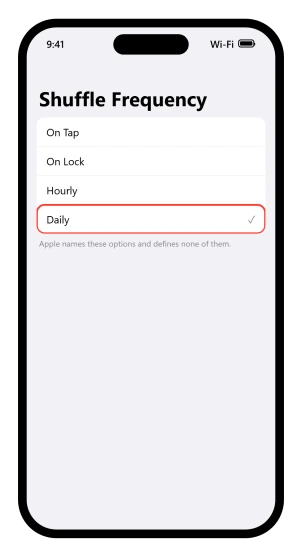
Neither that article nor the iPhone guide says what those options individually do.
The names are listed and never defined, so any page confidently explaining the difference between On Tap and On Lock is describing what they saw rather than quoting anyone.
The three dots have two names as well, depending on which Apple page you read. The iPhone guide's image calls it the More button. The support article's prose calls it the ellipsis button. Same control.
To stop it for good, swipe up on that Lock Screen, tap the Trash button, then Delete This Wallpaper.
One side effect sends people looking in the wrong place. A shuffling wallpaper is reported to resize the Lock Screen clock to fit each new photo, so a clock you shrank keeps springing back.
Our guide to a Lock Screen clock that will not stay small covers that half.
If the clock is your actual complaint rather than the picture, start there.
It changes overnight and every Focus schedule looks empty
Then the trigger is not in Settings at all.
Sleep Focus runs from somewhere else entirely.
Apple: "When you set up a Sleep Focus, it follows the sleep schedule you set in the Health app." And it flips twice a day: "Your Sleep Focus turns on or off again at your next scheduled bedtime or wake up time."
So anyone auditing Settings > Focus finds nothing, because the schedule driving it lives in Health.
To stop it:
- Open Health and tap Browse.
- Tap Sleep, then scroll to Your Schedule.
- Tap Full Schedule & Options.
- Turn off Use Schedule for Sleep Focus.
Your sleep schedule itself survives that.
Apple: "your sleep schedules remain in effect, but your Sleep Focus doesn't automatically turn on." It says nothing about one-off alarms, so check those yourself if you rely on them.
The album art that is not your wallpaper
Leave music or a podcast playing and the Lock Screen fills with cover art, then goes back to normal later.
Apple's own page covers half of it in writing, saying you can control media playing on a remote device such as an Apple TV or a HomePod from your Lock Screen.
That is why this can start with no app open on the phone at all, when something is playing on a speaker in another room.
The full-screen cover art itself is only described in that page's image, as "an album cover and below it the controls for music playing on a remote device".
If your wallpaper only "changes" while something is playing, that is this, and there is nothing to fix.
On a charger, on its side, you are not looking at the Lock Screen
You are looking at StandBy, which is a different feature with a different off switch at Settings > StandBy.
The StandBy page describes it as a way "to turn your iPhone into a bedside clock, a photo frame, a display for viewing widgets or Live Activities in full screen, and more".
That photo view puts your own pictures on the screen instead of your Lock Screen, which is easily read as a wallpaper that will not sit still.
It also remembers a different view per MagSafe charger, which is why it behaves one way at the desk and another at the bedside: "In each location where you charge iPhone with MagSafe, StandBy remembers your preferred view, whether that's a clock, photos, or widgets."
Re-check that switch after an update.
Our guide to StandBy widgets changing by themselves found that iOS 26 does not reliably hold StandBy settings across a restart.
One face keeps arriving on the screen you unlock all day
Nothing in the shuffle settings will stop it, because the shuffle settings are not choosing it.
When Photo Shuffle is set to a category rather than an album, Apple's examples being People, Nature and Cities, the pictures come from the Photos app rather than from Wallpaper.
So the controls do too.
Apple's featured content page gives you Feature This Person Less and Never Feature This Person, plus a blanket switch: turn off Show Featured Content "to prevent Photos from automatically generating featured photos and memories".
Changed your mind later? The same screen has Reset People & Pets Suggestions.
Reshuffling the same category will not help here, because the pool is built somewhere else. Picking an album by hand instead of a category will, but only for that one wallpaper.
If it went black rather than changing
That is a different switch, not a different wallpaper.
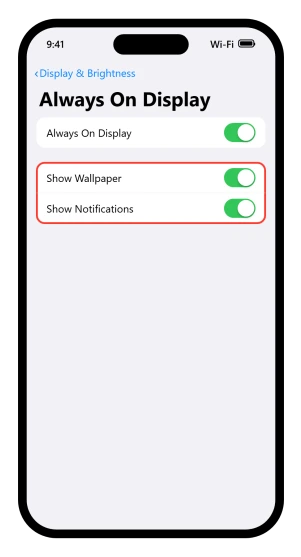
Show Wallpaper, under Settings > Display & Brightness > Always On Display, decides whether the dimmed screen keeps your photo. With it off you get a clock on black.
Our guide to an iPhone Lock Screen going dark walks the whole list, including the conditions that blank the screen completely.
When you have checked all of it
Log the exact time it happens, two days running, and the pattern names the cause.
Tied to a place or an app, it is a Focus. Tied to the charger, it is StandBy. On the hour, every hour, it is Photo Shuffle set to Hourly. Overnight with nothing scheduled, it is Sleep Focus.
If it is none of those and the timing stays irregular, the last two candidates are the ones with no schedule to find: a Focus arriving from another Apple device over iCloud, and a Shortcuts automation.
Turn Share Across Devices off for a day and see whether it stops. If it does not, the settings on this page have run out, and that is the point to ask Apple Support directly.
Status: written against iOS 26.6. The shuffle frequency names come from Apple's support article, not the iPhone guide. That article has no version selector, so currency came from its own text.
Why does my iPhone Lock Screen wallpaper keep changing by itself?
Usually a Focus rather than Photo Shuffle. A Focus can be linked to its own Lock Screen and can turn itself on by time, by location, or when you open a specific app, which swaps the whole screen. Check Settings, Focus, then each Focus for a schedule and a linked Lock Screen.
How do I stop Photo Shuffle on my iPhone?
Touch and hold the Lock Screen, swipe to that wallpaper, then swipe up on it and tap the Trash button, then Delete This Wallpaper. To keep it but slow it down, touch and hold the Lock Screen, tap Customize, then tap the three dots and change the shuffle frequency. Apple offers On Tap, On Lock, Hourly and Daily.
Why does my wallpaper change overnight?
Most often Sleep Focus, which does not use a schedule in Settings. Apple says it follows the sleep schedule set in the Health app and flips at your bedtime and wake time. Turn it off at Health, Browse, Sleep, Full Schedule and Options, then Use Schedule for Sleep Focus.
Why did my Lock Screen wallpaper turn black?
That is a different setting from the ones that swap the picture. Show Wallpaper, under Settings, Display and Brightness, Always On Display, decides whether the dimmed screen keeps your photo. With it off you get a clock on black, which reads as a wallpaper that vanished rather than one that changed.
The Short Version
- A Focus swaps the entire Lock Screen, and it can fire by time, by location, or when you open one app.
- An empty schedule does not clear a Focus. Share Across Devices and a forgotten Shortcuts automation both fire one.
- Photo Shuffle is something you pick, from the top row of Add New Wallpaper, and it does not arrive switched on.
- Sleep Focus is scheduled in the Health app, not in Settings, which is why Focus schedules look empty.
- Switching Lock Screens can switch your Focus, so the obvious fix has a side effect.
- Album art and StandBy are not wallpaper changes, and StandBy remembers a different view per MagSafe charger.
- The photo pool for People and Pets is built in the Photos app, so the fix for an unwanted face is there.
- A black Lock Screen is Show Wallpaper, under Settings > Display & Brightness > Always On Display.
Where to Next
If Photo Shuffle is off and the wallpaper still changes, stop chasing Photo Shuffle. A Focus swaps the whole Lock Screen, and it can be triggered by a time, a place or an app you open without thinking.
Work out when yours changes, because the trigger is the answer.
One thing that should appear on that screen and often does not: the Apple TV remote on your iPhone lock screen.
Tell me in the comments what time of day it happens, or where you are when it does, and I will tell you which Focus to go and look at.

Isaac Smith is the founder and editor of PC Glance, a website that covers computers, laptops, and technology. He is a tech enthusiast and a computer geek who loves to share his insights and help his readers make smart choices when buying tech gadgets or laptops. He is always curious and updated about the latest tech trends.