
You set the alarm. You went to sleep. Then you woke up on your own, late, and found the phone lit up on the nightstand with the alarm "ringing" on screen, the Snooze button right there, and not a single sound coming out.
Or it went off only as a faint buzz in AirPods across the room. After iOS 26, both are common, and the fix usually takes under a minute.
Some causes are settings that got nudged, one is a genuine Apple bug, and a rare one is the speaker itself. Work top to bottom and you will land on yours.
Let me take you through what actually silences an alarm, because it is rarely the one people blame.
First, raise the volume that actually controls the alarm
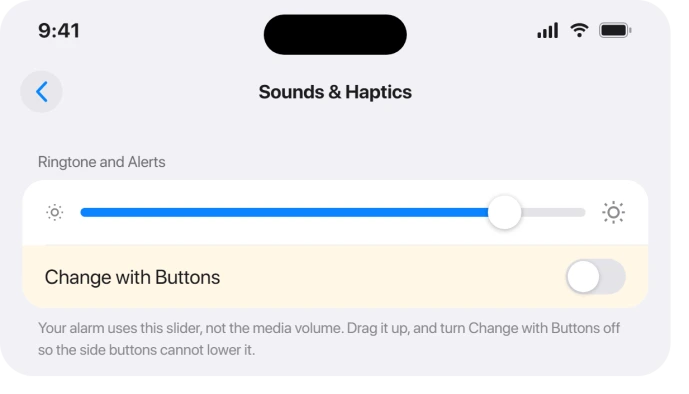
Your alarm does not use the media volume (the one that changes when you play music or a video). It uses the Ringtone and Alerts slider, a completely separate control.
If that slider is low, the alarm is quiet no matter how loud your last song was.
Go to Settings > Sounds & Haptics, and under Ringtone and Alerts, drag the slider up toward the top. Apple's own guidance: "drag the slider left or right to set the volume. As you drag, an alert will play, so you can hear how the volume changes." That preview tone matters, more on that in a second.
Right under the slider is Change with Buttons.
If it is on, your physical side buttons can lower the alarm volume during the day without you realizing it, so a movie at low volume on the couch can silence tomorrow's wake-up.
Turning Change with Buttons off locks the alarm loudness to the slider so the side buttons only touch media.
One oddity worth knowing: several people on iOS 26 report the slider showing full but the alarm still firing silent.
Dragging the slider once (so it plays the sample tone) seems to "wake up" the alarm volume after the update, even when it already looked maxed. It costs you two seconds, so do it.
On iOS 27 there is one more slider to check, because alarms can now have a volume of their own. Apple's iOS 27 alarm guide says to go to Settings, Sounds & Haptics, and look below Alarms and Timers.
There you can "Turn off Match Ringtone Volume, then drag the volume slider." If Match Ringtone Volume is already off, that slider decides how loud your alarm rings, so turn it up.
Or switch Match Ringtone Volume back on, and the alarm follows Ringtone and Alerts again.
Check that the alarm's Sound is not set to None
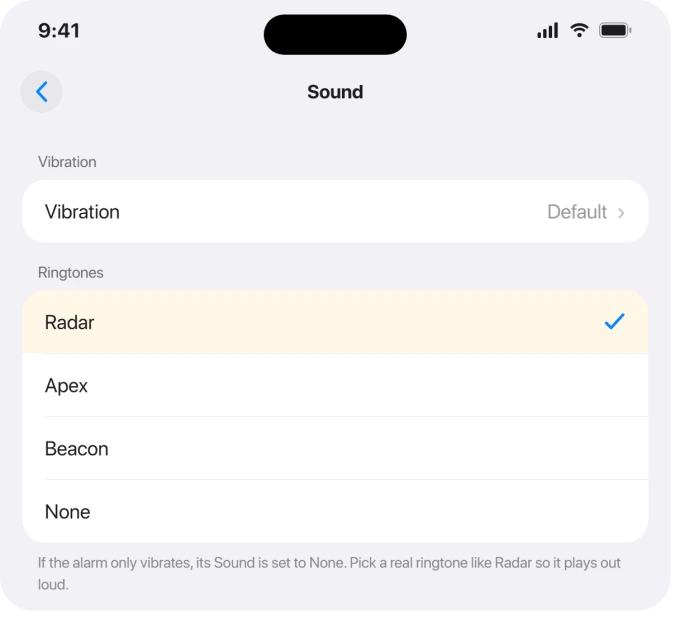
This is the single most common reason an alarm "goes off" but only vibrates.
iOS 26 quietly reset some existing alarms' Sound to None, so the alarm fires on schedule, the screen lights up, the phone buzzes, and no tone ever plays.
9to5Mac described it plainly: people found "their iPhone alarm sound has been recently changed to None, which means they go off silently." It noted "it perhaps is related to older alarms that use some of the Classic tone options." The Clock app is affected, not third-party apps.
Open the Clock app > Alarms tab > Edit, tap the alarm, tap Sound, and pick a real ringtone instead of None.
Apple's alarm instructions are identical: "If your alarm only vibrates, make sure that your alarm sound isn't set to None."
Sound and Vibration are independent settings, so a vibrate-only alarm almost always means Sound is None while a vibration pattern is still on.
If nothing on the phone vibrates rather than just the alarm, the switches are in iPhone not vibrating on iOS 26.
While you are there, if your alarm Sound is a song from your library, switch it to a built-in ringtone to test. That change fixes a separate iOS 26 problem covered further down.
Turn off Attention Aware Features (the genuine iOS 26 bug)
This is the marquee bug, and it is sneaky.
Attention Aware Features uses Face ID to tell when you are looking at the screen, and by design it lowers the volume of some alerts when it senses your attention.
On iOS 26.0 and 26.0.1 it misfired on alarms.
The result: the moment you picked up the phone and looked at it, the alarm dropped to about half volume or less, and in some reports cut off after a few seconds.
An Apple Community user summed it up: "If enabled while looking at the phone the volume of alarms in the clock are low, half volume or less. Turning off Attention Aware Features fixes the issue."
To switch it off, go to Settings > Face ID & Passcode, enter your passcode, and toggle Attention Aware Features off.
If Face ID itself has been misbehaving since iOS 26, that has its own set of fixes.
(The same control also lives at Settings > Accessibility > Face ID & Attention if you prefer that route.)
Apple reportedly fixed this in iOS 26.1, so alarms play at full volume regardless of the toggle.
If you are on 26.1 or later you should not need this workaround, but turning it off is still the reliable safeguard if alarms keep going quiet when you reach for the phone.
If it only plays through your AirPods, fix the routing
This is the "faint buzz in the earbuds across the room" scenario. When AirPods, a Bluetooth speaker, or a car stereo stays connected, iOS 26 can send the alarm to that device instead of the phone speaker.
If the earbuds are out of your ears, in their case, or dead, you hear nothing useful.
One Apple Community user described exactly this: "the alarm sound only comes through the earphones… if I take them out during the night, but let them plugged into the phone (usb-c) or I just simply lose them when rolling from one side to the other, then I will not hear the alarm at all."
Another wrote: "Today I arrived late to a work appointment because of that bug… the alarm didn't sound on the iPhone speakers, only on the earphones that were far away from me."
The simplest fix is to disconnect before bed. Put AirPods back in their case, or open Settings > Bluetooth and toggle it off for the night so the alarm has no choice but the built-in speaker.
You can also long-press Now Playing in Control Center and pick iPhone via the AirPlay icon.
There is a sharper fix for one specific case. If your alarm Sound is a song you bought from Apple Music, the routing bug latches onto it.
The user above confirmed: "changing the alarm sound to a ringtone and then it sounds fine. If it is a song (that I bought on Apple Music) then it only rings through the earphones." So set a built-in tone for your wake-up alarm and keep songs for casual timers.
One more thing about Bluetooth: connecting to a device can drop the on-phone ringer volume toward zero, and it can stay there.
After you disconnect, press Volume Up or re-check the Ringtone and Alerts slider so the speaker is actually turned up.
The myth to skip: Silent mode and Focus do NOT mute alarms
Plenty of advice online tells you to check Silent mode or turn off a Focus. Skip it. Apple is explicit: "Do Not Disturb, the Ring/Silent switch, and Silent mode don't affect the alarm sound. If you use the Ring/Silent switch or Action button to turn on Silent mode or turn on Do Not Disturb, the alarm still sounds."
The same goes for every Focus mode, including Sleep. Focus can stop calls from ringing, but alarms are exempt.
An alarm sounds whether or not the phone is on silent, as long as it has battery and is powered on.
So a silent alarm is not the mute switch's fault, and flipping it will not fix anything.
The one nuance: Sleep Focus can swap your chosen tone for a gentler wake-up sound, which can feel quieter. That is a softer tone, not a muted alarm, and it is not the cause of true silence.
If you use Sleep Schedule (Health) or an Apple Watch
The Wake Up alarm from Sleep Schedule (set in the Sleep tab of Clock, or in Health) is a different system from a regular Clock alarm, and it has its own quirks.
With AirPods connected, one user reported the wake-up screen appeared but "neither the phone or AirPods make any noise… even if the AirPods do still have battery and are playing music or a podcast, there is still no noise for an alarm." Standard Clock alarms worked fine for them.
If you wear an Apple Watch to bed, the Sleep alarm by default goes to the Watch as a wrist tap and stays silent on the iPhone. If the Watch volume is low, you may barely feel or hear it.
For reliability, set a normal alarm in the Clock > Alarms tab instead of leaning on Sleep Schedule.
Good news if you are on a recent build: iOS 26.4 added an Always Play on iPhone toggle for Sleep Schedule alarms.
Edit your Sleep Schedule in Clock or Health and turn it on, and the wake-up alarm sounds on the iPhone as well as the Watch.
It is off by default and only applies to Sleep Schedule, not one-off alarms.
New on iOS 27: the alarm only flashes. One owner described it: "the alarm activates at the correct time and the rear flashlight flashes", with no sound or vibration. Their fix was the watch.
In their words: "Updating my paired Apple Watch to watchOS 27 fixed the problem." To update, open the Apple Watch app on your iPhone. Apple's steps go on: "then tap the My Watch tab. Tap General, then tap Software Update."
Not every watch can take it. Apple lists watchOS 27 for the "Apple Watch SE 3", Series 9 and later, and Ultra 2 and later.
Another owner wrote: "I faced the exact same issue and i unpaired my old apple watch". It could not update to watchOS 27, and once it was unpaired, the alarm rang and vibrated again.
A watch is not the only cause, though. An owner with no Apple Watch at all still has silent alarms on iOS 27, so keep working down this page.
A few smaller settings worth ruling out
StandBy mode (the phone charging on its side, landscape) disables alarm haptics. The sound still plays, per Apple, but if you rely on the buzz to wake you, you will miss it.
Turn off Settings > StandBy if you charge horizontally overnight.
Reduce Loud Sounds under the Built-In Speaker section will not cap an alarm on the phone speaker, so leave it alone for speaker problems.
But Headphone Safety > Reduce Loud Audio does throttle volume sent to AirPods and Bluetooth.
If your alarm is routing to earbuds and sounds weak, toggle it off to test.
If the buds sound bad all day, not just for alarms, you may be dealing with AirPods cutting out on iOS 26 instead.
Avoid manually changing the clock. Apple warns that "manually adjusting the time on your iPhone in Settings… can affect alarms." Keep Set Automatically on under Date & Time.
When standard fixes do not stick: update, restart, recreate
If none of the above holds, work through the recovery steps. First, Settings > General > Software Update and install the latest version, since Apple shipped alarm and volume fixes across the 26.x point releases.
Next, restart the iPhone to clear audio glitches: hold the Side button + a Volume button, slide to power off, then hold the Side button until the Apple logo appears.
A clean restart often un-sticks a Clock or routing glitch.
If a specific alarm still misbehaves, delete it and recreate it from scratch with the Sound set to a real tone. Migrated alarm settings from the update are a known culprit, and a fresh alarm sidesteps them.
Setting two or three staggered backup alarms is cheap insurance until your wake-up is trustworthy again.
As a last software resort, Settings > General > Transfer or Reset iPhone > Reset > Reset All Settings clears system settings without deleting your data. It is heavier-handed, so save it for when nothing else works.
Even on later builds, some cases persist
Set expectations.
Even after iOS 26.1's fix and into 26.2, a slice of users report alarms going silent, the volume "setting itself to 20% for no reason," or the sound stopping mid-alarm while the screen still shows it ringing.
On iOS 26.2 a fresh wave reported "my alarms have no volume" right after updating, with dozens of "Me too" replies.
If you hit one of these, lean on the layered defense: a real Sound (not None), the Ringtone and Alerts slider up, Change with Buttons off, Bluetooth disconnected at night, and a backup alarm.
No first-party Apple statement formally acknowledging the iPhone silent-alarm bug has been confirmed, so treat any "Apple is shipping a fix" rumor with caution.
When it is the speaker hardware, not software
The quick test: does anything else sound wrong? The silent-alarm bug only affects the alarm. If your phone sounds normal otherwise (ringtones, speakerphone, videos), it is software, and the fixes above apply.
But if sound is faint or muffled across everything, suspect the speaker.
Record a quick Voice Memo and play it back through the speaker, then test a ringtone and speakerphone, all with the case removed and Bluetooth off.
If those are also weak or absent, no iOS update is to blame.
Lint, dust, a thin film, or moisture in the speaker grille muffles output, and steam or water can mute it temporarily until it dries. Clean the grille gently with a soft-bristled brush.
If playback is still muffled after cleaning and software resets do not help, the speaker likely has a hardware fault and needs repair.
The Short Version
- Alarm volume lives at Settings > Sounds & Haptics > Ringtone and Alerts, not media volume. Drag it up and turn Change with Buttons off.
- Check Clock > Alarms > Edit > tap alarm > Sound is a real tone, not None. iOS 26 reset some to None.
- Turn off Settings > Face ID & Passcode > Attention Aware Features. It quieted alarms when you looked at the phone (fixed in 26.1).
- If it only plays in AirPods, disconnect Bluetooth before bed, and use a built-in ringtone instead of an Apple Music song.
- Silent mode and Focus do NOT mute alarms. That is a myth, do not waste time on it.
- Still broken: update iOS, restart, delete and recreate the alarm, set a backup. If all sound is muffled, suspect the speaker, not iOS.
Where to Next
Where the phone will not name a song rather than sound an alarm, Music Recognition has its own status.
And if silent mode has disappeared from the Action button choices, there is a reason for it.
- More iOS 26 fixes: iOS 26 Problems and Fixes
- Back to the start: pcglance home

Isaac Smith is the founder and editor of PC Glance, a website that covers computers, laptops, and technology. He is a tech enthusiast and a computer geek who loves to share his insights and help his readers make smart choices when buying tech gadgets or laptops. He is always curious and updated about the latest tech trends.