
You fire off a quick reply, the letters show up a half-beat behind your thumbs, and then a couple just never land. "Thanks" goes out as "thaks." Autocorrect, trying to be helpful, turns it into something worse.
Most people can clear the worst of it in a few minutes of settings changes. A couple of fixes need a software update to truly land. Work top to bottom, easiest first, and stop when typing feels right again.
Let me show you what is really behind it, because the keyboard itself is usually fine.
Lighten Liquid Glass first
Liquid Glass is iOS 26's headline look, all translucency, blur, and morphing animation. It is not just a theme.
It changes how the whole interface renders, and on a lot of phones that extra graphics work shows up as a sluggish keyboard.
The same load is behind a lot of iOS 26 battery drain too.
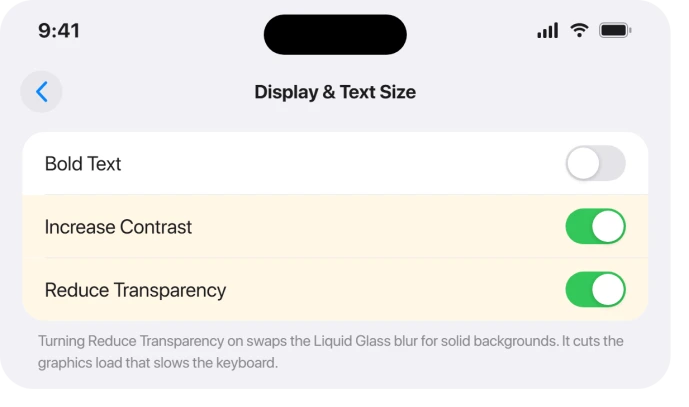
Two accessibility switches take most of that load off. Turn on Settings > Accessibility > Display & Text Size > Reduce Transparency, then turn on Settings > Accessibility > Motion > Reduce Motion.
Reduce Transparency swaps the blurred glass backgrounds for solid fills, which kills the real-time blur compositing. Reduce Motion cuts the morphing animations behind the keyboard sliding up and down.
On older iPhones (11, 12, 13) BGR found Reduce Transparency "eliminates the GPU overhead entirely."
Apple itself confirms the link.
Its iOS 26 guide for Reduce Motion notes that when the toggle is off "you'll see more motion, like the fluid morphing effects of Liquid Glass." Turning it on is the documented way to suppress that animation.
If you are on iOS 26.1 or later and do not want the full accessibility look, there is a lighter touch. Go to Settings > Display & Brightness > Liquid Glass and switch from Clear to Tinted.
On iOS 27 that control lives under Settings > Appearance > Liquid Glass, and it is now a slider. Apple's iOS 27 display guide says to drag it right to increase the tint.
That makes the glass more opaque and less demanding without changing every screen. The same settings fix iOS 26 notifications that are too faint to read.
This is one of the most-cited fixes across the iOS 26 keyboard complaints, though it targets general responsiveness more than the specific dropped-letter bug.
As OSXDaily put it, Reduce Transparency and Reduce Motion together give you "an iOS 26 experience that looks and feels more like iOS 18 while retaining all the functional improvements."
Turn off keyboard haptics
This one surprises people.
The little vibration on every keypress fires the Taptic Engine each time, and on some phones that adds just enough delay to feel like lag, sometimes with a stuttering keyboard sound to match in browsers.
Go to Settings > Sounds & Haptics > Keyboard Feedback and turn Haptic off.
(You can leave Sound on or turn it off too.) That is the only place this toggle lives in iOS 26, not under General > Keyboard, so do not go hunting there.
Apple Community users zeroed in on this exact cause. One found that flipping the phone to Silent Mode fixed it without even disabling haptics: "turning silent mode on fixes the haptics and keyboard response."
So if you would rather keep the buzz, try Silent Mode at the desk and see if the lag clears.
Do both and the phone may stop vibrating for everything, not just typing, which is covered in iPhone not vibrating on iOS 26.
Switch off Slide to Type
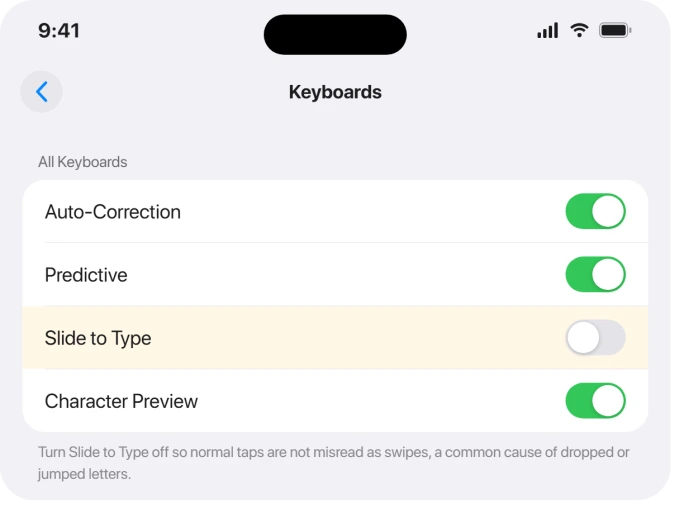
iOS 26 tries to read subtle finger movement as a swipe, even when you are tapping normally.
That confuses the touch and prediction engine, and it is a known cause of letters dropping, repeating, or jumping to a neighboring key.
Turn off Settings > General > Keyboard > Slide to Type.
This is one of the more reliable single toggles.
The MacObserver report on it noted that once users "disabled the swipe or slide to type feature in the keyboard settings, their typing went back to normal almost instantly," with no change to how they actually type.
It also stops Slide to Type from firing by accident and dropping a whole wrong word into your message.
Ease off Predictive Text and Auto-Correction
iOS 26's prediction models chew through more data in real time than before, and that processing can both slow the keyboard and produce aggressive, wrong corrections. Turning the heavy parts off lightens the load.
Under Settings > General > Keyboard, toggle off Predictive Text and, if you want to test it, Auto-Correction.
Treat this as a test, not a permanent change. Once you are on the fixed build (more on that below) you may want Auto-Correction back on for accuracy.
It reduces lag and bad corrections, but it is not the cure for the dropped-letter bug itself, which persists even with autocorrect off.
Reset the keyboard dictionary (the cleanup almost everyone needs)
Your iPhone learns words as you type. While the keyboard was dropping and swapping letters, it was quietly saving all those typos as if you meant them.
So even after you fix the input, autocorrect keeps "correcting" toward garbage.
Resetting clears that learned store, and Apple's reset settings guide covers it.
Go to Settings > General > Transfer or Reset iPhone > Reset > Reset Keyboard Dictionary and enter your passcode.
This wipes only learned words, your custom autocorrect entries, and saved typing patterns across all your keyboards and languages.
That includes every Text Replacement you have saved, so if you have protected words from autocorrect the way our guide to autocorrect changing words describes, add them back afterwards.
It does not touch photos, apps, or any other data.
The keyboard relearns your real patterns over a few days.
It is the most-repeated fix in nearly every guide and forum thread, and it works on its own, before any update.
One first-person account said it "instantly fixed the lag and bizarre autocorrect suggestions" and made the keyboard "feel new."
Apple Community users echoed it: resetting the dictionary "solved it for me."
Remove or thin out third-party keyboards
Gboard, SwiftKey, Grammarly and the like run as separate extensions, request Full Access for cloud sync, and add their own per-keystroke overhead. On iPhone 12 and newer they are a top lingering cause of general lag.
Go to Settings > General > Keyboard > Keyboards, tap Edit, remove everything except the default English (US) keyboard, then tap Done.
If you rely on one, update its app first, then re-add it on its own and see if the lag returns.
This targets general lag, not the ghost-tap dropped-letter bug. That bug lives in Apple's own input layer, so switching to a third-party keyboard does not fix it.
A reader who reset the dictionary and stripped extra keyboards summed up the general-lag win: "my keyboard feels new… like I got my phone back."
Free up storage and restart
When an iPhone drops below roughly 1 GB free, all of iOS lags, and the keyboard goes with it. Aim for at least 1 GB free, ideally around 10 percent of your phone's capacity.
Check and clear space at Settings > General > iPhone Storage, where iOS suggests things to offload.
If a bloated System Data bar is what ate the room, System Data has its own fix.
Then restart. A force restart clears a stuck keyboard process and frees memory, and it is the most common first step in the forums for good reason.
Press and quickly release Volume Up, press and quickly release Volume Down, then hold the Side button until the Apple logo appears. No data is lost.
A restart is often only a temporary patch on a deeper bug, but it clears a large share of transient lag and is worth doing before heavier steps.
Check Accessibility typing assists
If your typing has a deliberate, robotic delay before each letter registers, an accessibility setting may be on by accident. Slow Keys adds a built-in pause before a keypress counts, which looks exactly like lag.
Open Settings > Accessibility > Keyboards & Typing and make sure Slow Keys is off.
Several Apple Community users also found that turning off Key Repeat there cleared their lag: "Turning off key repeat in accessibility sorted it… mostly!"
These mostly govern hardware-keyboard behavior, but they were cited often enough as on-screen culprits to be worth a ten-second check before you assume the worst.
When it is just an older iPhone, or a genuine bug
Two situations the settings above will not magically erase. Be clear-eyed about both.
If you are on an iPhone 11 or older (and especially iPhone 8 and older), you are near the hardware ceiling for modern iOS.
The realistic fix is the lightweight combination, not a patch: Reduce Transparency plus Reduce Motion on, Predictive and Slide to Type off, no third-party keyboards, storage kept free, and a restart.
That genuinely makes typing usable again on aging chips.
The harder truth is the real bug. iOS 26 shipped with a confirmed input fault: when you type fast, the key highlights correctly and the popup shows the right letter, but a different letter or no letter lands on screen.
A slow-motion video proved it is not user error. As Macworld put it, "the bug seems to happen after the keyboard accepts the correct keypress, not because of user error or predictive modeling."
That bug spanned iOS 26.0 through 26.3 and resisted every workaround for some people. The fix is to update.
Go to Settings > General > Software Update and install iOS 26.4 or later, which Apple's release notes describe as "improved keyboard accuracy when typing quickly." Earlier point releases (26.2, 26.3) helped some users but did not fully resolve it.
There is a required second step after that update, and it is easy to miss.
Apple-watcher Max Weinbach spelled it out: "iOS 26.4 fixed a bug where the keyboard wouldn't insert letters when you typed, and the autocorrect dictionary got trained on incorrect info. It sucks but make sure you're on iOS 26.4 or later and reset it."
So update, then reset the keyboard dictionary (see above) to purge the months of corrupted learned typos.
Other iOS 26 keyboard glitches you might be seeing
The lag and dropped letters get the headlines, but the same update brought a handful of separate keyboard oddities. A few have their own quick fixes.
If the keyboard goes solid white in Messages and your letters vanish while typing (reported on iOS 26.2), the cause is usually a per-app accessibility setting.
Go to Settings > Accessibility > Per-App Settings, open Messages, and remove the Increase Contrast / high-contrast setting you enabled just for that app.
One user confirmed that fixed the blank white keys.
Other reported symptoms include the keyboard failing to load with the screen freezing first, the keyboard "jumping" up and down when you tap Shift, and a stray space inserted at the start of text.
Users have also reported a short delay switching to the Emoji keyboard and white borders around the keyboard. Most of these are software bugs that ease with the latest update and a restart rather than a single toggle.
The Short Version
- Biggest win: turn on Reduce Transparency (Accessibility > Display & Text Size) and Reduce Motion (Accessibility > Motion) to cut Liquid Glass overhead. On 26.1+ you can also set Liquid Glass > Tinted.
- Turn off Keyboard Feedback > Haptic under Settings > Sounds & Haptics (or try Silent Mode).
- Turn off Slide to Type and test turning off Predictive / Auto-Correction under Settings > General > Keyboard.
- Reset Keyboard Dictionary (Settings > General > Transfer or Reset iPhone > Reset). This clears typo-corrupted learned words and is the most-cited fix.
- Remove third-party keyboards, keep at least 1 GB free, and force restart (Volume Up, Volume Down, hold Side).
- Check Accessibility > Keyboards & Typing for stray Slow Keys / Key Repeat.
- The real dropped-letter bug is fixed in iOS 26.4. Update, then reset the dictionary again. On very old iPhones, the lightweight settings are the actual fix.
Where to Next
Where letters arrive on time but in the wrong case, the first letter not capitalizing has six causes.
When the suggestions above the keys vanish rather than the keys lagging, predictive text has a status worth reading.
And if your saved shortcuts stopped expanding, text replacement fails in six ways.
- More iOS 26 fixes: iOS 26 Problems and Fixes
- Back to the start: pcglance home

Isaac Smith is the founder and editor of PC Glance, a website that covers computers, laptops, and technology. He is a tech enthusiast and a computer geek who loves to share his insights and help his readers make smart choices when buying tech gadgets or laptops. He is always curious and updated about the latest tech trends.