An Apple keyboard that won't type needs its connection checked first: connect a rechargeable Magic Keyboard to the Mac with its cable, or reconnect a wired keyboard directly.
If holding a key works but a normal tap doesn't, turn off Slow Keys instead.
The iPad's keyboard case uses a different connection from a Mac's wireless keyboard. A built-in MacBook keyboard also needs different checks, so start with the steps for your keyboard type.
In this guide
1. Power on the keyboard and reconnect its cable
On a rechargeable Magic Keyboard, slide the switch on its back edge off, then on. Green becomes visible when it's on. The keyboard needs to be switched on even when its cable is connected.
Connect the keyboard to your Mac using a suitable USB-C to USB-C, USB-C to Lightning, or Lightning to USB cable. Use the connector that fits your keyboard model rather than forcing a different one.
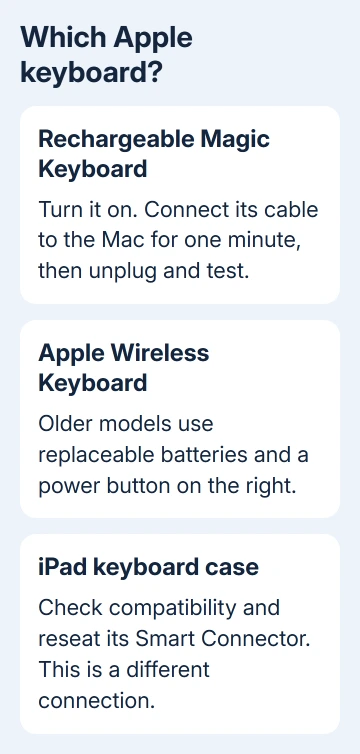
Leave it connected for one minute, then disconnect and try typing. This pairs a rechargeable Magic Keyboard with the Mac while charging its battery. Plugging it into a wall charger won't pair it with the Mac.
Apple's Magic Keyboard connection guide recommends this cable method. Open Control Center > Bluetooth to check the accessory's charge level when it appears in the accessory list.
An older Apple Wireless Keyboard uses replaceable batteries and a power button on its right side. Hold the button until its green light goes off, then press it again to turn it on.
Replace depleted batteries instead of searching for a port to recharge it.
For a permanently wired Apple USB keyboard, disconnect it and insert the connector fully again. Try another USB port, and connect directly to the Mac while checking whether a hub or adapter is causing the failure.
If the cable method restores typing, continue to the wireless check only if it stops again after unplugging. If it never types while connected, compare ports and another keyboard before changing Bluetooth settings.
The USB-C Magic Keyboard introduced in 2024 lists macOS 15.1 or later for Mac compatibility. Check its model requirements when connecting it to an older Mac that cannot run that version.
2. Restore the Mac's Bluetooth connection
Using the MacBook's trackpad or a working mouse, open Apple menu > System Settings > Bluetooth. Turn Bluetooth on. On older macOS versions, the settings app is named System Preferences instead.
If Bluetooth won't turn on, restart the Mac and try again. For a rechargeable Magic Keyboard, reconnecting its cable to the Mac is the straightforward way to pair it again.
Test in a simple text field after disconnecting the cable. If the keyboard works wired but not wirelessly, check the wireless connection and battery rather than assuming every key has suddenly broken.
Bring the keyboard near the Mac. If it connects but keeps dropping, check for nearby wireless interference and compare other Bluetooth accessories. If several keep disconnecting, the keyboard isn't the only device affected.
For a problem that specifically began with Tahoe and affects the login screen, the Tahoe Bluetooth keyboard checks cover that narrower pattern.
If the keyboard has no power or won't work through its cable, start with the hardware checks.
I'd keep a working cable attached long enough to get back into the Mac. Keep a mouse, trackpad, or working keyboard available while you make changes.
An Apple keyboard being used on Windows needs the Windows keyboard troubleshooting route. Mac System Settings and iPad Smart Connector instructions don't apply to that PC.
3. Turn off Slow Keys or Mouse Keys
If a letter appears only after you hold its key, open Apple menu > System Settings > Accessibility > Keyboard and turn Slow Keys off. Slow Keys adds a delay before a press is accepted.
Try several ordinary letter keys again with normal taps. If letters now appear immediately, the keys were working. The accessibility setting was making macOS wait before accepting them.
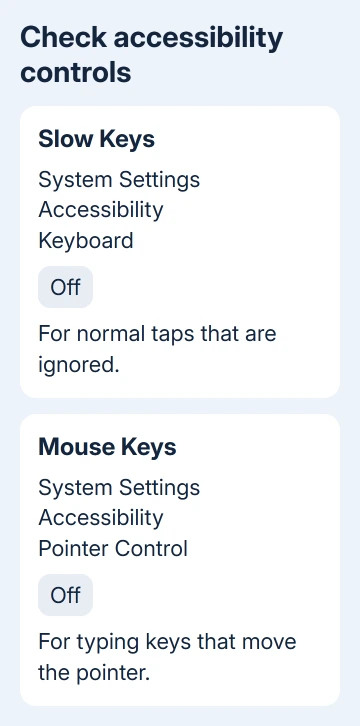
If some letter or number keys move the pointer instead of typing, open System Settings > Accessibility > Pointer Control and turn Mouse Keys off. It lets keyboard keys control the mouse pointer.
On a keyboard that can send shortcuts, Option + Command + F5 opens the Accessibility Shortcuts panel, where you can turn Mouse Keys off. Otherwise, select the setting with a mouse or trackpad.
Wrong symbols need the input layout checked instead. Open System Settings > Keyboard > Text Input > Edit, enable Show Input menu in menu bar, and select your keyboard's layout.
Caps Lock has a small intentional delay, so hold it until its indicator lights rather than treating a quick missed tap as a failed key. An eject key on an older keyboard also needs a longer press.
4. Compare another keyboard before blaming the Mac
Connect a different keyboard to the same Mac, or try the affected external keyboard on another Mac if one is available. Try typing in a simple text field so an app's keyboard shortcuts don't confuse the comparison.
If the second keyboard works, the original keyboard or its connection needs attention. If the affected keyboard works on another Mac, return to the first Mac's port and settings rather than replacing it immediately.
For a MacBook's built-in keyboard, connect the Mac to power. A low-battery alert can be present even when it isn't visible. An external keyboard can help you get in and check the alert.
If both the built-in keyboard and trackpad have stopped, use the checks for a MacBook keyboard and trackpad that stopped working.
That combined failure needs more than re-pairing an external keyboard.
Mention any liquid damage or physically stuck key when arranging repair. Repeating Bluetooth pairing won't repair a switch or a damaged keyboard cable inside a notebook.
5. Reseat an iPad keyboard at its Smart Connector
For Magic Keyboard for iPad, Magic Keyboard Folio, Smart Keyboard, or Smart Keyboard Folio, first check that the keyboard is compatible with the exact iPad model.
These attachments use the Smart Connector, not ordinary Bluetooth pairing.
Open Settings > General > Software Update and install the available iPadOS update. Then detach the keyboard and clean the Smart Connector contacts on both parts with a soft, lint-free cloth.
Remove any other case or cover that interferes with the attachment. Reconnect the keyboard firmly in its typing position. If typing still doesn't respond, restart your iPad, then test typing again.
- No Home button: Hold the top button plus a volume button until the shutdown slider shows.
- Home button fitted: Hold the top button until that slider appears.
Slide to power off and allow 30 seconds for shutdown. Then hold its top button to restart it. Let go once its Apple logo is visible.
Arrange service when the hardware comparison points there
If the keyboard fails on another Mac while a second keyboard works on yours, arrange a keyboard assessment through Apple Support or a provider authorized by Apple. Give the model, connector type, and whether wired typing works.
If several keyboards fail on one Mac, report the affected ports and accessibility checks instead. For an iPad attachment, give both model names and explain whether cleaning the contacts and reconnecting the keyboard changed anything.
The Short Version
Power on and cable-pair a rechargeable Magic Keyboard, check Bluetooth, then disable Slow Keys or Mouse Keys when their symptoms fit. Compare another keyboard. An iPad keyboard case needs its Smart Connector reseated.
Checked November 10, 2026.