
You press a key and nothing appears. Maybe one key, maybe the whole thing, maybe only first thing in the morning. It is a nasty fault, because the tool you would normally fix a computer with is the thing that stopped.
So I have grouped this page around what yours is actually doing. These are separate problems with separate answers, and a general list will eat your evening.
Do the test in the next section. Then jump to whichever heading matches.
First, the thirty-second test that splits this in two
Press Windows + R, type osk, and press Enter. That opens the on-screen keyboard.
Now click the letters with your mouse.
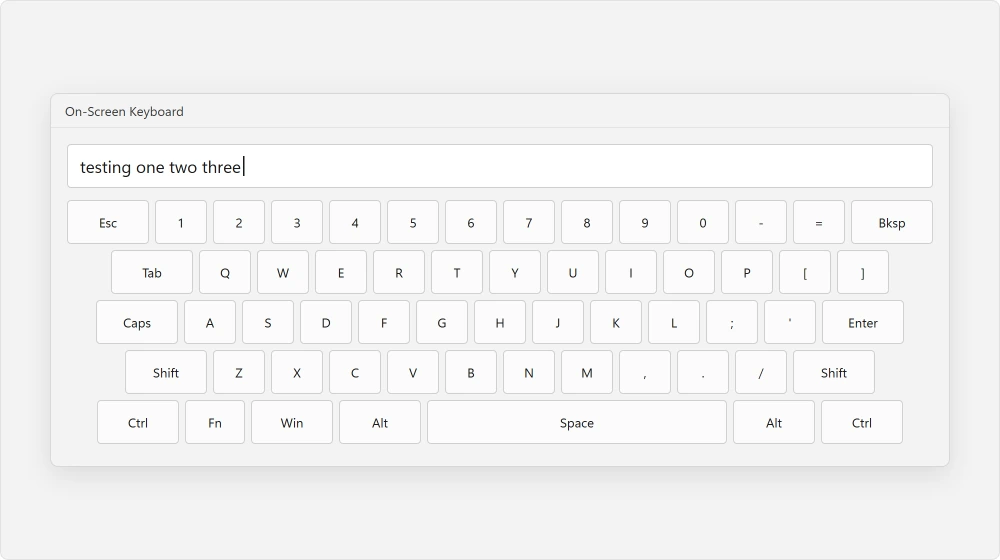
Characters appearing means Windows is doing its job. Your physical keyboard, its cable, its driver or a setting is at fault. Nothing appearing means the app or Windows is the problem, and the keyboard is innocent.
Documented by Microsoft as its first diagnostic step. It is also the step most pages skip. Do it before you buy anything.
It is dead when I switch the PC on, but fine after a restart
Learn this pattern, because it looks exactly like failing hardware and it is not.
Documented by Microsoft in its Fast Startup article: "During Fast Startup, the kernel session is not closed, but it is hibernated." At shutdown, Windows saves the kernel and your device drivers to a file instead of closing them.
Next time it loads that file back rather than starting fresh.
So your keyboard is never properly re-detected. It inherits whatever state it was left in.
One more line from Microsoft explains the symptom exactly: "The Fast Startup setting doesn't apply to Restart." A restart does a full boot. A shutdown, then the power button, does not.
That is why restarting cures it and switching off overnight never does.
Reported working by an owner on the Windows 11 forum, 24 October 2025, on a Dell 5502 with an 11th generation i7.
They had installed the update that was supposed to fix it, and reported: "Unfortunately, that didn't solve the problem…still having the issue." Turning off Fast Startup did resolve it.
You have two ways to act on this, and I would try the gentler one first.
Microsoft's own note: "Disabling Fast Startup is not recommended." So instead of switching it off, shut down with a command that does a full shutdown anyway. Open Terminal and run:
shutdown /s /t 0If that machine starts with a working keyboard, you have confirmed the cause without changing any settings.
To turn the feature off properly, it lives at Control Panel, All Control Panel Items, Power Options, System Settings. The cost is a slightly slower start.
A few keys do nothing and the rest are fine
If the on-screen keyboard types those characters, the physical keys are your problem.
Do not reach for the compressed air yet, because one setting produces exactly this symptom.
Documented by Microsoft on its accessibility input page: Filter Keys "set the sensitivity of the keyboard so it can ignore brief or repeated keystrokes". The route is Settings, Accessibility, Keyboard.
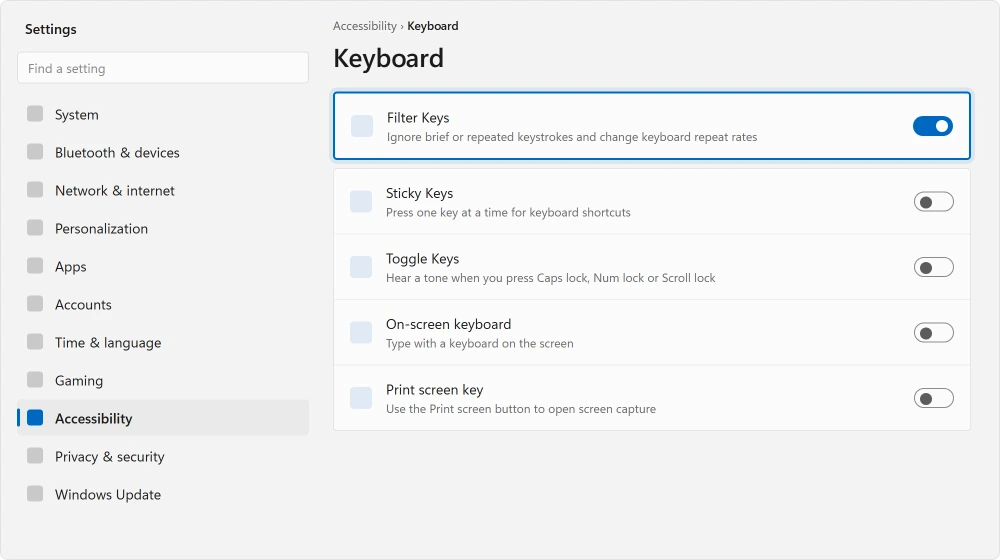
Switch Filter Keys off.
While you are there, switch off Sticky Keys, which Microsoft describes as letting you "press commands that use multiple keys (such as Ctrl+S) one key at a time".
Do the same for Toggle Keys, which "play a sound whenever you press the Caps lock, Num lock, or Scroll lock keys".
Filter Keys is the one that makes working keys look dead, because it ignores quick taps by design. A fast typist loses characters while slow, deliberate presses go through perfectly. If that matches yours, stop here.
The whole keyboard is dead
Take these in order, because they get more disruptive as you go.
Documented by Microsoft: open Device Manager with Windows + X. Find your keyboard, right-click it, choose Uninstall device. Then Action, then Scan for hardware changes, then restart. Windows rebuilds the driver from scratch.
Then the troubleshooter. Press Windows + R and run msdt.exe -id DeviceDiagnostic. If Windows itself has been failing to update lately, clear that first, and a stuck Windows update walks through it.
Reported as failing, which you should hear now rather than at midnight.
An owner on Microsoft's own Q&A worked the entire list in 2024, driver reinstall and troubleshooter included, then came back to report that "some keys would still not work".
Others on that thread described permanent failures of specific keys. No fix was ever confirmed there.
So give these a fair go, then stop and look at the hardware instead.
I have to hold keys down, or they repeat by themselves
Both are Filter Keys, and they are two halves of the same feature.
Documented by Microsoft, Filter Keys contains SlowKeys, which "instructs Windows to disregard keys that are not held down for a certain period of time", RepeatKeys, which "lets you adjust the repeat rate or disable it altogether", and BounceKeys, which "instructs Windows to ignore unintended keystrokes".
Turn Filter Keys off at Settings, Accessibility, Keyboard and both symptoms should go together. If only one goes, the other is the physical key.
It types the wrong characters
Quotes come out doubled, the at sign is in the wrong place, or pressing one letter gives you another.
Nothing is broken. Windows has a second keyboard layout installed and has switched to it, and that layout does not match the keys printed on your keyboard.
Go to Settings, Time & language, Language & region. Open the three dots beside your language, then Language options. Look at the Keyboards list. Remove any layout you did not add on purpose.
Reported working by owners on the Windows 11 board, with one useful wrinkle. Several found the removal only held after they added a different layout first and then removed the unwanted one.
If a straight removal keeps reverting on you, try that order instead.
Back again even after that order? Windows also keeps a copy of your layouts that the sign-in screen uses. That copy needs a fix of its own.
If letters vanish to the right of the cursor as you type, that is not the layout but overtype mode, and one press of Insert switches it off.
A quote key that types nothing until you press it again is a dead key on the international layout, and that one has a fix of its own.
If pressing W moves the cursor up while the Up arrow types a letter, your gaming keyboard has swapped its letter and arrow keys.
The Windows key specifically does nothing
This one has a cause all of its own, and usually nothing is broken.
Games block it deliberately. A full-screen game installs a keyboard hook, so the Windows key cannot throw you out mid-match. Owners report that it stays blocked after the game closes often enough that people assume the key has died.
Check two places. If you have a gaming keyboard from Razer, Corsair, Logitech or similar, open its software and look for a game or Win Lock mode. That disables the key on purpose.
Then check the game itself for a setting called Disable Windows Key or Block System Keys.
Ours, and marked as ours: running the game in borderless windowed mode rather than exclusive full screen usually sidesteps it entirely, because the hook behaves differently.
That is widely reported and we have not found Microsoft documenting it, so treat it as a way round the problem, not a cure.
When the keyboard itself has failed
On-screen keyboard fine, Filter Keys off, driver reinstalled, keys still dead? Then it is the keyboard.
On a desktop, borrow another one and plug it in, which settles the question in a minute for nothing.
On a laptop, a USB keyboard tells you the same. If the external one works perfectly, the built-in keyboard or its ribbon connector has failed. No setting brings that back.
Where a laptop is failing in several ways at once, the common laptop faults page covers the rest.
Status: checked 20 August 2026 on current builds of 11 and 10. Microsoft documents Fast Startup as hibernating the kernel session, and says it skips Restart. That gap is the whole fault.
Why does my keyboard work after a restart but not after a shutdown?
Because those are different operations. Fast Startup hibernates the kernel session at shutdown and reloads it at power on, so hardware is not fully re-detected. Microsoft states that Fast Startup does not apply to Restart, which is why a restart gives you a working keyboard.
Why are some of my keyboard keys not working but others are?
Check Filter Keys first, at Settings, Accessibility, Keyboard. It is designed to ignore brief keystrokes, so quick presses vanish and slow ones register, which reads exactly like dead keys. If it is already off, test with the on-screen keyboard to confirm whether the characters exist at all.
Is it my keyboard or is it Windows?
Press Windows + R, type osk and press Enter, then click the letters with your mouse. Characters appearing means Windows and the app are fine and the physical keyboard is the problem. Nothing appearing puts the fault in the app or in Windows.
Why does my Windows key stop working when I play games?
Games commonly block it on purpose so you cannot accidentally minimise mid-game, and some gaming keyboards have their own Win Lock mode that does the same. Check the game's settings and your keyboard software before assuming the key has failed.
The Short Version
- Test with the on-screen keyboard first. It splits hardware from software in thirty seconds.
- Dead at power on but fine after a restart is Fast Startup, not failing hardware.
- Run shutdown /s /t 0 to prove it without changing any setting.
- Filter Keys makes working keys look dead by ignoring quick taps.
- Wrong characters means a second keyboard layout, not damage.
- The Windows key is usually blocked by a game or by keyboard software.
Where to Next
Keys that type the wrong characters rather than nothing at all is a different problem, and one keypress usually undoes it.
If yours was the startup one, the same mechanism catches other hardware too. A mouse, a webcam or a USB drive that is missing at power on and present after a restart has the identical cause, and that one command proves it.
And if the whole machine feels heavy rather than just the keyboard, what actually makes a PC slow is the place to start instead.
And while you wait for a replacement keyboard, Windows will take dictation instead. Windows and H, and it needs no download.
Before you order a replacement, there is a way to test every key that Windows already ships.
Where only the arrow keys misbehave and only inside a spreadsheet, Excel has a lock of its own that causes exactly that.
Where the letters arrive capitalized or every key opens a shortcut, five taps of Shift is the usual explanation.
Where the keyboard is dead cold and fine after a restart, a shutdown is not a boot and there is a way to prove it.
Say in the comments which symptom yours matched, and what the on-screen keyboard did. Those two together narrow it faster than anything else. I am happy to work through an awkward one.

Isaac Smith is the founder and editor of PC Glance, a website that covers computers, laptops, and technology. He is a tech enthusiast and a computer geek who loves to share his insights and help his readers make smart choices when buying tech gadgets or laptops. He is always curious and updated about the latest tech trends.