
You press the apostrophe and nothing shows. Press it again and two appear at once, and your quote marks, the backtick and the caret on Shift+6 may all do the same.
Your keyboard is fine. I would look at the keyboard layout first, because Windows has one that holds those keys back on purpose.
Super User's thread about it has been viewed 315,044 times since October 2011. A Microsoft Q&A question titled "keyboard apostrophe key has to be hit twice" carries 400+ under Same question.
What the key is waiting for
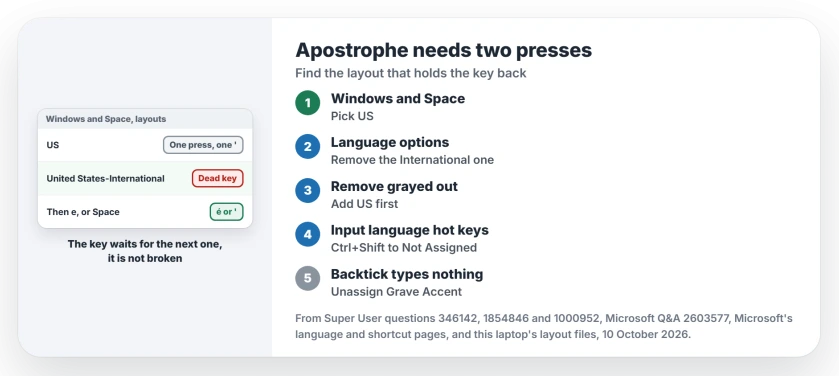
The layout is called United States-International. On it, the quote key is a dead key, which types nothing alone and waits to see which key you press next.
Type a vowel after it and you get an accent, so an apostrophe then e gives é. Type Space and you get the plain mark. Type the quote again and you get two of them.
Ours: we read both layout files on this laptop. The international one, kbdusx.dll, marks the quote, double quote, backtick, tilde and caret as dead keys, while plain US, kbdus.dll, marks none of them.
Those tables cover the number pad as well, which is why some layouts put a comma on its decimal key.
Status: both layout files on this laptop, Microsoft's language and shortcut pages, and what owners did on two forums to fix it, checked 10 October 2026.
1. Press Windows and Space, and look
Keep the Windows key down and press Space once. A small list opens with your installed layouts, and the highlighted one is the layout in use.
That same choice sets the spelling language of new text in Word, so Word can switch its spelling language behind your back.
Microsoft's language and keyboard page says every press steps to the next installed layout. If nothing happens at all, you have only one layout, and it may be United States-International itself, so go to step 2.
If the list shows US next to United States-International, pick US and try the apostrophe again. One owner's answer on Super User reads "You can switch between the two using the short-cut WindowsKey + Space".
A later comment under it adds "this worked on win11 as well". Owners report the same result on Windows 10 in the comments around it.
Pressing Space after the quote also works when you only need one. In their words, "If you press space after the quote then it will be as if you have only the one quote". It is a stopgap, and the layout stays where it was.
2. Remove United States-International
Switching lasts until something switches you back. Removing the layout ends it.
Go to Settings, Time & language, Language & region. Open the three-dot menu by your language and choose Language options, then under Keyboards open the three-dot menu by United States-International and choose Remove.
Microsoft notes the layout may be filed under your display language or under the language it belongs to. So open every language in your list, not only the first one.
Is Remove grayed out? Add the plain US keyboard first. Microsoft says to "Add another keyboard layout before attempting to remove the keyboard layout".
This is how the owner behind the 400+ Q&A question fixed it. They deleted US international, put US qwerty in its place, and the issue was resolved.
In 2024 a Windows 11 owner wrote that adding the plain layout did it: "install the non-international US keyboard and that seems to work".
Another owner on that thread had a UK and a US English layout side by side. They said "removing one fixed the having to type some keys twice".
3. Stop it switching back by itself
Shortcuts can swap the layout while you type. Microsoft lists Windows and Space, and also Ctrl+Shift: "When multiple keyboard layouts are available, switch the keyboard layout".
Ours: the hot key dialog on this laptop offers Ctrl + Shift, Left Alt + Shift and Grave Accent (`) for both Switch Input Language and Switch Keyboard Layout.
So two fingers on the wrong keys can move you onto the international layout. One owner whose layout already showed US pressed Ctrl and Shift again.
They called it "A simple fix for me when my keyboard was already selected as US English". Removing the spare layout in step 2 takes away what the shortcut lands on.
If you want the shortcuts off as well, go to Settings, Time & language, Typing, Advanced keyboard settings, then Input language hot keys. Pick each action and press Change Key Sequence. Choose Not Assigned.
If other letters come out wrong too, the wrong characters section of our keyboard guide covers the other causes.
When the backtick key types nothing at all
A different fault looks similar. The backtick key types nothing, not even on a second press, yet works on another layout.
The accepted answer to a 68,747-view question found that "the Windows language switcher uses the tilde to switch between layouts". Owners with Thai input installed confirmed it.
Your fix is in the same Input language hot keys dialog. Set every sequence that uses Grave Accent to Not Assigned or another choice, and the key types again.
On a Mac the tilde key fails another way, typing § instead, and that comes from the keyboard type macOS picked.
Keeping accents without the extra press
If you type é or ñ every day, the international layout is doing its job. Keep it and type Space after a quote whenever you want the plain mark.
An occasional Word character can instead use the accent shortcut or exact symbol while leaving the Windows keyboard layout unchanged.
If you need an accent once a month, plain US with an Alt code for the odd letter costs you less. I would keep one layout per language you write in and no spares, because spares are what the shortcuts land on.
The Short Version
- Press Windows and Space, then pick US.
- Remove United States-International.
- Remove grayed out? Add US first.
- Unassign Ctrl+Shift in Input language hot keys.
- Backtick dead? Unassign Grave Accent.
Where to Next
Did the international layout cause it, or a shortcut that moved you onto it? Leave a comment with the layout names you saw, and I can cover your case here.

Isaac Smith is the founder and editor of PC Glance, a website that covers computers, laptops, and technology. He is a tech enthusiast and a computer geek who loves to share his insights and help his readers make smart choices when buying tech gadgets or laptops. He is always curious and updated about the latest tech trends.