
Accent marks in Word for Windows can be typed with a two-stage shortcut: press the accent combination, release it, then type the letter. For example, Ctrl+', followed by e, inserts an acute-accented e.
Use Insert > Symbol > More Symbols when the keyboard shortcut is awkward or the character is uncommon.
Press the accent combination before the letter
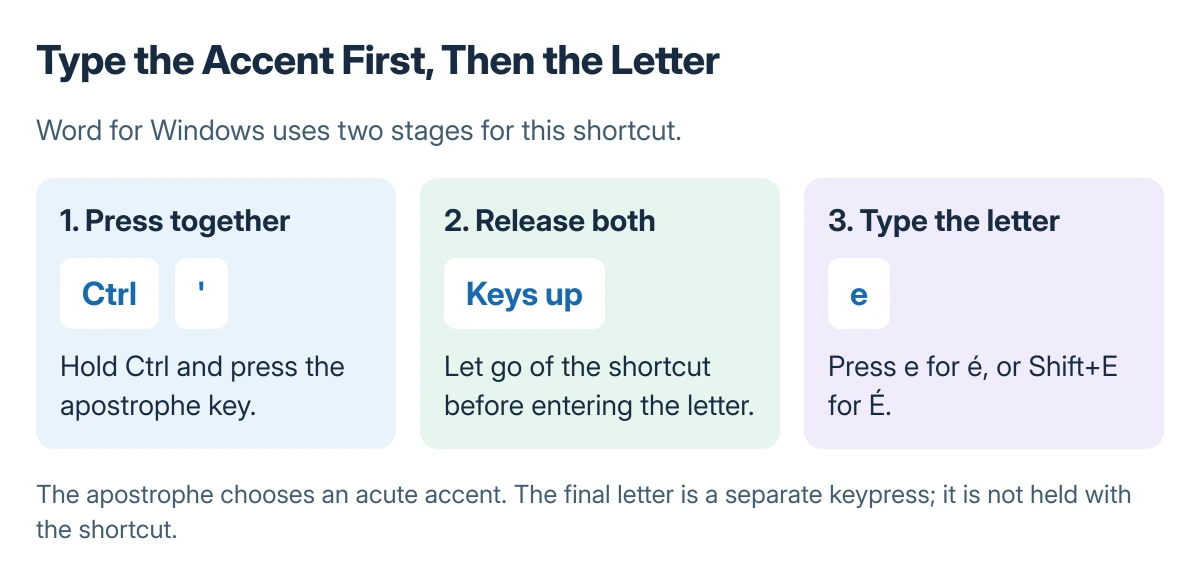
Place the text cursor where the character belongs. For an acute accent, hold Ctrl and press the apostrophe key, release both, then type the letter. Hold Shift for the letter when an uppercase character is needed.
Status: Microsoft's Word accent and symbol instructions checked 23 October 2026. Windows shortcuts and Mac input methods are distinguished. No document or keyboard layout was changed.
Microsoft says a plus sign in its shortcut tables means simultaneous keys, while a comma means the next key comes afterward. Its Word accent table gives the combinations for the intended accent.
For a grave accent, use Ctrl+`, release, then type the letter. For an umlaut, use Ctrl+Shift+:, release, then type the letter. Use the key that produces the required symbol on the current keyboard layout.
If an apostrophe needs two presses throughout Windows, the dead-key keyboard explanation addresses that different behavior. Word's accent shortcut does not require changing the system layout.
Insert a specific character from Symbol
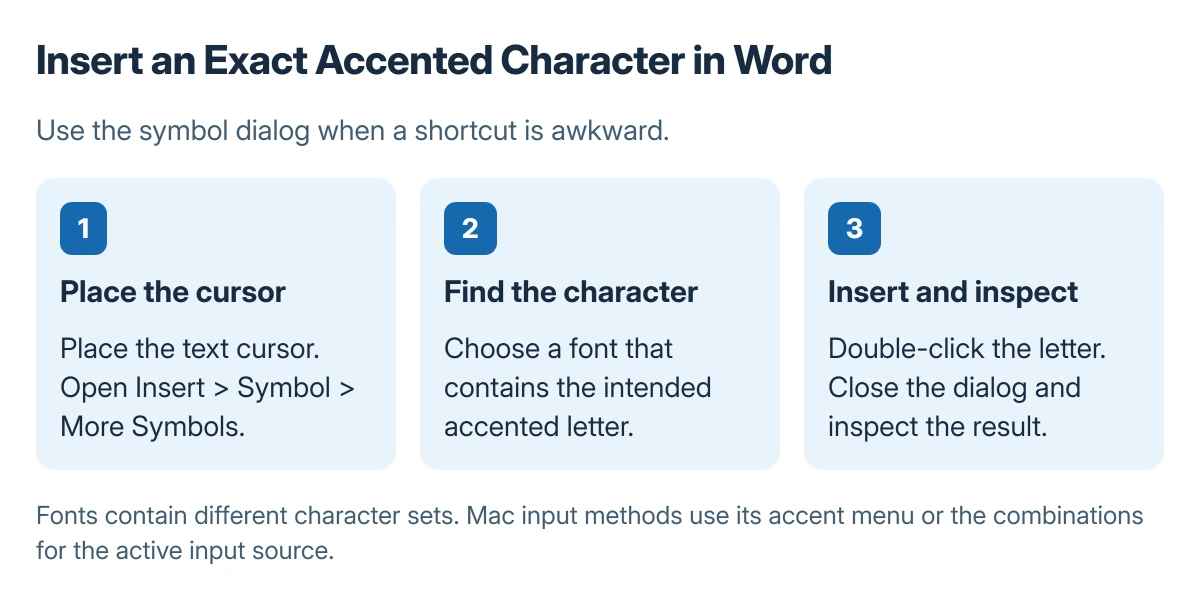
Open Insert > Symbol > More Symbols. Choose a suitable font, locate the exact accented letter, double-click it to insert it, then close the dialog. Inspect the resulting character in the sentence.
Microsoft documents this route for international characters. Fonts do not all contain the same characters, so change the dialog's font when the expected symbol is absent rather than inserting a similar-looking substitute.
For frequent writing in another language, a matching keyboard layout is more practical than repeated one-off insertions. Check that the chosen layout matches the keys being used.
Use the Mac input method on a Mac
Apple says many Mac apps offer an accent menu when a letter key is held. Choose the intended character from the menu when available; this method is not supported by every app.
Apple also documents dead-key combinations through Keyboard Viewer. For example, the ABC layout uses Option+N, followed by a, for a tilde-accented a. Do not substitute Windows Ctrl shortcuts for those Mac input methods.
When the shortcut does something else
Check the text cursor, active keyboard layout and actual key symbol. Try Symbol to confirm the required character can be inserted. A shortcut intercepted by an add-in or another command needs the Word shortcut checks.
Microsoft states that Symbol can be used on laptops without a separate numeric keypad. Numeric character codes need that keypad; an accent shortcut or the symbol dialog may be more convenient.
The Short Version
In Windows Word, press the accent combination, release it, then type the letter. Use Symbol for an exact character when needed. On Mac, use its accent menu or the combinations for the active input source.

Isaac Smith is the founder and editor of PC Glance, a website that covers computers, laptops, and technology. He is a tech enthusiast and a computer geek who loves to share his insights and help his readers make smart choices when buying tech gadgets or laptops. He is always curious and updated about the latest tech trends.