
When a Dell Inspiron Shift key won't type capital letters, test both Shift keys in Notepad first. If a longer press works but a quick tap doesn't, check Filter Keys before reinstalling a driver.
One dead Shift key, two delayed Shift keys and wrong punctuation point to different problems. Comparing those results helps you keep typing while you work out whether the keyboard needs repair.
1. Compare the two Shift keys in plain text
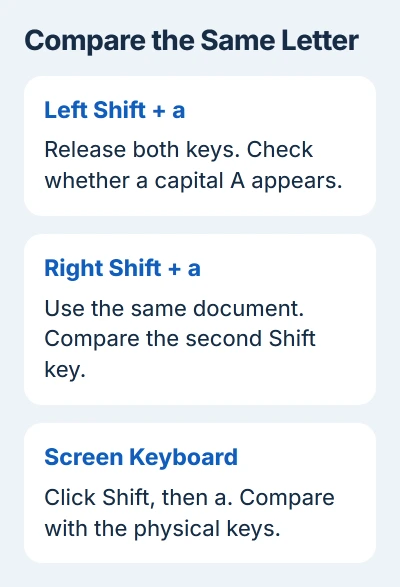
Open Notepad from Start and make sure Caps Lock is off. Type a lowercase letter, then hold the left Shift key while typing that letter again. Repeat with the right Shift key, releasing both keys between attempts.
Try another letter too. A problem with the letter key can otherwise look like a Shift failure. Write down whether the left side, right side or both fail, and whether a longer press changes the result.
If both sides capitalize letters in Notepad but a game ignores Shift, check the game's control assignments. Save your progress and restart it. Since Shift works in Notepad, check the game before replacing the keyboard.
If letters capitalize correctly but Shift plus a number types the wrong punctuation, go to section 4. Windows is receiving Shift, so check which character your keyboard layout assigns to that combination.
2. Turn off filtering that ignores quick presses
In Windows 11, right-click Start, open Settings > Accessibility > Keyboard, and check Filter keys. Windows 10 uses Settings > Ease of Access > Keyboard. Turn filtering off if it's enabled, then repeat the same letter comparison.
Microsoft's keyboard accessibility instructions explain that Filter Keys can ignore brief or repeated presses. That could explain why your key works only when you hold it longer.
Dell also identifies an accidental long Shift press as a way to enable Filter Keys. If the setting keeps returning, open its options and disable the keyboard shortcut that turns it on.
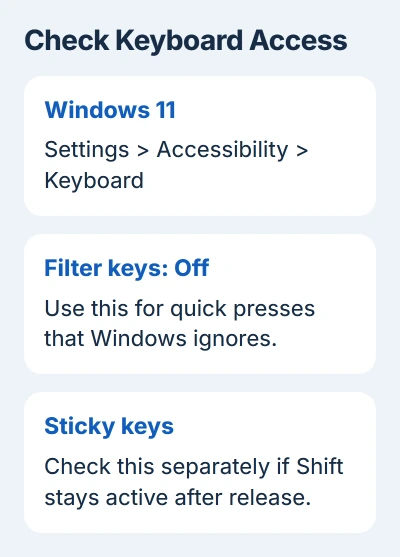
Check Sticky keys separately if a capital letter appears after you've already released Shift. That feature lets you enter shortcuts one key at a time. Keep it enabled if you rely on it; change it only when its behavior is unwanted.
The Sticky Keys controls explain the shortcut and locking behavior. If your Shift keys still fail with filtering off, compare a second way of entering the same combination.
3. Keep typing with screen keys or a USB keyboard
Open Settings > Accessibility > Keyboard > On-Screen Keyboard in Windows 11. On Windows 10, use the Keyboard page under Ease of Access. The switch opens a keyboard you can click with your mouse or touchpad.
Click its Shift key, then click a letter in your Notepad document. If a capital appears, Notepad is accepting the combination. You can use the screen keys for symbols and passwords while you check the built-in keyboard.
Connect a working USB keyboard directly to your laptop if you have one. Try both of its Shift keys in the same document. Keep the Windows settings as they are during the comparison so you can tell what made the difference.
If the USB keyboard works but the built-in Shift key doesn't, check the laptop keyboard and its connection. If both keyboards fail in one app but work in Notepad, return to that app's controls.
I'd compare the keyboards before removing drivers. It takes less effort and leaves you with a usable keyboard for the remaining checks.
4. Correct punctuation through the keyboard layout
Look at the language indicator near the clock. Choose the layout matching your keyboard's printed labels. US and UK layouts assign some shifted symbols differently, even though both can type ordinary English letters.
In Windows 11, review Settings > Time & language > Language & region. Open the language's three-dot menu, choose Language options, and inspect Keyboards. Don't remove a layout you still need for another language.
The Windows keyboard-language guide covers changing the active layout. Afterward, compare a printed symbol with what appears in Notepad. If they match, the layout change fixed the punctuation problem.
Fn Lock changes how the function-key row behaves; it doesn't unlock Shift. An Fn shortcut from another Inspiron model isn't a sensible fix for missing capital letters.
5. Clean a key that feels different
Shut down the laptop and unplug its charger before cleaning. Look for crumbs around the affected Shift key and compare its movement with the working side. A key that catches or fails to spring back needs physical attention.
Use a soft microfiber cloth and a gentle burst from a compressed-air can as directed by the keyboard maker. Keep liquid out of the gaps and leave the keycap attached; the small clips holding it in place are easy to damage.
Restart and try the same letters again. If the key moves normally after cleaning but still won't type, continue with the software check. Arrange service sooner for liquid damage, a broken cap or several dead keys next to it.
6. Rebuild the keyboard driver if input still fails
Save your work and keep your mouse or spare keyboard available. Right-click Start, open Device Manager, and expand Keyboards. Open the affected keyboard entry and choose Uninstall device, then restart the laptop.
Windows detects the keyboard again and reinstalls its standard driver. There isn't a special downloadable Shift-key driver. Ask support if you can't tell which entry belongs to the built-in keyboard.
Check both Shift keys after restarting. If they work, try the app where the problem began. If just one physical key still fails, uninstalling the driver again is unlikely to help.
7. Take a repeatable failure to Dell
Give support your Inspiron model or Service Tag. Tell them which Shift key fails and what happened in Notepad and with the on-screen and USB keyboards. Mention key damage or a spill, impact or update just before the problem started.
Those results help Dell choose a keyboard test or warranty repair. Use your spare keyboard while that's sorted out. A factory reset isn't a sensible next move for a physically damaged key.
The Short Version
Compare both Shift keys in Notepad. Check Filter Keys for delayed presses and the layout for wrong symbols. Try a spare keyboard, clean carefully and reinstall the driver once. If a physical key still fails, contact Dell.
Checked November 5, 2026.

Isaac Smith is the founder and editor of PC Glance, a website that covers computers, laptops, and technology. He is a tech enthusiast and a computer geek who loves to share his insights and help his readers make smart choices when buying tech gadgets or laptops. He is always curious and updated about the latest tech trends.