
Tablet mode can disable a convertible Lenovo IdeaPad's keyboard. Return the screen to laptop position first. On any IdeaPad, restart Windows and compare its built-in keys with an on-screen or USB keyboard before changing drivers.
Delayed keystrokes, missing number keys and a keyboard that doesn't respond at all need different fixes. Try typing in a plain text box, such as Notepad, to see which problem you're dealing with.
1. Return a convertible to laptop mode, then restart
If your IdeaPad folds into a tablet, bring its screen back to the normal laptop position before testing the keys. Folding the keyboard behind the screen can disable it; this mode change doesn't apply to ordinary laptops.
Lenovo says the IdeaPad C340 disables keyboard input in stand, tent and tablet modes. The Flex 3 has the same protection against accidental typing.
If typing works again in laptop position, you don't need to repair the keyboard driver. If it still won't type, restart and try the input checks next. When contacting support, mention if it stopped working after you moved the screen.
Save open work with the mouse, then choose Start > Power > Restart. After Windows returns, open Notepad and try several letters, the space bar and Backspace. Test a second app if only one program seems affected.
If you can't enter your password, click the Accessibility button at the lower right of the Windows sign-in screen and choose On-Screen Keyboard. Use your mouse or touchpad to select each letter.
After signing in to Windows 11, open Settings > Accessibility > Keyboard and turn on On-Screen Keyboard. On Windows 10, use Settings > Ease of Access > Keyboard.
Microsoft explains both routes in its on-screen keyboard instructions. Choose the full layout if the small navigation layout doesn't show the letters you need.
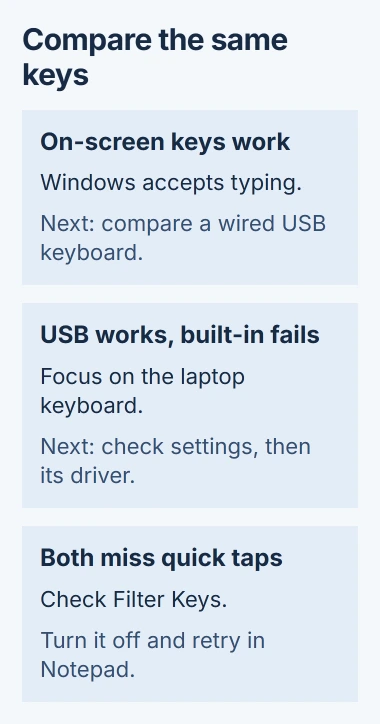
If the on-screen keys enter text, Windows and that text box can accept typing. To check whether the problem is with the built-in keyboard, try the USB keyboard comparison next.
If none of these methods works in one app but they work in Notepad, check that app first. The keys work in another program, so replacing the laptop keyboard wouldn't address the problem you're seeing.
2. Compare the built-in keyboard with a USB keyboard
Plug a wired USB keyboard directly into the IdeaPad if one is available. A wired model avoids adding Bluetooth pairing and battery problems to the check. Try the same letters in the same Notepad window.
If USB typing works but the built-in keys don't, focus on those keys and how Windows detects them. Keep your USB keyboard connected while checking the settings in the next section.
If both physical keyboards miss quick presses, check Filter Keys before uninstalling anything. Windows settings can affect both keyboards, so plugging in an external one won't always fix missed keystrokes.
Pay attention to the pattern. A few dead keys in the same area, letters that appear only when pressed hard, or trouble immediately after a spill point more toward physical damage than a Windows input setting.
If you've just spilled liquid on the laptop, shut it down and disconnect power. Have it checked for liquid damage before trying to type again; pressing the keys repeatedly won't repair the damage.
I'd borrow a USB keyboard for this comparison before buying a replacement part. It gives you a usable typing method and helps decide whether the remaining steps should focus on Windows or the laptop's built-in hardware.
3. Disable Filter Keys for missed taps
In Windows 11, open Settings > Accessibility > Keyboard. Find Filter keys and turn it off for this check. In Windows 10, the setting is under Ease of Access > Keyboard.
With Filter Keys enabled, Windows can ignore short taps or repeated keystrokes. A quick tap may appear to do nothing while holding the same key produces a character. That can make a working keyboard feel broken.
Return to Notepad and type a short word at your normal pace. If quick presses now appear, Filter Keys was causing the problem. Leave it off, or adjust its timing if you use it to help you type.
Sticky keys changes shortcuts so you can release each key before pressing the next. Use the Sticky Keys settings guide for shortcut trouble, rather than a keyboard that won't type.
4. Check Num Lock and Mouse Keys for a silent number pad
Some IdeaPads have a separate numeric keypad and some don't. This section applies to the keypad on the right of a full-size keyboard, rather than the row of number keys across the main keyboard.
Press the key labeled Num Lock or NumLk, then try the keypad in Notepad. Its exact location varies by model. Use the printed key label or your model's manual instead of a shortcut intended for another Lenovo keyboard.
Also open Settings > Accessibility > Mouse in Windows 11 and check Mouse keys. This feature uses the numeric keypad to move the pointer. Turn it off if you want those keys to enter numbers.
In Windows 10, look under Settings > Ease of Access > Mouse. Test the top number row separately: if that row works and the keypad doesn't, the problem is narrower than the whole keyboard failing.
If letters, the top number row and the keypad all fail, Num Lock can't explain the whole problem. Check the keyboard driver next instead of trying more number-key combinations.
5. Check the keyboard driver after an update
Windows receives keystrokes through software called a keyboard driver. When typing stops just after a driver change, rolling back that driver can restore the previous version if Windows kept it.
Right-click Start, choose Device Manager, and expand Keyboards. Open the affected device's Properties > Driver tab. Choose Roll Back Driver if the option is available, then follow the prompts and restart if asked.
If Roll Back Driver is gray, Windows has no saved version to restore. For an update, use Windows Update or Lenovo's support for your exact IdeaPad model rather than an unrelated driver site.
To reinstall the driver, have your on-screen or USB keyboard ready. In Device Manager, right-click the affected keyboard, choose Uninstall device, confirm, and restart Windows. Windows will try to install its driver again.
With several keyboard entries, identify the built-in device before uninstalling it. External keyboards can add entries too. If you're unsure which is which, ask Lenovo support to check the list with you.
Test the same Notepad keys after restarting. If typing returns, try the app where you first noticed the trouble. The broader Windows keyboard checks cover problems that affect other keyboards too.
When the built-in keys still don't respond
Give Lenovo or a repair shop your IdeaPad model, which keys fail, and whether USB typing works. Mention spills, impacts or recent repairs. This helps them decide whether to check the keyboard connection or replace the keyboard.
If the laptop is under warranty, arrange service before removing keycaps or opening the case. Use an external keyboard for typing until the built-in one is repaired.
The Short Version
Restart, try on-screen or USB typing, and check Filter Keys. For keypad trouble, check Num Lock and Mouse Keys. Then consider a driver rollback or reinstall. If only the built-in keys still fail, ask Lenovo to check the hardware.
Checked November 4, 2026.

Isaac Smith is the founder and editor of PC Glance, a website that covers computers, laptops, and technology. He is a tech enthusiast and a computer geek who loves to share his insights and help his readers make smart choices when buying tech gadgets or laptops. He is always curious and updated about the latest tech trends.