
A Dell laptop's Home key may be a separate key or a second function printed on another key. Look for Home near the top-right corner, on the arrow keys or on the number pad; the shortcut depends on your model.
For the Windows Start menu, press the Windows logo key instead. Dell laptops don't have a phone-style Home button that performs both jobs, and the keyboard's Home command usually moves within a document or page.
In this guide
Find the Home command on your keyboard
Start by looking at the top row and right edge of the keyboard. If Home has its own key, press it directly. Compact layouts often combine navigation commands with function keys or the arrow-key cluster.
Look carefully at smaller secondary labels. If Home shares a key, you may need Fn, usually near the bottom-left corner. Hold Fn, tap the key carrying Home, then release both.
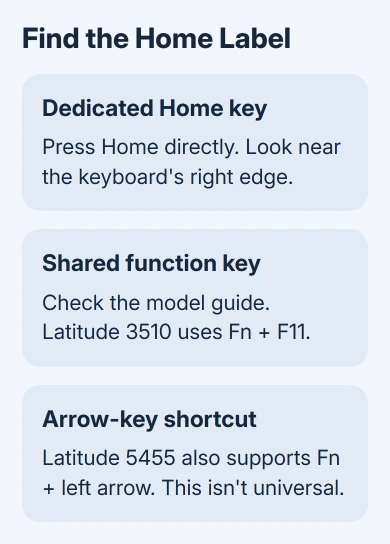
Don't assume that every Dell uses Fn + left arrow. Dell's model guides list different combinations, including Home on the F11 position. A shortcut that works on one Latitude may do something else on another keyboard.
I'd read the key labels before changing any settings. A small secondary label can hide the command in plain sight. Finding it doesn't require installing a keyboard driver.
If the keyboard also fails to type ordinary letters, use the Windows keyboard checks first. A single navigation command needs a different approach from a keyboard that isn't responding.
Match the shortcut to the Dell model
Find the complete model in Settings > System > About or on the laptop's identification label. Dell's support site can use that model or Service Tag to show the matching owner's manual.
Open the manual's Keyboard shortcuts or Keyboard function keys section. Read the Home row and check what the key does on its own and while you hold Fn. The exact table matters more than the general name Inspiron, XPS or Latitude.
For example, the Latitude 3510 keyboard guide lists Fn + F11 for Home and Fn + F12 for End.
On that layout, Home shares the F11 key instead of having its own key.
The Latitude 5455 manual lists F11 as Home in its primary-behavior table and also lists Fn + left arrow as Home.
Its function-key mode affects the top row, which is why the 3510 combination won't suit every model.
If the labeled top-row key performs the app's F11 action instead, try it while holding Fn. Use Fn Lock only when the model's manual says that it changes the relevant function-key behavior.
Fn Lock isn't a universal switch for every secondary label on a keyboard. Changing it can alter the brightness, volume and function-key shortcuts you already use, so check the manual before making that change permanent.
Check the number pad when Home shares the 7 key
On a full-size layout, the number pad may show 7 and Home on the same key. With Num Lock off, that key works as Home. With Num Lock on, it normally enters the number 7.
Switch Num Lock off, click inside a line of text and press the shared key. If the cursor moves to the beginning, that is your Home command. Turn Num Lock back on when you need to enter numbers again.
Some compact keyboards don't have a number pad. Others put number-pad functions on letter keys and use different controls to switch them on. Follow the printed labels and your model's guide instead of expecting a 7/Home key on every Dell.
When an external keyboard is connected, its own layout controls this behavior. The laptop's Fn key doesn't necessarily activate a secondary function on an external keyboard connected by USB or Bluetooth.
Test what Home does in the app you're using
Open Notepad, type a short line, then click at the end of it. Press your Home key or confirmed Home combination. The cursor should move to the start of the line without deleting the text.
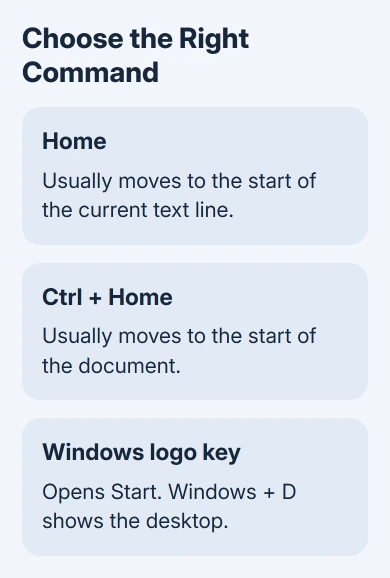
Microsoft's Windows shortcut reference distinguishes Home from Ctrl + Home.
In many text editors, Home moves to the start of a line and Ctrl + Home moves to the start of the document.
If Home shares a key, add Ctrl to the combination you use for Home. A laptop using Fn + left arrow would use Ctrl + Fn + left arrow for Ctrl + Home. Get Home working first so you know which keys to hold before adding Ctrl.
In a browser, Home can scroll a page to its beginning when the page is receiving your keystrokes. If the cursor is inside a search field or other text box, it can act on that text instead. Click the page before testing page navigation.
An application's toolbar Home tab is another separate control. Pressing the keyboard Home key doesn't select Word's Home tab. Use the application's own ribbon shortcuts when that is the control you want.
Use the Windows button for Start or the desktop
Press the Windows logo key to open or close Start. Its symbol looks like a window, and it is usually near Ctrl, Fn and Alt on the lower-left part of the keyboard.
Press Windows + D to show the desktop. Repeat Windows + D to bring those windows back. Neither action uses the keyboard's Home command.
The desktop, Start menu and a browser's home page are different destinations. Decide which one you want to open. A Home key that moves the cursor is working, even if you expected it to open Start.
If the Windows key itself won't open Start, the Windows-key repair steps cover that failure. Switching between Fn combinations won't repair a disabled Windows key.
Get a temporary Home key on the screen
Press Windows + Ctrl + O to open the On-Screen Keyboard. In its full layout, click Home to send that command to the active application. Switch to the full keyboard view if you're seeing a smaller navigation layout.
Windows 11 also provides it through Settings > Accessibility > Keyboard > On-Screen Keyboard. In Windows 10, use Settings > Ease of Access > Keyboard. This is different from the small touch keyboard used for tablet typing.
If the on-screen Home command works in Notepad but the confirmed physical key doesn't, give Dell support the model, key combination and that comparison.
Ask them to check which command the key sends and whether the key itself works, rather than starting with a Windows reinstall.
The Short Version
Find the Home label and use Fn if your Dell's layout requires it. Check the model's keyboard table when the label is missing. Use the Windows key for Start, Windows + D for the desktop, and the On-Screen Keyboard as a temporary Home key.
Checked November 10, 2026.





