Unknown USB Device (Port Reset Failed) means Windows couldn't complete a USB connection reset. Unplug the affected device, plug it straight into a suitable computer port, and try another suitable cable before changing drivers.
That message isn't enough to call the socket broken. A device, cable, hub or dock can interrupt the connection, and the right next step depends on whether the failure follows the accessory or stays with one computer.
In this guide
1. Match the exact Device Manager message
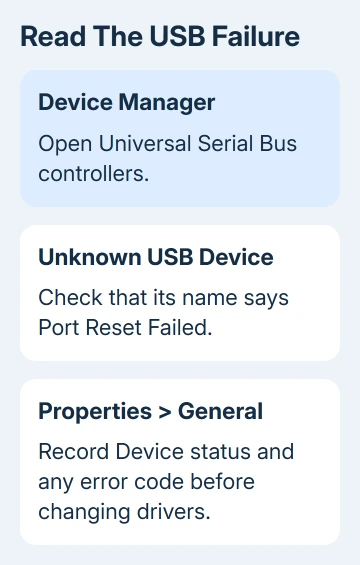
Open Device Manager from Start's right-click menu. Expand the Universal Serial Bus controllers category. Open Unknown USB Device (Port Reset Failed) and read Device status on its General tab.
Keep the complete status message, including its error code. Code 43 means a driver reported a device failure; it doesn't identify which physical part needs replacing.
Microsoft documents a port-reset timeout as one failure that can prevent USB recognition.
If the entry instead says Device Descriptor Request Failed, use the USB recognition checks. That is different wording, even though some cable and hub checks overlap.
The Not enough USB controller resources warning calls for checking the connected device load separately from port-reset repairs.
Keep Device Manager open while disconnecting the suspect accessory. If the warning disappears along with it, you've found the connection to check. Reconnect just that device for the next test.
2. Reconnect the device without the hub or dock
Save any work using the accessory. For a drive that still responds, eject it before disconnecting. Unplug the affected USB connection and reconnect it directly to a suitable port on the computer.
If a hub or dock was between them, leave it out for this test. If the device works directly, check the dock's power, the cable connecting it to the PC and its firmware, the software built into it. Don't replace the accessory just yet.
Connect the accessory's separate power adapter when one was supplied. A USB plug fitting into the dock doesn't mean the dock can supply every attached device with the power it needs.
Try another port that supports the accessory's function. On a desktop, a rear motherboard port provides a comparison with the front-panel connection. Watch whether the warning returns and whether the accessory actually works.
If nothing changes, don't keep reconnecting it indefinitely. A different cable gives you a better check than another attempt with the unchanged setup.
3. Compare the cable and another computer
Use the accessory's original cable, or a known working cable that supports its required data connection. A cable that charges a phone isn't automatically suitable for a data device, display or high-speed dock.
Inspect the plugs and sockets for obvious damage. Stop using a connector that is loose, bent or damaged rather than forcing it into place.
Try the accessory without a hub on a second suitable computer. If it also fails there with another suitable cable, request repair or replacement from its maker. Reinstalling the first PC won't repair a device that fails elsewhere.
If it works on the other computer, return to the first PC. Try a different known working USB accessory there. This tells you whether one device is affected or several devices fail through the same port or dock.
For USB-C, check the port and cable capabilities as well. The connector shape alone doesn't tell you which data, display and charging features are supported.
I'd do these comparisons before reinstalling hub drivers. They give you a clearer reason to change the PC's software, and they can prevent replacing a working dock because of one bad cable.
4. Check the Dell HD22Q case after hibernation
This error has a specific fix for the Dell Dual Charge Dock HD22Q with an Inspiron 14 Plus 7441 or Latitude 7455. Certain USB-C devices show Port Reset Failed after those Qualcomm-based computers resume from hibernation.
Dell's recovery step for that combination is to unplug the affected USB-C device from the dock and plug it back in.
Check both the computer model and the dock label before trying that fix. Other combinations can show Code 43 for a different reason, so they need the connection and driver checks too.
If the warning clears but returns after hibernation, record that pattern for dock support. Give them the dock model, laptop model and article number 000228091, so support can check that specific connection issue.
5. Restart and install the correct device updates
Disconnect the failing accessory and restart Windows, then reconnect it after signing in. Use Restart, rather than closing the laptop lid or allowing it to sleep.
On Windows 11, check Settings > Windows Update. On Windows 10, open Settings > Update & Security > Windows Update. Follow the PC maker's update tool or support instructions for model-specific drivers.
For a dock, check for updates to its firmware as well as the laptop's drivers. For Thunderbolt or USB4 hardware, use the packages listed for your exact computer and dock. Don't substitute a driver from a similarly named model.
Some ASUS Thunderbolt models include their Thunderbolt driver in the Intel chipset package. The model's support page determines which package applies, so don't install an Intel package on an unrelated AMD or Arm machine.
If the device works after updating, reconnect the rest of your accessories individually. If the error returns only when a particular dock or accessory joins the setup, give that detail to its support team.
6. Rebuild hub drivers only when the PC remains the problem
If several devices that work elsewhere fail on the same PC, its maker may recommend reinstalling the hub drivers. ASUS gives these steps for Windows 10 and 11, using Device Manager.
Disconnect external USB devices, expand Universal Serial Bus controllers, right-click each USB Root Hub entry and select Uninstall device. Restart the PC so Windows installs the hub drivers again.
A USB keyboard or mouse can stop responding during this process. Use a laptop's built-in controls or arrange another working input method before removing the hub entries.
USB4 systems have extra entries called routers, and other PC makers can give different recovery steps. Follow the exact model's instructions instead of deleting every controller or router because its name contains USB.
If that doesn't help, stop repeating driver removal. Request checks of the USB controller, socket and firmware from your PC maker, with the results of your direct connection, cable and second-computer tests.
The Short Version
Compare a direct connection, a suitable cable and another computer to see whether the fault stays with the device or the PC. Use the HD22Q hibernation recovery when it matches, then check model-specific updates and hub recovery.
Checked November 11, 2026.