
USB-C compatibility issues can leave a monitor dark or a dock partly working even when the plug fits. Connect the accessory directly to your laptop with its supplied cable, then check whether that port supports the feature you need.
Charging, file transfers and video have separate requirements. A cable that charges your laptop might not support the other two jobs. The Windows notification helps you decide which part to check next.
1. Read the warning before swapping equipment
Reconnect the accessory once and read the notification. Display connection might be limited points toward video support. USB4 device functionality might be limited points toward the USB4 connection between the computer and accessory.
If notifications are hidden, open Start, search for USB settings, and open that result. Turn on Connection notifications if your PC offers it. Reconnect the accessory and keep the message visible long enough to read it.
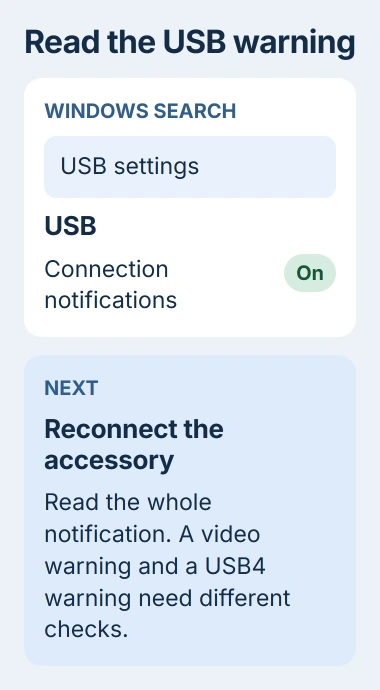
Microsoft's USB-C troubleshooting guidance lists different fixes for these warnings. Turning notifications off only hides the message; it doesn't add the missing function.
Note what still works, too. A dock whose keyboard and mouse work but whose monitor stays dark needs different checks from an accessory Windows never detects. Use those results to choose your next check.
For USB device not recognized, find the warning-marked item in Device Manager and open Properties. Save its Device status code. Check the device and its driver before assuming the port can't send video.
2. Connect directly to the port that supports the job
Remove any hub, extension or adapter between the accessory and laptop. Use the supplied cable to connect them directly. If your laptop has several USB-C ports, check its manual to see what each port supports.
The oval shape tells you the plug will fit. The port's specifications tell you whether it supports ordinary USB data, DisplayPort video, Thunderbolt, charging the laptop, or a combination of those features.
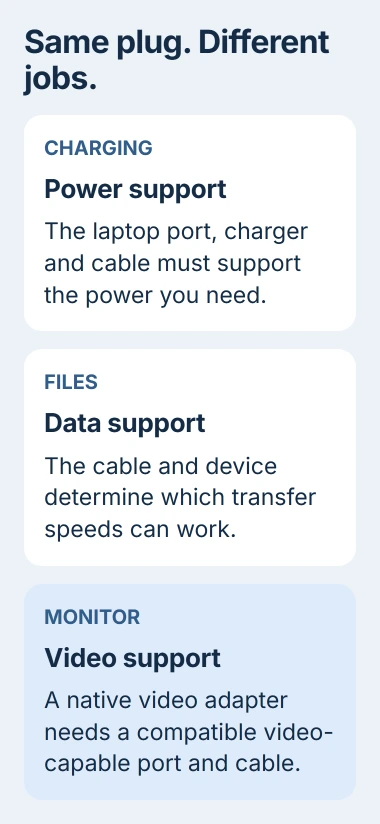
For video, look for DisplayPort over USB-C or DisplayPort Alt Mode in the laptop's specifications. Alt Mode means the port can carry video through that connector. A fast USB data rating doesn't tell you whether video will work.
The DisplayPort compatibility explanation covers the video support your laptop needs. A passive USB-C-to-HDMI adapter passes along that output; it can't add it to a port that lacks it.
If the accessory works until you add a hub, check which functions the hub supports. If it fails on just one laptop port, compare what that port supports with the working one before assuming it's damaged.
I'd try this direct connection before buying a replacement dock. That takes the hub out of the test, so you'll know whether the laptop and accessory work together.
3. Match the cable to data and video, not just wattage
Start with the monitor, dock or drive's supplied cable if you still have it. A laptop charging cable can supply power while carrying only basic USB data, leaving high-speed storage or video unavailable.
The wattage label tells you how much charging power a cable can carry. It doesn't tell you whether it supports DisplayPort video or the data speed your dock needs. Check both when choosing a replacement.
The USB-C cable comparison distinguishes charging-focused cables from cables designed for faster data and video. Two nearly identical cables can behave differently on the same laptop.
For a USB4 dock, use its supplied cable or a certified USB4 cable that meets its requirements. Connect it to a USB4-capable port without routing it through an ordinary USB hub.
If changing only the cable brings the missing feature back, keep using that cable. Label the old one with the jobs it supports so you don't plug it into the dock again by mistake.
If neither suitable cable works, check how much power the accessory needs and whether it supports your computer. Trying more cables won't help if the computer lacks a required feature.
4. Check power when the device connects and disappears
A portable drive or dock can need more power than the laptop supplies through that connection. Connect the accessory's own power adapter if its instructions call for one, and plug your laptop into its normal charger.
Disconnect unused USB accessories and test the troublesome device alone. If it stays connected with external power, check its power requirements before replacing a data cable or reinstalling drivers.
If your laptop charges slowly through the dock, compare the power the dock sends it with the power it needs to charge. The wattage on the dock's power brick isn't always the amount that reaches the laptop.
The laptop slow-charger checks cover that warning in detail. Use the laptop's compatible charger directly while checking the dock, especially if the battery falls during use.
Stop using a cable or connector with exposed wiring, a damaged plug or unusual heat. A loose or damaged connection needs attention before another compatibility test.
5. Separate unsupported features from missing software
A DisplayPort Alt Mode adapter needs a port that supports video; Windows has no switch that adds that hardware feature. Once you've checked the hardware, read the accessory's instructions for any required graphics drivers or firmware.
DisplayLink works differently. It uses its own compatible USB graphics hardware and software to send video over a USB data connection. Installing its software won't turn a different kind of video adapter into a DisplayLink device.
If two monitors light up but repeat the same picture on a Mac, the Mac dock and MST guide covers that specific limit. It isn't the same symptom as a Windows USB-C warning or a completely dark screen.
A USB-C headphone adapter can have a different mismatch. Some need the port to supply analog audio, a signal ready for headphones. Many PCs need a digital USB audio adapter with its own hardware to convert the sound.
If a direct connection still fails with compatible equipment, give support both model numbers, the cable's specifications and the Windows message. Say which features worked and whether external power made a difference.
The Short Version
Read the USB warning, connect directly to a suitable port, and use a cable that supports the missing function. Then check power and required software. Matching plugs alone can't confirm charging, video or USB4 compatibility.
Checked November 5, 2026.

Isaac Smith is the founder and editor of PC Glance, a website that covers computers, laptops, and technology. He is a tech enthusiast and a computer geek who loves to share his insights and help his readers make smart choices when buying tech gadgets or laptops. He is always curious and updated about the latest tech trends.