
Your laptop's battery icon carries a small warning mark, or a Slow charger notice pops up every time you plug in. Sometimes it happens with the very charger your laptop shipped with.
It is irritating, but it is usually not a battery fault, and to me it is a message about the power path. Windows is comparing what arrives through your cable with what the laptop draws.
A Surface owner asked about it with the supplied charger, and that question shows 10+ under Same question.
What the warning icon means
Microsoft documents both signs together: "A battery icon with a warning on it appears in the system tray to indicate that a slow charger is connected, and the battery is discharging".
So your laptop takes more than the charger gives. The battery covers the gap. A Microsoft moderator in a May 2026 question called the warning and the drain "the same signal".
On Super User, the answer the asker accepted reads the icon the same way, as "the power being supplied is not sufficient to charge the battery at normal speed".
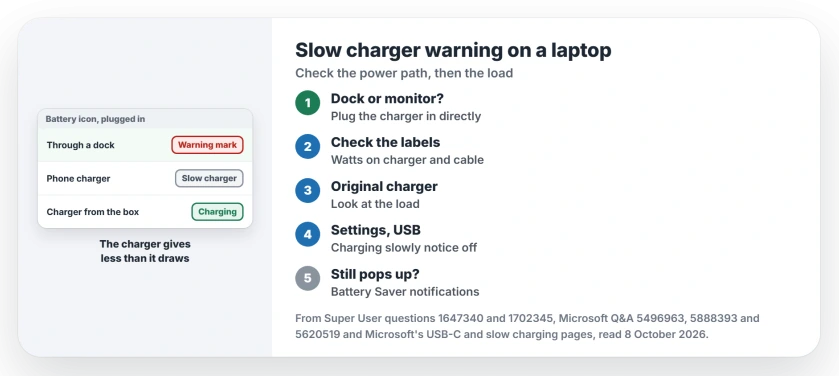
Status: checked 8 October 2026. The icon means the charger gives less than the laptop draws. Use the charger from the box, skip the dock, then turn the notice off if a slower charge is fine.
1. Plug the charger straight into the laptop
Docks, hubs and monitors that charge over USB-C pass on less than the brick behind them. Microsoft lists "The charger is connected through an external hub or dock" among the causes. Your dock may be the whole story.
The Super User asker saw it on a dock: "If I disconnect the laptop or connect it directly to the power supply, the warning sign goes away".
Their dock still held the battery full through a stress test, and from 1 percent on the same dock the warning cleared. The laptop charged "reasonably quickly". The notice came back at 100 percent.
So a dock that warns can still be fine for a desk: if your battery holds or climbs while you work, you can live with the icon.
2. Check the watts on the charger and the cable
Microsoft's other causes are a charger that "isn't powerful enough to charge your PC", a cable that cannot carry enough, and dirt in the port. It suggests compressed air for the port.
Its example is blunt. If your PC needs 12V and 3A, "a 5V, 3A charger won't give you the fastest charging". A phone brick on a USB-C laptop is that case, since it fits, charges a little, and makes Windows warn.
The wattage is printed on the brick. Our laptop not charging page goes through the wattage checks and the other physical causes in more detail.
3. With the original charger, look at the load
Some owners see it with the charger from the box, like a Surface Laptop Studio 2 owner who got "Slow charger, use a higher-watt charger" two months after buying it. Charging looked normal.
Two months later the MVP helping them wrote "Glad the issue resolved itself". Another Surface owner found "The battery will charge when the Surface is left alone and not used".
That second case is the load outrunning the charger, the same signal again. Microsoft's slow charging page adds "To speed up charging, charge your PC while it's asleep or turned off".
A game or a long export can drain your battery on the original charger, and that is the charger and the load working as built. Our slow charging page shows how to read the real charge rate.
Turn the warning off, if a slower charge is fine
The switch is in Settings, then Bluetooth & devices, then USB: Show a notification if this PC is charging slowly over USB. Microsoft's USB-C troubleshooting page points to the same USB settings for its notices.
It often does not hold. The Super User asker wrote that it "seemed to work the first time I tried it, but I just plugged in my USB charger and it popped up again".
A Windows 11 owner in the same question added "This doesn't work for me either". In a November 2025 question, the toggle and its registry value were both off. An adviser called it "a bug in Windows 11".
Owners found two ways around it. Battery Saver notifications are the first, confirmed by owners on two Dell laptops who turned them off in Settings, then System, then Notifications.
One owner wrote it "works on my Windows 11 Dell Vostro laptop". You also lose Battery Saver's own alerts.
The machine-wide value is the second. In December 2025 a Super User owner traced the notice to HKLM rather than the per-user key, took ownership of it, and set NotifyOnWeakCharger to 0.
Their result: "I no longer received this notification". Read your own key before you copy them.
Ours: on this laptop that HKLM key holds NotifyOnWeakCharger set to 1. Its owner is TrustedInstaller, Administrators can only read it, and the per-user USB key exists with no values in it.
So the registry route means changing a system key's permissions on your laptop, and a March 2026 owner who tried it found "the notification still popped up". I would use the Battery Saver switch before that.
Does the warning mean the battery is failing?
Not on its own. It is about your charger and the load. Battery wear shows in capacity, and powercfg /batteryreport lists design capacity next to full charge capacity on your laptop.
The Short Version
- The warning icon means your charger gives less than your laptop is drawing, so the battery covers the gap.
- Plug the charger straight into the laptop, not through a dock or monitor.
- Use the charger and cable from the box, and clean the port.
- To silence it: the USB toggle, Battery Saver notifications, or the HKLM value, and none of them holds on every laptop.
Where to Next
Try the charger from the box, plugged straight in, while the laptop does its normal work, because that one test separates the path from the load.
If the icon stays, post the watts printed on your charger and the laptop's model as a comment. I will check whether they match.

Isaac Smith is the founder and editor of PC Glance, a website that covers computers, laptops, and technology. He is a tech enthusiast and a computer geek who loves to share his insights and help his readers make smart choices when buying tech gadgets or laptops. He is always curious and updated about the latest tech trends.