
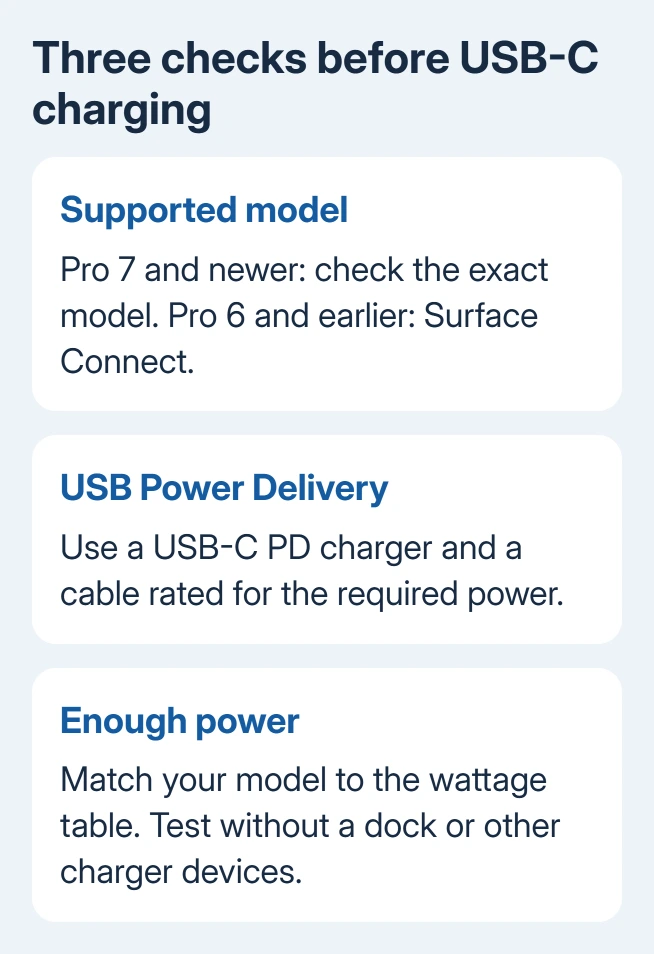
Yes, Surface Pro 7 and newer models can charge with a suitable USB-C Power Delivery charger, but their required wattages differ. Pro 6 and older models don't gain USB-C charging through a USB-A adapter.
Check the exact Surface model before choosing a charger. The 12-inch Surface Pro needs different charging power from several 13-inch models, and a charger that keeps a phone charged can be too weak for the tablet.
In this guide
Check the Surface model before the charger
Open the Surface app, expand Device information, and look for Surface model. If the app isn't installed, System Information in Windows shows the System Model and System SKU details.
Use the full model name, including 12-inch, with 5G, Business or the edition number. Those details matter in the charging table. Surface Go and Surface Laptop are separate product families with their own requirements.
Microsoft lists three charging groups in its Surface Pro power table: USB-C only, USB-C plus Surface Connect, and Surface Connect only.
Surface Pro 6, fifth-generation Pro, Pro 4 and Pro 3 belong to the Surface Connect group. You can't charge them through their USB-A sockets. A cable that changes plug shape doesn't add the charging electronics they need.
The 12-inch Surface Pro models listed in the current table charge through USB-C only. Many larger recent Pro models also have Surface Connect, the magnetic charging connector on the side.
Match the charger's power to the model
Look for USB Power Delivery, usually shortened to USB PD, on the charger's specifications. PD lets the charger and tablet agree on the power to supply. Check for Power Delivery even when the USB-C plug fits your Surface.
The current model table lists these power levels. The first figure is the minimum listed wattage; the second is the recommendation for Fast Charging where supported.
| Surface Pro model | Minimum | Fast Charging recommendation |
|---|---|---|
| 12-inch, first or second edition | 27W | 45W |
| 13-inch, 12th edition; Business 13-inch, 12th edition | 39W | 60W |
| 11th edition, including listed Intel Business and Snapdragon models | 39W | 60W |
| Pro 10 for Business, with or without 5G | 39W | 45W |
| Pro 9 with 5G | 39W | 60W |
| Pro 9 without 5G, Pro 8, Pro X | 60W | 60W |
| Pro 7 and Pro 7+ | 60W | Not supported |
The difference between Pro 9 and Pro 9 with 5G is easy to miss. Match the complete name rather than choosing a charger from the number alone. Use the full manufacturer table if your model isn't in this shorter list.
I'd choose the recommended wattage when one is listed, rather than buying a charger that only meets the minimum. That gives you the charging performance intended for the device without guessing from a phone charger's behavior.
Check the cable and the active charger port
Use a USB-C to USB-C cable rated for the power your Surface needs. A compatible charger can still be held back by its cable. Check the cable specification instead of assuming every USB-C cable carries the same power.
For a multiport charger, read how much power its chosen port supplies. The large wattage printed on the box can describe the combined output across ports. Connecting another device can change how that power is shared.
For the first check, unplug other devices from the charger and connect the Surface directly. Once it charges properly, reconnect your other devices and check again. That shows whether sharing power is slowing your Surface's charging.
Avoid a USB-A charger with a USB-A to USB-C cable for this job. The USB-C charging instructions warn that this arrangement or a low-wattage supply may charge slowly or not at all and won't provide Fast Charging.
If the cable, connector or charger is damaged, replace it rather than trying to hold it at an angle. Fix the loose or damaged connection before judging how well the charger works.
Watch the battery with the charger connected
Plug the PD charger into a working wall outlet, then connect it directly to the Surface's USB-C port. Leave out the dock or monitor for this check, since either can limit the power reaching your Surface.
Check the battery icon in Windows and note its percentage. Let it charge while the Surface is idle, then compare the percentage. A charging symbol and a steadily rising battery are more useful than the plug fitting securely.
A battery holding at an intentional cap may need Surface's Charge to 100% option before you consider replacing its charger.
The slow-charger warning guide covers the warning that can appear when the available power is low. Check the charger's output and the connection path before treating that message as battery failure.
If both USB-C and Surface Connect chargers are attached, the Surface uses Surface Connect for charging. It doesn't combine the two supplies to charge faster. Disconnect Surface Connect when checking whether the USB-C setup works.
The small light on a Surface Connect plug belongs to that magnetic charger. A separate USB-C cable won't necessarily have an equivalent light, so check the tablet's battery icon instead.
With reliable power established, finish Surface setup before relying on the tablet, including its keyboard firmware and recovery-account checks.
For a lit magnetic plug with a battery that refuses to fill, follow the Surface charging status before replacing the supply.
Understand a flat battery and Fast Charging
A completely drained Surface behaves differently depending on the supply. With a charger of 60W or more, the charging guidance says it turns on immediately when connected. With less than 60W, it must reach 10% before turning on.
That difference matters for the smaller model that can charge from a lower-wattage adapter. A dark screen immediately after connection doesn't by itself mean that a compatible lower-power charger has failed.
Fast Charging depends on your model, power and temperature. Under the right conditions, most supported devices can reach up to 80% in about an hour. Some Surface models need longer, even with a suitable charger.
Pro 7 and Pro 7+ are listed without Fast Charging support. Buying a higher-wattage USB-C charger doesn't change that model limit. Use a compatible supply for normal charging instead.
When the correct USB-C setup still won't charge
Try a second known-working PD cable and suitable charger, changing one item at a time. If direct charging works but charging through a dock doesn't, check the dock's specified power delivery to the computer.
Open Surface > Help & support to check update status, then use Check for updates if offered. The USB-C troubleshooting steps include checking the power supply and Surface updates.
For a device that stays completely dark, follow the Surface Pro startup checks. If the correct direct charger still fails, ask Microsoft Surface Support to check USB-C charging, giving the model, charger output and cables tried.
The Short Version
Match your Surface Pro model to its USB-C charging wattage and use a suitable PD charger and cable. Test directly without a dock. Older Surface Connect-only models need their supported charging supply.
Checked November 13, 2026.





