
When a Surface Pro won't turn on, check its charger and try waking it before using Windows recovery. Unplug its accessories, charge it for at least 15 minutes, then press the power button normally.
If the screen stays black, check which Surface Pro you have before holding a button down. Pro 5th Gen and newer restart with Power alone; Pro 4 and earlier need a different button sequence.
1. Remove accessories and give the battery time
Disconnect USB devices, the memory card, external displays and any Surface Dock. Detach the Type Cover too. Try turning on the Surface with those accessories removed, using its physical power button.
If it starts, let Windows load, then reconnect accessories one at a time. If startup fails again after you reconnect an accessory, check that accessory's connection and compatibility. Leave it unplugged while you finish updating the tablet.
If it still won't start, connect the right power supply for your model and charge it for at least 15 minutes. Microsoft recommends that wait in its Surface startup instructions.
Press the power button normally after charging. A Surface logo, battery symbol or recovery message means it's responding. Write down what you see, even if you can't reach the Windows sign-in screen yet.
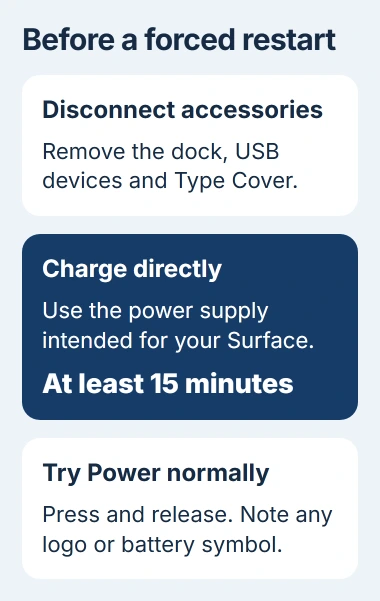
For a completely drained battery, connect your Surface's power supply directly to the tablet. You can check charging through the dock once the Surface starts again.
I'd keep this first check simple. With the dock and accessories out of the way, you have fewer connections to check if the screen stays dark.
2. Read the charger light if it has Surface Connect
A Surface Connect charger has a small light on the end that plugs into the tablet. Check that light while the charger is connected to the Surface and the wall outlet. USB-C chargers don't have that Surface Connect light.
No light: check both connections and try another working wall outlet. Flashing white: unplug the connector and look for debris or damage. Steady white: continue with the wake checks if the screen remains dark.
Even with a steady light, check the screen for a battery symbol; Windows may not have started. Note what the light does so you can describe it if your charger or tablet needs service.
If the light is off or flashing, unplug the power supply from the wall and Surface, and unplug any USB accessories from the supply. Wait at least 10 seconds before reconnecting, as shown in the power-supply checks.
Wipe the connector surfaces you can reach with a soft, dry, lint-free cloth. Replace a damaged cable rather than bending it until the light briefly comes on.
The Surface Connect plug fits either way around. Flip it over, reconnect it and check the light. If a different compatible Surface supply works, the problem is with your original supply or its cable.
If your Surface supports USB-C charging, try a compatible USB-C PD charger. PD means Power Delivery: the charger and Surface agree on how much power to supply. Check your model's charging requirements when choosing one.
A phone charger may fit the port but supply too little power. Try the right supply for your Surface before deciding the tablet has failed.
3. Try the keyboard wake shortcut
Reconnect a working keyboard, press Windows + Ctrl + Shift + B together, and watch the screen. This can bring the display back if Windows is already running. It won't help a flat battery charge.
Once the display returns and Windows responds, save your work and choose Start > Power > Restart. Use that normal restart instead of forcing the power off.
The shortcut needs a working keyboard. The Surface keyboard connection checks cover its connector and key lights. Continue with the tablet's physical buttons if you can't use a keyboard.
If the shortcut doesn't work, try your model's restart sequence next. At this point, you still can't tell whether the screen or battery has failed.
4. Use the forced restart for your Surface generation
A forced restart can lose unsaved work because it interrupts whatever your Surface is doing. Try it if the tablet still won't respond after charging and the wake checks.
For Surface Pro 5th Gen and later, including Surface Pro X, press Power and keep holding it until the device restarts with the Windows logo, which takes about 20 seconds. Let go when that logo appears.
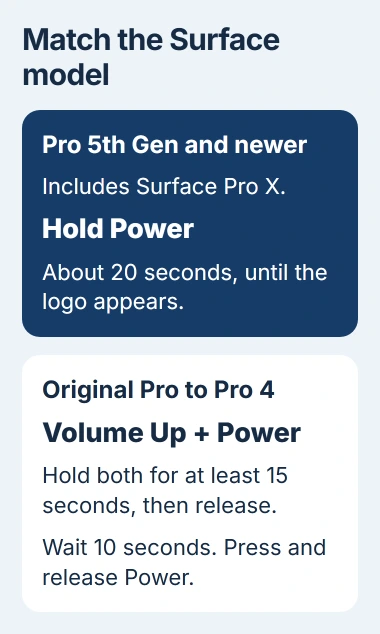
For the original Surface Pro, Pro 2, Pro 3 or Pro 4, hold Volume Up and Power together for at least 15 seconds. Keep holding for the full time even if the Surface logo flashes, then let go of both buttons.
Wait 10 seconds after releasing them. Press and release Power to start the older Surface again. The different sequences are listed in the model-specific restart instructions.
If you're unsure which generation you have, check your purchase record or the device details in your Microsoft account. Surface Go is a different range from Surface Pro, even though both can have detachable keyboards.
A forced restart restarts a device that won't respond. It's different from a factory reset: these buttons don't tell the Surface to erase Windows and reinstall it.
5. Follow the screen that appears, or arrange service
If a logo appears but your Surface gets stuck there, it is responding to power. Take a photo or write down any wording, then follow the Surface support instructions for that screen.
If BitLocker asks for a recovery key, you'll need the matching key. A large battery symbol points you back to charging. Use what the screen shows to choose the next step, rather than repeating a Windows reset.
Use the Surface reset and recovery guide if the screen leads you to recovery. Erasing data won't help you work out why a tablet shows no sign of power.
If the Surface starts normally, install available Windows and Surface updates. Check that it shuts down and starts again before reconnecting everything, especially if this wasn't the first time it failed to turn on.
If it still won't respond with the right supply and restart sequence, contact Microsoft for service. Tell them your model, charger type, what the connector light does and whether unplugging accessories helped.
For a work or school Surface, report those results to its IT team. They can arrange service and help with any recovery information you need.
The Short Version
Unplug accessories, connect the charger directly and check its light. Try waking the Surface with the keyboard, then use your model's restart sequence. Follow help for any error, or ask Microsoft for repair if the screen stays dark.
Checked November 4, 2026.

Isaac Smith is the founder and editor of PC Glance, a website that covers computers, laptops, and technology. He is a tech enthusiast and a computer geek who loves to share his insights and help his readers make smart choices when buying tech gadgets or laptops. He is always curious and updated about the latest tech trends.