

A normal Surface Pro reboot uses Start > Power > Restart. That reloads Windows without erasing your files or reinstalling the operating system, and it works with touch when the keyboard isn't attached.
A frozen Surface needs a different method only when Windows won't accept that restart. The fifth-generation Pro and later models need a long Power hold; Pro 4 and its predecessors need Power with Volume Up. Match the sequence to the model.
In this guide
1. Restart through Windows when the screen responds
Save your documents and let any file transfers finish. Connect power if the battery is low. A normal restart gives Windows and your apps a chance to close properly, which is why it's the first choice for routine problems.
On Windows 11, tap or click Start, select Power, then Restart. The Start button is normally in the taskbar's central group unless you've moved it.
On Windows 10, select the taskbar's left-hand Start button, followed by Power and then Restart. The menu's position differs, but the restart command does the same job.
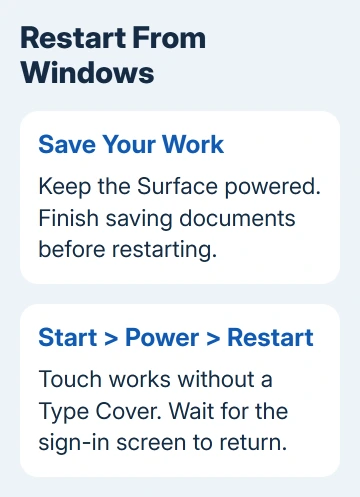
Use your finger for those controls if the Type Cover is detached. A keyboard isn't required for a normal reboot. If the touchscreen doesn't respond but the mouse does, click the same menu controls.
When an app asks whether to save work, answer the prompt. If an app blocks the restart, go back to save and close it instead of immediately cutting power.
If the menu offers Update and restart, Windows has an update waiting to finish. Choose that when you're ready for the installation and leave the Surface connected to power while it completes.
Wait for the sign-in screen, then sign in and open the app you wanted to check. Reaching the desktop again confirms the reboot finished. Test the original problem before changing other settings.
2. Use the sign-in screen or keyboard if Start is stuck
If the desktop is working poorly but Ctrl + Alt + Delete still opens the Windows security screen, select Power in its lower-right corner and choose Restart. This lets you restart without opening Start.
The sign-in screen also has a power control. Use its Restart option when the Surface is running but you haven't signed in. You can restart without opening the app that was failing.
If only the keyboard has stopped responding, use touch or a mouse instead. The Surface keyboard guide covers Type Cover connection checks when Windows itself is still usable.
I'd try touch, the mouse or the keyboard, whichever still works, before reaching for the physical buttons. A failed keyboard and a frozen operating system can look similar when the only action you've tried is pressing a key.
If none of these controls responds, move to the forced restart for your model. Don't force a restart while Windows is visibly installing an update and still making progress.
3. Force a reboot on Surface Pro 5th Gen or newer
This method applies to the fifth-generation Surface Pro and its successors, plus Surface Pro X. It uses the tablet's physical power button, without needing touch input, a Type Cover or access to Start.
A forced restart can discard unsaved work. Use it for an unresponsive Surface after the normal controls fail, rather than as your everyday way of restarting it.
Keep Power pressed while the Surface shuts down, restarts and shows the Windows logo, which takes about 20 seconds. Release the button when that startup logo appears.
Microsoft's model-specific restart instructions describe that complete sequence. Keep holding through the shutdown; releasing as soon as the screen goes dark can stop short of the restart.
Wait for Windows to reach its sign-in screen. If a recovery or error screen appears instead, record what it says. A logo alone tells you the hardware started; it doesn't mean Windows has finished loading.
If the Surface won't start at all, use the Surface power-check guide to check its charger and startup symptoms. Repeating the power hold won't charge an empty battery.
4. Use both buttons on the original Pro through Pro 4
For the original Surface Pro, Surface Pro 2, Surface Pro 3 and Surface Pro 4, use the older two-button shutdown sequence. Don't substitute the newer Pro's single-button timing just because the devices look similar.
Hold Volume Up and Power together for at least 15 seconds, then release both buttons. The Surface logo may flash while you're holding the buttons. Keep them pressed for the full time before letting go.
After releasing the buttons, wait 10 seconds. Then press and release Power to turn the Surface on. Look for its startup logo and allow Windows to load before trying the original task again.
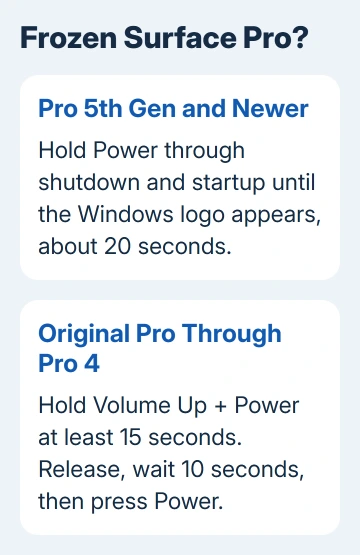
Use the tablet's own volume and power buttons. A volume key on an attached keyboard isn't the physical Volume Up button described by this procedure.
If you aren't sure which Surface Pro you have, check the model details in the Surface app when Windows works, or your purchase record when it doesn't. A case, keyboard or charger isn't a reliable way to identify the tablet generation.
5. Check what happens after Windows returns
Open the app or accessory that prompted the restart and check its behavior once. If it works normally, continue using the Surface. A successful reboot doesn't require changing recovery settings afterward.
If the Surface freezes again, note whether it happens in one app, after connecting a dock or during ordinary use without accessories. Disconnect optional accessories and check for another freeze, keeping the charger attached if needed.
Open the Surface app and check its help and update information. Install the updates offered for the device, then complete any requested normal restart. Use the app's Get Help option if the repeated freeze remains.
Tell support the model, Windows version and whether the problem returns before or after sign-in. Ask support to assess the recurring freeze or named startup error before suggesting a recovery step.
A reboot keeps your installed Windows setup. Reset this PC is a separate recovery operation that can remove apps and, depending on the option chosen, personal files. Don't choose it when you only meant to restart.
If the Surface stays unresponsive after the correct button sequence and a power check, ask Microsoft to check whether it needs repair. Have the serial number ready so they can check available repair and warranty options for that device.
The Short Version
Use Start > Power > Restart whenever Windows responds. For a frozen Pro 5th Gen or newer, hold Power through the startup logo, about 20 seconds. For Pro 4 and earlier, hold both buttons for 15 seconds, wait 10 seconds, then press Power.
Checked November 15, 2026.
 If you have any business, I can build it online






