
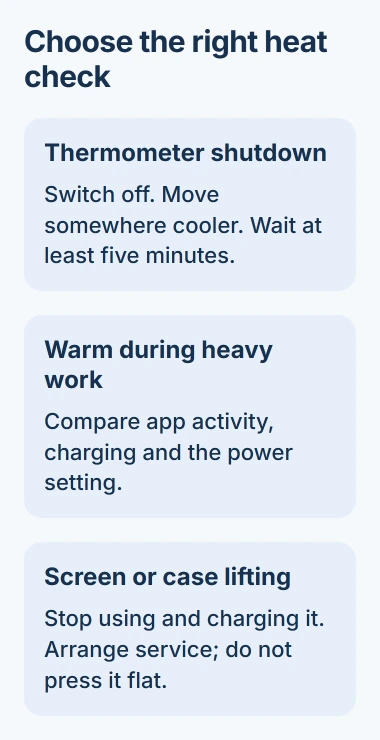
A Surface Pro 4 that shuts down with a thermometer symbol needs cooling before any software checks. Turn it off, move it somewhere cooler, and leave it for at least five minutes; a warm case without that warning needs a different check.
Warmth while charging or running demanding apps can be normal. Check more closely if your Surface keeps shutting down from heat, gets hot during light use, or has a screen that's lifting away from the case.
1. Respond to a temperature shutdown first
Microsoft says a Surface that exceeds its operating temperature can shut down and show a thermometer. Its cooling instructions call for turning it off and cooling it for at least five minutes.
Move it out of direct sunlight and away from a heater. Put it on a firm, uncovered surface with room around the case. Leave it switched off while it cools rather than repeatedly pressing Power to check it.
The operating range is 32 to 95 degrees Fahrenheit (0 to 35 degrees Celsius). That means the air around your Surface, not the temperature of its metal back or a reading in an app that monitors the processor.
Once it has cooled, turn it on and try a light task. If the thermometer returns, stop and contact support, even if you can restart the tablet afterward.
If the Surface won't start even after cooling, try the Surface startup checks for power and charging problems. Tell support that you saw the thermometer warning before it stopped starting.
2. Compare the heat with what the computer is doing
A game, video call or large update can warm the case. Heat while the tablet sits at the desktop needs a different check. Note what was running when it got hot and whether you were charging it.
Save your work and close apps you don't need. Keep one simple task open and see whether the Surface cools down. On a model with a fan, listen for it to slow down too.
Charging can also make the tablet warmer. Try battery power if it has enough charge and no physical damage. If a firmware update, which updates the tablet's built-in software, is installing, let it finish before this check.
Make these comparisons separately. Closing a game, unplugging the charger and moving to another room together may cool your Surface, but you won't know which change helped most.
I'd check a heavy app before buying a cooling accessory. An accessory won't explain why an idle browser or background process is keeping the processor busy.
3. Find a busy app in Task Manager
Press Ctrl+Shift+Esc to open Task Manager. In the Windows 10 layout, select More details if the window shows only a short app list. Open Processes, then select the CPU column to sort it.
CPU usage shows how much work each app or background task gives the processor. Watch for an app that keeps topping the list. A brief jump on its own isn't a reason to blame that app.
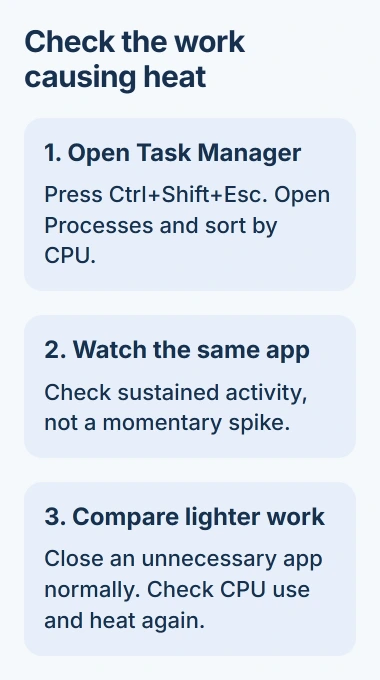
Heavy processor use makes the cooling work harder, as the Surface fan guidance explains. Use the busy app's own Close command when you're finished with it, then check CPU use again.
If a browser tops the list, close the busy page or stop its video before closing the whole browser. If an installation you started is still running and the tablet is cool enough, let it finish instead of ending its processes.
If you don't recognize a process, check what its name refers to before closing it. Ending Windows components at random can interrupt your work without fixing the heat problem.
If CPU use drops but the tablet still shuts down from heat during light work, tell the repair shop. The repeated temperature warning still needs attention, even with a low CPU reading.
4. Choose a cooler power setting
On Windows 10, select the battery icon in the taskbar. If a power slider appears, move it away from Best performance toward the recommended or more efficient setting your version offers.
For a Pro 4 already running Windows 11, open Settings > System > Power & battery > Power mode. Choose the recommended option or one that uses less power instead of the fastest performance setting.
The names depend on your Windows version and power settings. Choosing a lower setting reduces how hard the computer runs, but won't fix blocked cooling or a damaged battery.
Repeat the same light task afterward. If the Surface stays comfortable and responsive, keep that setting for ordinary browsing and documents. More demanding work can still generate more heat.
If your work tablet doesn't show the power control, ask IT which power plan it uses. You don't need to edit the registry or change processor limits to try these standard settings.
5. Check available updates without expecting new firmware
Open the Surface app and expand Help & support to check for updates. If you see Check for updates, select it. Windows Update will open, where you can install the updates available for your device.
The Surface Pro 4 update history confirms that this model no longer gets new driver or firmware updates. Older updates are still available, but don't wait for a future firmware fix.
Save your work before restarting, then try the same workload again. Even if the update installs successfully, you still need to check whether the original heat problem returns.
If heat arrives with a rapidly doubled or scrambled picture, read the Surface Pro 4 screen-scramble guide. That display fault has its own service assessment and isn't cured by ordinary Windows tuning.
6. Stop using a tablet with visible battery expansion
Look for a screen lifting away from the frame or a case that has changed shape. Have a repair shop check those signs, especially on an older tablet.
Follow the Surface battery-care guidance if the battery has swollen enough to distort the case: stop using the tablet, don't press the screen back into place, and avoid squeezing or puncturing the battery.
Shut it down, unplug the charger, and arrange service. Software cleanup and power settings can't fix a swollen battery. Tell the repair shop how the case has changed before taking or sending the tablet in.
If the heat keeps returning but the case looks normal, tell the repair shop what symbol you saw, how warm the room was, whether it was charging and what CPU use showed. Ask about cooling or battery repairs and get a price first.
Once the tablet is stable enough to use safely, back up any files you can access. That matters more than another demanding test on a device that keeps shutting down to protect itself.
The Short Version
Cool the Surface first if it shows a thermometer. If it's just warm, compare charging, app use and power mode, then check for older updates. Get it serviced if heat keeps shutting it down or the screen or case starts lifting.
Checked November 4, 2026.

Isaac Smith is the founder and editor of PC Glance, a website that covers computers, laptops, and technology. He is a tech enthusiast and a computer geek who loves to share his insights and help his readers make smart choices when buying tech gadgets or laptops. He is always curious and updated about the latest tech trends.