
The B550M AORUS ELITE AX needs a Wi-Fi driver that matches its motherboard revision and your Windows version. Check the board's full name and revision first, then download its wireless package from GIGABYTE and install it on your PC.
A working Ethernet connection doesn't mean the wireless driver is installed. The wired network adapter, Wi-Fi adapter and Bluetooth connection have separate driver entries, even though they belong to the same motherboard.
1. Match the full board name and revision
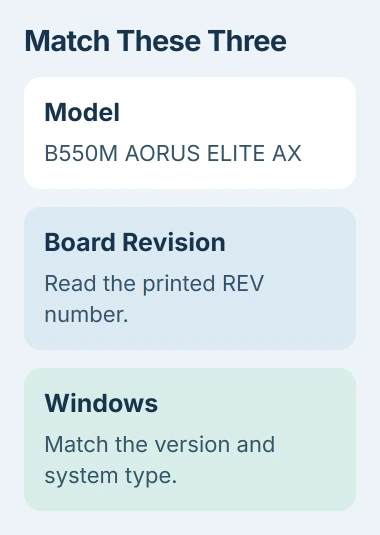
Read the motherboard model on the box or the board itself. B550M AORUS ELITE AX isn't the same product as B550 AORUS ELITE AX, B550 AORUS ELITE AX V2 or a model without AX in its name.
Find the printed REV: number too. Revisions such as 1.3 and 1.4 have separate support pages. Keep that number with the model name when choosing your download; a similar name in search results isn't enough to pick the right page.
If the box is missing, read the board's Windows identity to collect its product code before checking the physical revision.
If you need to open the case to check the board, shut the computer down and disconnect its power first. Try the box label or a clear photo if you have one, so you don't have to reach around installed parts just to read the name.
Next, open Settings > System > About in Windows. Read the Windows edition and System type. Check that the driver package supports both your Windows version and the system type shown there.
These steps cover the AX motherboard's built-in wireless adapter. If you're using a separate USB Wi-Fi adapter, get its maker's driver instead, even if your PC has this motherboard.
2. Download the wireless package from the matching page
Open the B550M AORUS ELITE AX support page. That link opens revision 1.3; change the revision using the choices beside the product name if your board has another number.
Check the heading again after changing it. Then use Support > Downloads > Driver and find WLAN+BT. Select the Wi-Fi package that lists your Windows version. The Bluetooth package is a separate download in that category.
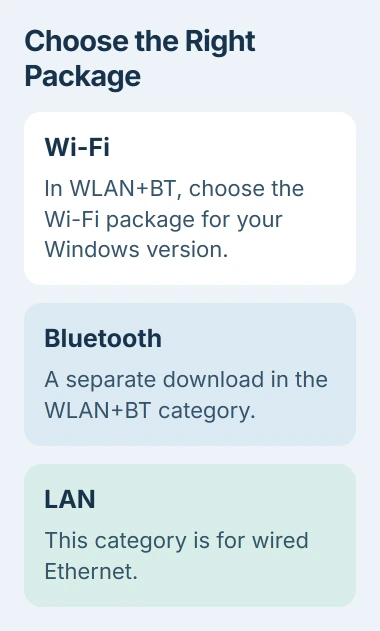
The LAN category is for wired Ethernet, so that package alone won't add the wireless adapter. The AMD chipset package helps Windows work with the motherboard's main components; it doesn't replace the Wi-Fi package either.
I'd keep the downloaded file in a folder named for the board revision. That makes it easier to find the right package if you need to repeat the installation after a Windows reinstall.
For an offline PC, save the package to a USB drive using a computer with internet access. The USB drive transfer steps cover copying a file and safely removing the drive afterward.
Check the package's list of supported hardware before choosing by date. A newer download for a different adapter won't upgrade yours.
3. Extract the files and run the installer
Copy the download to the affected computer. If it's a ZIP archive, right-click it and choose Extract All, then open the extracted folder. Keep the files together so the installer can find the components it needs.
Run the setup program included with the wireless package and follow its prompts. Approve the Windows administrator request for that installer. Restart when asked, then check whether the Wi-Fi control appears.
In Windows 11, open Settings > Network & internet and look for Wi-Fi. In Windows 10, use Settings > Network & Internet > Wi-Fi. Turn it on and check the list of available networks.
If a package says it can't find compatible hardware, stop there. Recheck the full model, revision and package type. Forcing an unrelated network driver doesn't fix a download selected for the wrong board.
Some driver packages don't include an installer. If yours contains only driver files, use the manual method in the next section. Files ending in .inf tell Windows which hardware the driver works with.
4. Use Device Manager if the adapter still needs a driver
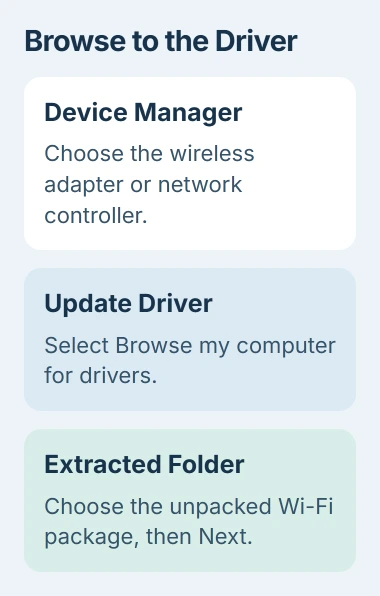
Right-click Start, choose Device Manager, and look under Network adapters. Also check Other devices for a network controller with a warning symbol. Without a driver, your adapter may appear there without its wireless name.
Open that entry's Properties and read Device status. Save the message or error code. It tells you whether Windows needs a driver or is reporting a different hardware problem that needs further checks.
Microsoft explains how to install a driver manually: open Update driver > Browse my computer for drivers. Choose the extracted package folder and continue with Next.
When Windows finishes installing, close the dialog and check the adapter again. Look for its wireless name without the missing-driver warning, then check that the Wi-Fi control works in Settings.
If Windows says the best driver is already installed but Wi-Fi still doesn't work, save that message. Running the same package again won't tell you why Windows recognizes the adapter but it can't connect.
5. Check the connection after the driver is installed
Attach the supplied wireless antennas to the matching connectors on the back of the motherboard, following its manual. Choose your own network and enter its password. Once Windows says it's connected, check that a normal web page loads.
If Wi-Fi connects but keeps dropping, use the Windows Wi-Fi drop checks. With the driver installed, the next job is to work out why the router connection won't stay stable.
Working Bluetooth doesn't tell you whether Wi-Fi works too. If you need both, check each one in Windows after installing its matching package.
If the correct package doesn't add a wireless adapter, contact GIGABYTE support. Include the board model, revision, Windows version, package name and Device Manager result so they can check compatibility before suggesting service.
The Short Version
The motherboard's revision matters as much as its name. Match both and the Windows version, get the Wi-Fi package from WLAN+BT, then extract and install it. Check Device Manager, antennas and the connection afterward.
Checked November 4, 2026.

Isaac Smith is the founder and editor of PC Glance, a website that covers computers, laptops, and technology. He is a tech enthusiast and a computer geek who loves to share his insights and help his readers make smart choices when buying tech gadgets or laptops. He is always curious and updated about the latest tech trends.