Optimum Wi-Fi not working can mean the home network has disappeared, devices connect without internet, or only one phone or laptop fails. Start by comparing a second device connected to your home network.
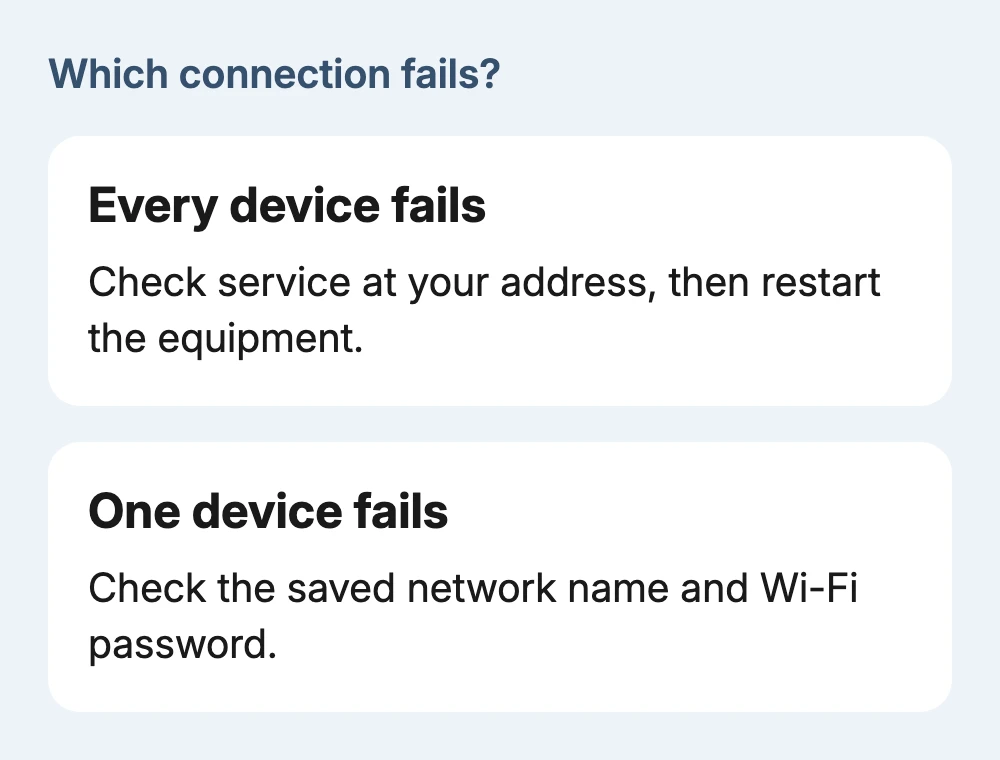
A whole-house failure calls for an outage check and equipment restart; a failure on just one device calls for checking its saved Wi-Fi connection.
A public Optimum hotspot is a separate connection. Make sure the network you're trying to join is your home Wi-Fi name before changing the router.
In this guide
1. Check whether the problem reaches every device
Join the home network with a second phone or laptop, then open a webpage. On a phone, briefly turn cellular data off to keep the webpage test on your home Wi-Fi rather than your carrier's connection. Turn cellular data back on afterward.
Compare what happens. A missing home network points toward the gateway's power or wireless service. A visible network that rejects the password needs the current Wi-Fi password.
A connected device that can't open pages may have lost the internet connection feeding the gateway.
If both devices fail, continue with the service and equipment checks. If the second device works, skip to the saved-network check in section 4.
Changing the gateway's settings when other devices connect normally can take them offline without helping the device you're trying to fix.
Write down the exact message. No internet, a password error, and a network name that never appears describe different failures.
These details help support choose a line test, an equipment check, or help with your device's connection.
2. Check for an interruption at your address
Use cellular data or another working connection to open the Optimum account's outage check. Sign in with your Optimum ID so the result applies to your service address. An interruption elsewhere doesn't explain a failure at your home.
If an outage is listed, follow the service notice. Local Wi-Fi settings can't restore a provider connection while the service is down.
Keep the equipment powered unless the notice tells you otherwise, and check again when the notice changes.
An empty outage list doesn't rule out a fault on the line to your home. A loose cable, failed gateway, or a problem affecting a smaller area can still leave all your devices offline.
Continue with the equipment restart, then ask for a service test if the connection stays down.
Check the equipment's power and cable connections before restarting it. On a cable modem, make sure its coaxial connection is secure.
On fiber equipment, leave the optical connection alone and use the gateway's own support instructions for its model.
Gateway models use different lights. A color that signals a problem on one model can mean something else on yours. Note the model printed on the equipment and which labeled light stays off or keeps flashing.
3. Restart the gateway, or modem and router
A restart can restore a connection after a service interruption. It means removing and restoring power, rather than pressing a recessed reset button.
A factory reset can erase the network setup and create another job before the original fault is fixed.
For one combined gateway, disconnect its power, wait at least 30 seconds, then reconnect it. Let the startup sequence finish and the home network reappear before trying a webpage.
With a separate cable modem and router, power them off and bring the modem back online before the router. Wait for the modem's connection lights to settle, then power the router and let its wireless network return before testing a webpage.
Battery-backed modems can remain on after their wall power is disconnected. Follow that model's battery instructions if a power restart requires disconnecting it.
If the equipment supplies home phone service, the restart interrupts that service too.
I'd try this once after checking the service notice. Repeated restarts won't repair a damaged cable or restore an active outage. When every device still fails, a direct Ethernet test is more useful than another power cycle.
4. Rejoin Wi-Fi on the one device that fails
Confirm the home network name and current password. An Optimum ID password is for your account; your Wi-Fi can use a different password. A recently changed Wi-Fi password can leave a device trying its old saved details.
On Windows 11, open Settings > Network & internet > Wi-Fi > Manage known networks. Find the home network and select Forget. Reconnect from the taskbar's network controls, choose that same name, and enter its current Wi-Fi password.
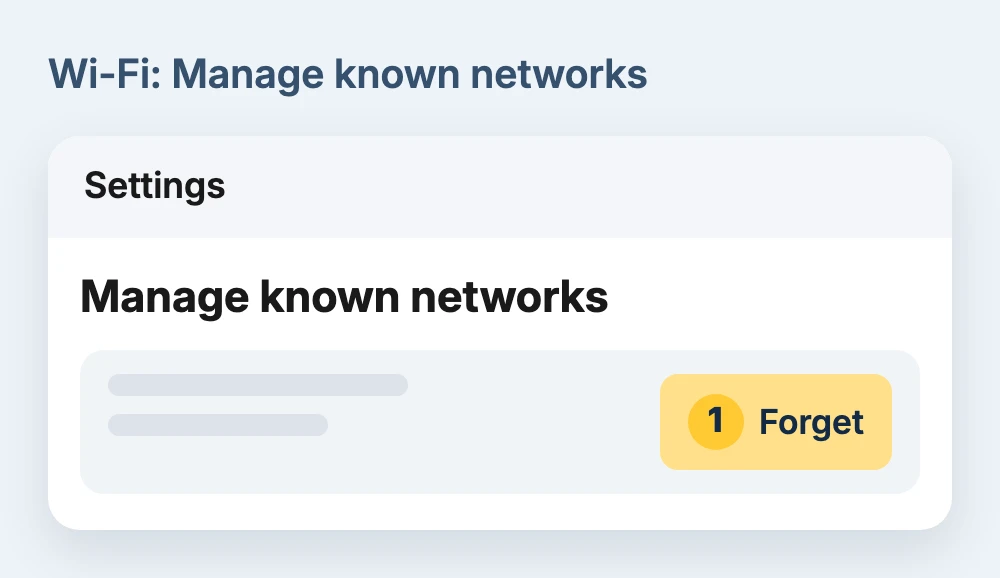
For Windows 10, use Settings > Network & Internet > Wi-Fi > Manage known networks. Select the saved network, choose Forget, and reconnect. Microsoft describes forgetting saved networks in its Wi-Fi connection steps.
On an iPhone, open Settings > Wi-Fi, open that network's information button, and select Forget This Network. On Android, open the network's details in Settings > Network & internet or Connections > Wi-Fi, then choose Forget.
Have the current password available before removing the saved connection. If your device reconnects and pages open, forgetting and rejoining the network helped.
If it still fails while other devices work, check that device's Wi-Fi software or driver.
For a Windows laptop with no wireless option, use the missing Wi-Fi controls guide. A vanished adapter needs different checks from a router that refuses a password.
5. Compare Ethernet before booking a repair
For a wired test, run an Ethernet cable between your computer and a gateway or router LAN port. Turn that computer's Wi-Fi off for the test. Open the same webpage to test the wired connection.
Working Ethernet with failed Wi-Fi points toward the wireless connection or its setup. Move a failing wireless device closer to the gateway and retry.
For room-dependent trouble, the router connection checks cover placement and device comparisons.
If Ethernet also fails and no outage is listed, contact Optimum support and ask for a connection test at your service address. Give the equipment model, light behavior, restart result, and whether both wired and wireless devices fail.
That gives support enough detail to check the line and gateway before recommending replacement equipment. For a public Optimum hotspot, report the hotspot name and location instead; a home gateway restart won't repair that access point.
The Short Version
Test a second device, check the outage notice for your address, then restart the correct equipment. Rejoin the saved network when only one device fails.
Compare Ethernet and Wi-Fi before asking Optimum to test the line or replace the gateway.
Checked November 29, 2026.
 If you have any business, I can build it online