Windows 11 can show a globe instead of Wi-Fi bars when it isn't connected, so a changed icon doesn't always mean the wireless adapter has disappeared. Press Windows + A first and check whether the Wi-Fi control is still there.
If Wi-Fi is missing from Settings too, check whether the adapter is enabled, then restart WLAN AutoConfig. If Wi-Fi still works and only the taskbar looks wrong, start with the taskbar checks instead.
In this guide
1. Open the Wi-Fi controls without relying on the icon
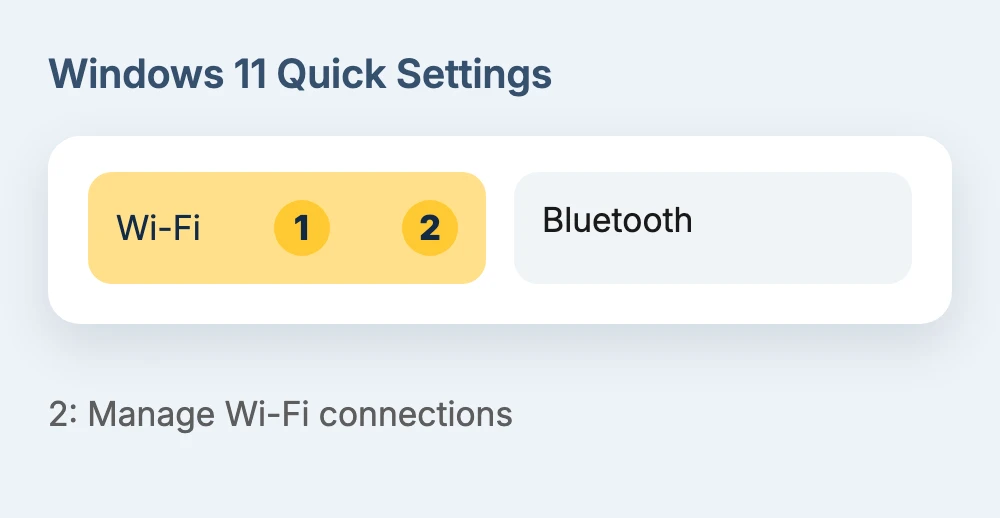
Press Windows + A to open Quick Settings. The network, sound, and battery area opens the same panel when clicked. Windows 11 puts these controls together rather than giving Wi-Fi its own separate settings window.
Find Wi-Fi, turn it on, then select Manage Wi-Fi connections beside it. Choose your network, select Connect, and enter your password when asked. The signal bars should return once it connects.
A globe means Windows doesn't currently have internet access. It can appear before you've joined a network or when an existing connection can't reach the internet. It isn't an instruction to reinstall the wireless card.
If websites load over Wi-Fi but the taskbar doesn't show its usual bars, the radio is already working. Continue with the taskbar restart in the next section. Don't reset the router just to repair a taskbar display.
If Quick Settings opens but contains no Wi-Fi control, press Windows + I, then open Network & internet. Look for Wi-Fi there. This tells you whether just the shortcut is missing or Windows has no Wi-Fi connection available.
When Wi-Fi exists but one network name doesn't, use the missing Wi-Fi network checks. Those checks cover a missing network name; a missing icon or control needs the steps in this article.
2. Restart the taskbar when the connection still works
Save open work, then use Start > Power > Restart. Closing the lid normally puts the laptop to sleep; use Restart for this check. Restarting Windows can clear a taskbar that hasn't updated its connection display.
If the taskbar itself is stuck, press Ctrl + Shift + Esc to open Task Manager. Find Windows Explorer under Processes, right-click it, and select Restart. The taskbar can briefly disappear while Explorer reloads.
This restarts the Windows desktop interface. It doesn't reinstall the Wi-Fi driver or change the router password. Once the taskbar returns, check both its icon and whether the Wi-Fi panel opens normally.
If internet access continues working but the icon is still wrong, run the Windows network troubleshooter. If the Wi-Fi page is absent or no wireless networks appear at all, move to the adapter checks.
3. Turn the radio and wireless adapter back on
Check for a physical wireless switch on the laptop or a keyboard control bearing a wireless or airplane symbol. How it works depends on your laptop model. Use the manufacturer's instructions if the key needs Fn.
In Settings > Network & internet, check Airplane mode and the Wi-Fi switch. Airplane mode and Wi-Fi have separate controls, so check the actual Wi-Fi state rather than assuming one icon tells the whole story.
Right-click Start, select Device Manager, then open Network adapters. Find the wireless adapter. Its name varies; an Ethernet controller is the wired connection and isn't the device to enable for Wi-Fi.
If the wireless adapter's right-click menu offers Enable device, select it. Return to Network & internet and look for Wi-Fi again. If the menu offers Disable device, the adapter is already enabled.
Microsoft says to enable a disabled wireless adapter and restart WLAN AutoConfig in its missing Wi-Fi instructions. These are the checks to use when the Wi-Fi option itself is missing.
If the wireless entry is absent, use the missing adapter guide to check hidden devices and driver detection. A taskbar icon can't return until Windows has a working wireless connection to display.
4. Restart WLAN AutoConfig and run Get Help
Press Windows + R, enter services.msc, and press Enter. Find WLAN AutoConfig in the Services list. Right-click it and choose Restart when that command is available.
WLAN AutoConfig manages wireless connections. Restarting it can restore the Wi-Fi control when the service has stopped working correctly, without deleting the network adapter or removing your files.
Return to Settings after the service restarts. Look for Wi-Fi, switch it on, and check whether nearby networks appear. If the service refuses to restart, write down the error rather than changing unrelated services.
Launch Get Help. Search it for network and internet connection repairs. Follow its questions about the affected connection and accept the suggested repair when it matches your problem. It can check common connection settings automatically.
A work laptop can have services or network controls managed by its administrator. Tell IT which control is missing and any service error. Changing managed settings repeatedly won't fix a policy that the organization keeps applying.
5. Replace a broken driver, then consider Network reset
If Windows recently updated or Device Manager reports an adapter error, download the wireless driver for your model from the laptop maker. Use another device and a USB drive if this PC can't get online.
Keep that driver available before uninstalling the current one. In Device Manager, right-click the wireless adapter and select Uninstall device. Follow the removal prompt, then restart the computer.
Windows will look for an adapter driver during startup. If it doesn't install one, use the package you saved. Check Settings again afterward; the useful result is Wi-Fi returning and a network connecting successfully.
I'd keep Network reset for last. Open Settings > Network & internet > Advanced network settings > Network reset, then choose Reset now if the earlier repairs haven't worked.
This reset clears your custom network settings and sets up Windows' network adapters again. You might need to reinstall VPN clients and virtual networking tools afterward. Keep their setup information available.
If installing the matching driver still leaves Wi-Fi missing, contact the laptop maker for a wireless hardware check. Give them the model, Device Manager's adapter status, and whether the Wi-Fi page is missing from Settings.
The Short Version
Press Windows + A to check Wi-Fi before treating the globe symbol as missing hardware. Restart a stuck taskbar, then check the radio, adapter, WLAN AutoConfig, and driver if Wi-Fi itself has disappeared.
Checked November 29, 2026.
 If you have any business, I can build it online