MAG X870E Tomahawk WiFi issues after installing Windows often need the board's wireless driver. For weak reception, check the external antenna first.
First, check whether Windows sees the wireless adapter. Missing Wi-Fi controls, networks that don't appear, and a connection with no internet need different fixes.
In this guide
1. Look for wireless hardware in Device Manager
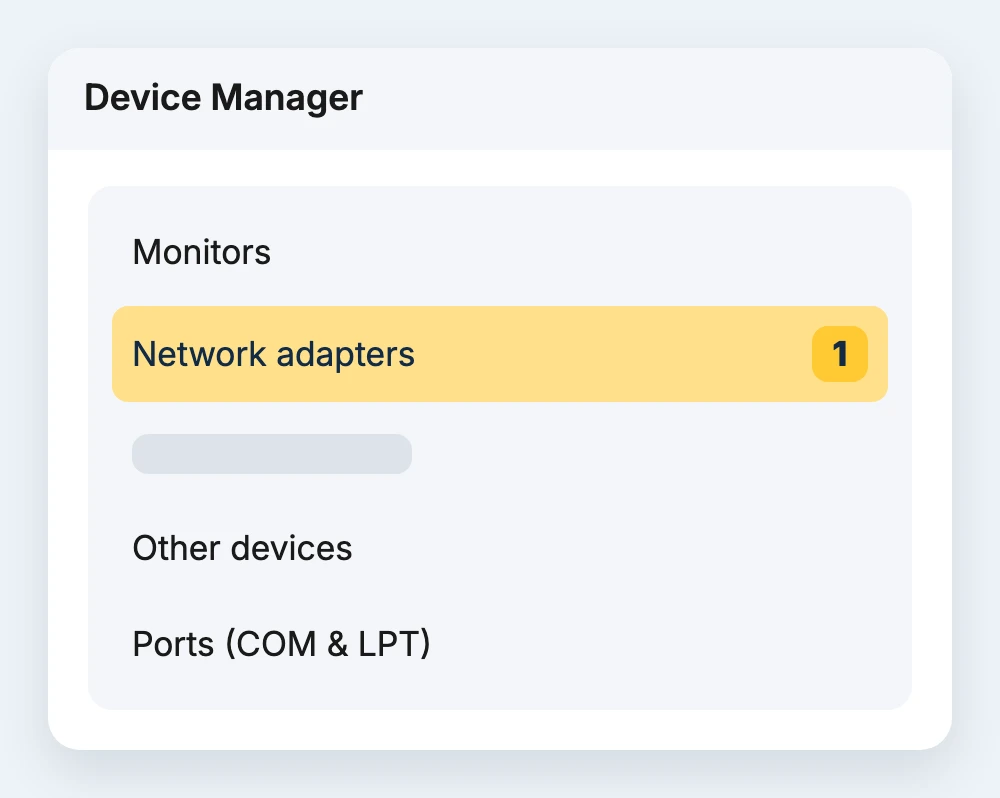
Right-click Start > Device Manager, then expand Network adapters. Look for a wireless adapter and check for a warning symbol. Also note any unidentified Network Controller under Other devices.
A network controller without its driver can appear as an unknown device instead of a named wireless adapter. If a named adapter shows an error, double-click it and read General > Device status. Write down the message.
If an adapter is disabled, open its right-click menu and select Enable device, if available. Then open Settings > Network & internet > Wi-Fi and check whether Wi-Fi and the available-network list return.
If no wireless hardware appears at all, focus on getting Windows to recognize it first. A password change can't make an undetected adapter appear. The missing Wi-Fi adapter checks explain that Windows-side distinction.
This board lists Windows 11 64-bit as its supported operating system. A Windows 10 PC that boots may still lack a supported driver. For a different operating system, ask MSI about support for your exact setup.
2. Restore the Tomahawk wireless driver
Check the full motherboard name before downloading anything: MAG X870E TOMAHAWK WIFI. A Carbon, X870, or MAX support page is a different product, even when the page design and wireless descriptions look similar.
Choose the Windows 11 wireless package on this board's official support page. For an offline PC, save it to USB storage using another computer. Extract it, run its installer, and restart the affected PC.
MSI's manual notes that some newer network chips aren't supported by Windows 11's built-in drivers. A fresh installation with no working Wi-Fi can therefore be a driver problem, rather than a faulty board.
Ethernet can provide a temporary connection, but this board's wired LAN may need its own driver too. If Ethernet also fails after installation, save the correct LAN package on the USB drive along with the wireless package.
The MSI Driver Utility Installer requires internet access, so it can't download packages while both Wi-Fi and Ethernet are offline. Its automatic prompt appears once. If you've closed it, you can still download the drivers manually.
After installation, revisit Device Manager and the Wi-Fi list. If the adapter and nearby networks appear, Windows can now see the wireless hardware and its networks. Write down any remaining device error code to give support.
3. Check the antenna before chasing Windows settings
Connect the supplied Wi-Fi antenna to the rear Wi-Fi/Bluetooth connectors as shown in the board's manual. Check that the connections fit properly and place the antenna out in the open rather than hidden behind the metal PC case.
An adapter can be installed correctly while reception is poor. If networks appear only at very short range, or the desktop sees far fewer networks than a nearby phone, check the antenna and placement before reinstalling the driver again.
Compare the connection near the router if practical. If the connection becomes steady closer to the router, focus on reception or coverage. If all devices lose access in the same location, check the router's coverage too.
I'd make this physical check before changing advanced adapter settings. A missing external antenna is simpler to check than several unrelated settings are to undo afterward.
4. Separate Wi-Fi 7 features from ordinary Wi-Fi
The board supports 2.4 GHz, 5 GHz, and 6 GHz wireless operation, but 6 GHz availability depends on local regulations. Its Wi-Fi 7 requirements also list Windows 11 version 24H2.
Press Windows-R, enter winver, and check the Windows version. Use Settings > Windows Update > Check for updates to update a supported installation. Missing a Wi-Fi 7 feature isn't the same as lacking all wireless connectivity.
Test a basic connection on the router's 2.4 GHz band or its 5 GHz band. A working connection there tells you the wireless hardware can communicate, even if a 6 GHz network or newer feature isn't available.
Your router also needs to support the feature you want. Don't judge the board's basic operation solely by whether it reaches the highest advertised speed. Distance, the router, and the chosen band all affect the usable connection.
If only one band fails, give MSI and the router maker that result. That narrows the report to one band, instead of suggesting Wi-Fi is completely broken.
5. Repair a detected adapter that still drops or won't join
If your network appears but you can't join it, open Settings > Network & internet > Wi-Fi > Manage known networks, open the saved network and select Forget. Reconnect from the Wi-Fi list with the correct password.
If Wi-Fi joins but pages won't load, compare another device on that router. When both lose internet access, check the provider's outage or router connection. If only your PC fails, try the Windows repairs next.
Microsoft's Windows Wi-Fi troubleshooting also recommends reinstalling the network adapter when earlier checks fail. Save the working installer package before removing its driver.
In Device Manager, right-click the wireless adapter, select Uninstall device, and follow the removal prompt. Restart Windows. If it doesn't install a usable driver automatically, install the saved motherboard wireless package.
For drops after inactivity, check the adapter's Properties > Power Management tab if it exists. Clear Allow the computer to turn off this device to save power and test again. Some configurations don't show this tab; skip it when absent.
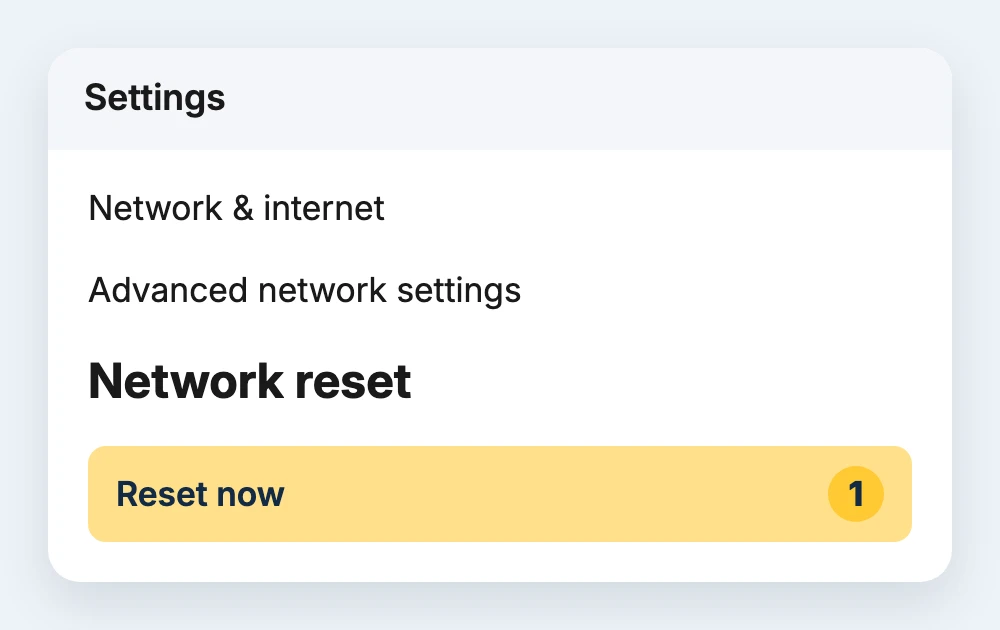
If earlier fixes fail, open Settings > Network & internet > Advanced network settings > Network reset. It resets adapters and settings. VPN apps and virtual switches (connections for virtual machines) may need setting up again.
When ready, select Reset now > Yes and let Windows restart. Reconnect after Windows restarts, then see whether websites load.
The Wi-Fi driver update guide gives more detail on keeping an installer available when your only wireless connection is unreliable.
Ask MSI to check persistent detection or device errors
Contact MSI motherboard support if the correct driver still leaves the adapter undetected or the same device error returns. Give the full board name, Windows build, driver version, Device Manager code, and whether wired internet works.
Ask MSI for a check of the wireless module and an explanation of your repair or warranty options. Don't remove the preinstalled module or flash an unrelated BIOS to solve a missing driver.
The Short Version
Check adapter detection, install the exact board's wireless driver, and connect the external antenna. Test ordinary 2.4 GHz or 5 GHz Wi-Fi before chasing Wi-Fi 7 features. Keep the driver installer ready before removing a failing adapter.
Checked November 27, 2026.
 If you have any business, I can build it online