A Wi-Fi authentication issue often means the router won't accept the saved password. Forget the network and re-enter its current password. Work or school Wi-Fi may need an account or certificate instead.
If your phone joins Wi-Fi but shows no internet, it has already connected to the network. A hotel's web sign-in is also separate from a rejected Wi-Fi password. Start with the message beside your network's name.
In this guide
1. Forget the saved password and reconnect
Check the password with the router owner. Its printed password only helps if it hasn't been changed. An account password for the internet provider isn't necessarily the password for joining Wi-Fi.
On a Pixel, open Settings > Network & internet > Internet > Saved networks. Select the affected network and tap Forget. Return to Internet and select that network again. Type the current password, matching its capital letters.
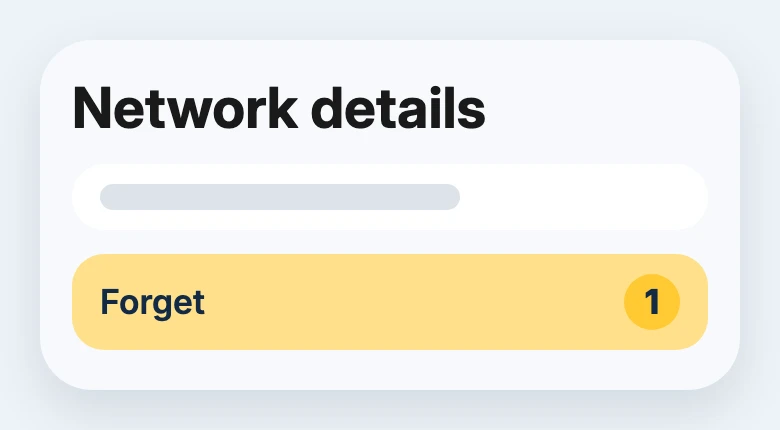
On a Galaxy, open Settings > Connections > Wi-Fi. Use the saved network's settings control, then tap Forget or Forget network, depending on the software. Reconnect to that network with the current password.
Forgetting removes the saved connection from your phone. The router keeps its connections to your other devices. I'd do this before resetting every network setting because it targets the connection that's failing.
Watch the network status. Connected followed by a working web page means the credentials were accepted. If authentication fails again, try another network before changing router security settings.
2. Check whether the rejection belongs to one network
Connect a second device to that Wi-Fi with the current password. Then try your phone on another trusted Wi-Fi network. The results show whether your phone struggles on several networks or just your home Wi-Fi.
A phone that joins another network can still have trouble with your router's setup. If every device rejects the home password, ask the router owner to verify the wireless name and its password in its administration app or manual.
A similarly named network could be a guest connection or a neighbor's router. Read the whole network name before typing. Don't choose a different security type just to make a failed password go through.
For a home router you control, disconnect its power, wait briefly, reconnect it, and let the connection lights settle before trying again. Use its maker's instructions for a setup with a separate modem and router.
Let the household know you're restarting the router, since their connections will drop too. Avoid the router's recessed Reset control: pressing it can erase the setup.
If other devices work but this Android phone doesn't, the Android Wi-Fi connection checks cover the broader phone-versus-network comparison. Keep following this guide if authentication is still the error shown.
3. Treat company Wi-Fi and public sign-in separately
Work Wi-Fi may ask for an identity, password, authentication method, or certificate. A home password won't complete those fields. Ask the administrator for that network's Android connection instructions.
Tell them the network name, your phone model, Android version, and the error shown. Ask whether the account is allowed to join and whether a certificate or device enrollment is required. Leave certificate checking in place.
Don't copy another workplace's security fields. Get the correct values from the organization running the network. A changed work-account password may need updating in the saved Wi-Fi connection.
On hotel or cafe Wi-Fi, look for a Sign in to Wi-Fi network notification after joining. Tap it and complete the terms or sign-in page. Joining Wi-Fi doesn't automatically finish this web sign-in.
If that notification never appears, forget the public network and join it again. Google recommends reconnecting in its Wi-Fi troubleshooting steps for public networks with their own sign-in page.
A connected network with no working pages belongs to the Wi-Fi connected but no internet checks. Repeatedly changing a valid wireless password won't restore a failed internet service.
4. Restart the phone and check downloaded apps
Use the phone's power menu to restart, then retry Wi-Fi. On newer Galaxy models, open Quick settings and use its power control when holding the Side key starts the assistant.
Install a pending phone software update over a working connection. On a Galaxy, check Settings > Software update. A phone that can't use this Wi-Fi may still update through another trusted network.
If the problem followed an app installation, compare Wi-Fi after starting safe mode. This temporarily disables downloaded apps. Use the phone maker's instructions because the entry buttons differ across Android models.
On a Galaxy, open the power menu, touch and hold Power off, then tap Safe mode. Once it starts, turn Airplane mode off and enable Wi-Fi before trying the same network.
If Wi-Fi works in safe mode, an installed app could be causing the problem. Restart normally and remove one recent app. Retry Wi-Fi before removing another. Keep any security software changes within your organization's rules.
5. Reset wireless settings when the phone still fails
Keep your Wi-Fi passwords available before this step. A wireless settings reset removes saved connections and Bluetooth pairings, so accessories will need pairing again. Your photos and apps remain on the phone.
On a current Pixel, open Settings > System > Reset options > Reset Bluetooth & Wi-Fi, then Reset settings. Older Android releases may combine more network settings under a differently named reset option.
On a current Galaxy, use Settings > General management > Reset > Reset Wi-Fi and Bluetooth settings > Reset settings. Join the affected network again after the reset and check whether your phone connects.
If several trusted networks continue rejecting this phone, ask the phone maker for help checking its Wi-Fi hardware and software. For one failing company network, give the administrator the failure time and exact error text.
The Short Version
Forget the affected network and re-enter its current password. Compare another network before a wireless reset. Company credentials and public web sign-ins have separate steps; guessing a home password won't complete either.
Checked November 27, 2026.
 If you have any business, I can build it online