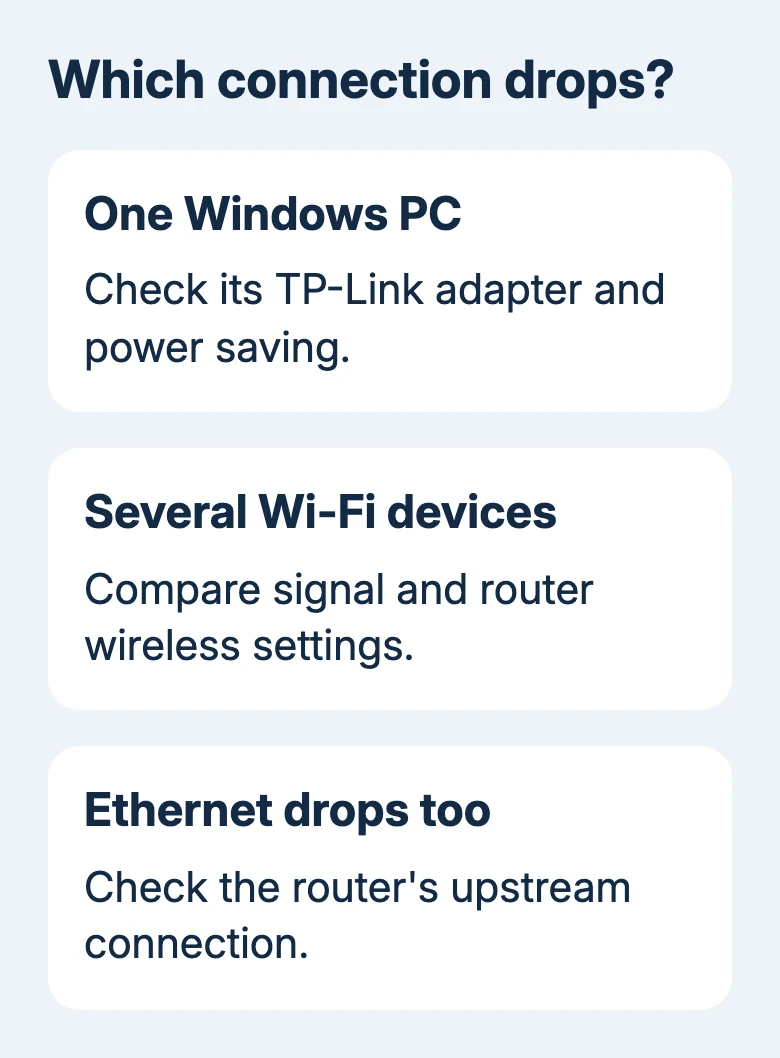
TP-Link Wi-Fi drops need different fixes depending on which device loses its connection. If only one Windows PC drops, check its adapter's power saving. If several devices drop, try Ethernet and check the router's Wi-Fi settings.
In this guide
1. Check whether one computer or the whole network drops
When the next drop happens, check another device using that Wi-Fi connection. On a phone, switch cellular service off for this comparison. If it still loads fresh pages while the PC disconnects, start with that computer's adapter.
Note whether Wi-Fi disconnects or stays joined with no internet. If the network name disappears, focus on the wireless connection. If every device stays joined but loses internet, check the router's connection to the provider.
If possible, use an Ethernet cable between a computer and a router LAN socket. A stable wired connection during a Wi-Fi failure narrows the problem to wireless. If wired access fails too, check the connection to your provider in section 5.
A TP-Link router, Archer USB adapter, Deco mesh system, and range extender aren't interchangeable. Check the label on the device before following settings for it. The adapter steps apply to a Windows PC using TP-Link wireless hardware.
2. Stop Windows powering down a TP-Link adapter
On either Windows release (10 or 11), right-click Start > Device Manager. Expand Network adapters, open your TP-Link wireless adapter's Properties, and select Power Management if that tab is available.
Clear Allow the computer to turn off this device to save power, then click OK. TP-Link's adapter troubleshooting page recommends this change for an unstable connection.
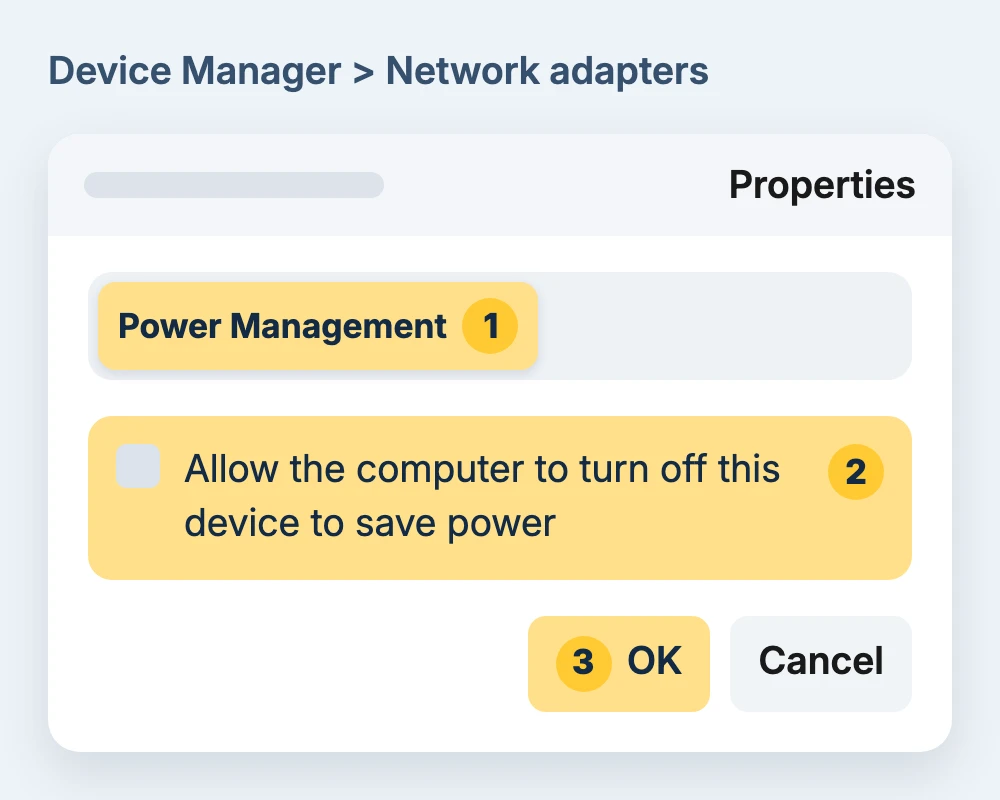
The device name can vary with its chipset and installed driver. Choose your wireless adapter's entry rather than Bluetooth or the wired Ethernet adapter. Unplugging a USB adapter and checking which entry disappears can identify it.
If the tab isn't present, continue with the driver check rather than changing unrelated registry settings to expose it. Available controls depend on the driver. A missing tab doesn't tell you that the router is faulty.
Keep using the PC until you pass the time when it usually disconnects. Leave it idle too if that's when it drops. Staying connected through that same routine tells you more than a speed test just after reconnecting.
3. Check the adapter's connection and correct driver
For a USB adapter, try plugging the adapter directly into a different USB socket on the PC. Bypass a hub or dock. If Windows repeatedly loses the device itself, a router channel change won't repair that USB connection.
Read the model number and hardware revision printed on the adapter. Download its driver from the regional TP-Link support page for that version and your Windows release. Keep the downloaded installer ready before making driver changes.
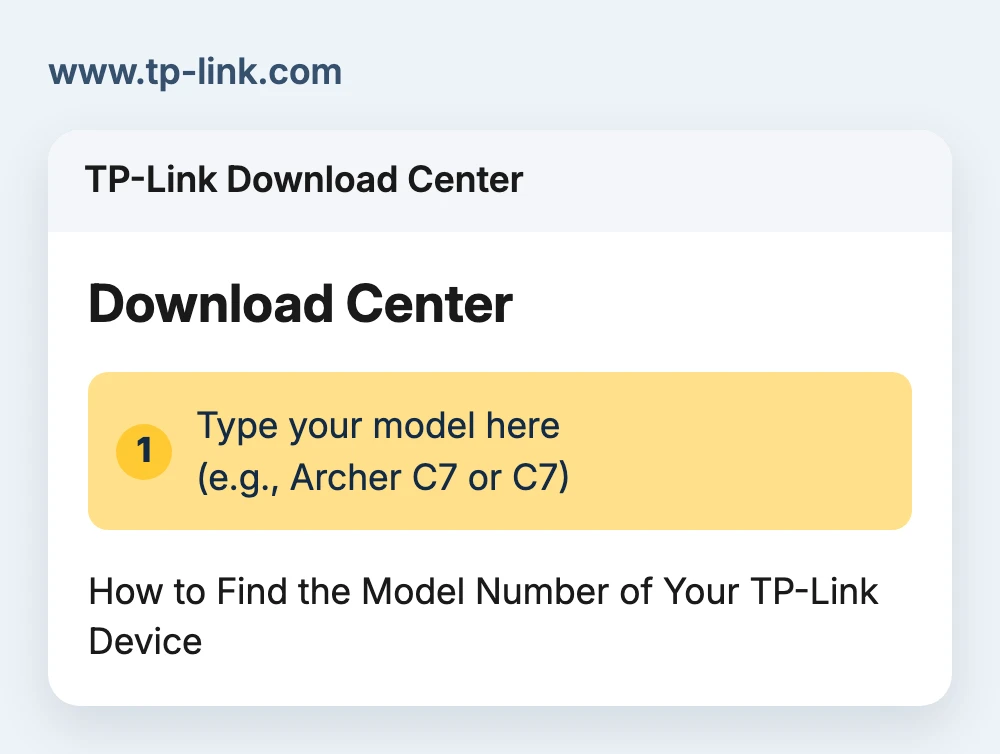
In Device Manager, the adapter's Properties > Driver tab shows the installed driver details. Compare those with the matching download page. Don't install a package meant for a similar-looking adapter with a different hardware revision.
Follow the driver's installation instructions and restart if asked. If it won't install, give TP-Link the model, hardware revision, driver version, and Windows error code. Drivers for other models won't fix that error.
If the laptop has built-in Wi-Fi too, check which adapter carries the connection. Temporarily disable the unused wireless adapter in Device Manager. Keep Ethernet enabled so it can provide a connection while you work.
4. Improve the router's wireless connection
If several wireless devices drop while Ethernet stays stable, move a laptop close to the router and test again. Keep the router in an open position away from large obstructions and appliances that can interfere with its signal.
Stable Wi-Fi beside the router and repeated failures farther away suggest weak coverage. Changing passwords won't improve a weak signal. A range extender can help with placement, but it also needs a usable connection back to the router.
The TP-Link extender setup guide covers that separate device. Don't configure the PC's USB adapter as though it were an extender, or use the extender's settings to troubleshoot the main router.
With a strong signal, compare the router's two wireless bands, 2.4 GHz and 5 GHz, if both are available. If your device stays connected on one band but drops on the other, tell support which band fails.
On supported routers, open Advanced > Wireless > Wireless Settings and disable Smart Connect. This can help certain clients stay connected. Note your original setting, save the change, then rejoin the band you want to use.
For persistent wireless-only drops, the router wireless troubleshooting steps also cover changing channel and channel width. Start with 20 MHz on 2.4 GHz; a narrower width can reduce interference at the cost of peak speed.
5. Handle drops that affect Ethernet too
If wired and wireless clients lose internet together, leave the adapter's power checkbox alone. Check the cable between the modem and router, and note the router's internet light when service disappears.
For a separate modem, TP-Link also recommends a direct computer-to-modem comparison. Have your provider's connection instructions ready first. Changing the attached device can require a restart or provider-specific setup.
If the connection drops even with the PC plugged into the modem, tell your provider when it fails and that you bypassed the router. If it stays stable there but drops through the router, give that result to the router's maker.
For a combined modem-router or a managed building connection, ask the provider to make that comparison. There may be no separate modem you can bypass. Tell them your equipment model and whether Wi-Fi, Ethernet, or both lose internet.
6. Update the affected device and gather useful evidence
Find router firmware for its model, hardware revision, and region. Use that model's update procedure, keeping its power connected throughout. Router firmware changes the router; a driver package changes the PC's adapter software.
If the drop continues, contact TP-Link with those device details, the PC's operating system, and whether wired access stayed working. Include whether the failure followed idle time, happened only on one band, or affected every client.
A Bluetooth driver error has a different repair path. The TP-Link Bluetooth driver guide covers that problem; changing Bluetooth drivers won't repair a router-wide internet outage.
The Short Version
For one PC, check adapter power saving, USB, and drivers. For several Wi-Fi devices, check signal and wireless settings. If Ethernet drops too, check the router's connection to your provider.
Checked November 27, 2026.
 If you have any business, I can build it online