

A TP-Link Bluetooth driver error with Code 31 often comes from a competing Bluetooth radio. Disable that other adapter, keep TP-Link enabled, and restart Windows. Leave the Microsoft Bluetooth enumerators enabled.
A missing adapter needs a USB connection check instead. If Windows shows the radio working normally but your headphones won't connect, move on to pairing checks instead of repeating the Code 31 repair.
In this guide
1. Disable the competing Bluetooth radio for Code 31
Right-click Start, select Device Manager, then expand Bluetooth. Open the TP-Link adapter's properties and read Device status on the General tab. Code 31 says Windows cannot load the required drivers.
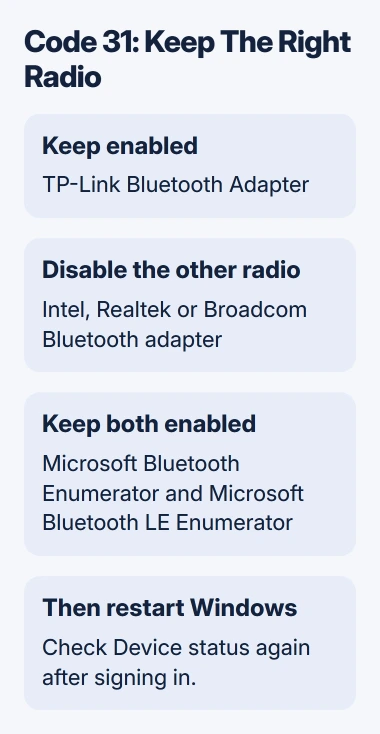
TP-Link says competing Bluetooth radios can cause Code 31. Its repair keeps the TP-Link adapter active while disabling the other manufacturer's radio.
Connect a wired mouse or use the built-in touchpad first. A Bluetooth mouse or keyboard using the internal radio disconnects when you disable that radio, which can leave you unable to finish the change.
Look for another actual adapter, such as Intel Wireless Bluetooth, a Realtek Bluetooth adapter, or a Broadcom radio. Right-click that competing adapter, choose Disable device, and confirm. Keep the TP-Link adapter enabled.
Microsoft Bluetooth Enumerator and Microsoft Bluetooth LE Enumerator are system components, not competing radios. Keep both enabled. A list with several Bluetooth entries doesn't mean every entry needs switching off.
Device Manager marks a disabled adapter with a small status symbol. Check that the other physical radio is disabled and TP-Link is still enabled, then restart your computer to apply the change.
2. Restart, then check the adapter's status again
Choose Start > Power > Restart, rather than unplugging the dongle and continuing in the same Windows session. After signing in, return to the same adapter's Properties > General page.
When the repair works, Code 31 is gone and Device status reports that the device is working properly. That's the point to reconnect your accessory. A notification-area icon by itself doesn't confirm a working driver.
I'd check this status before downloading another driver. If the radio works but your headset won't connect, check pairing. If the warning remains, check the installation and exact error code.
If you decide to return to the computer's built-in Bluetooth later, remove the USB adapter and re-enable the internal radio in Device Manager. Keep a note of the radio you disabled so you can reverse the right change.
Code 10, Code 43, and Code 31 describe different failures. Record the code that's actually present after the restart. Don't keep applying a Code 31 conflict fix when the message has changed to a different fault.
3. Match the driver to the model and hardware revision
If the warning remains, check the model on the dongle or its packaging. UB400, UB4A, UB500, and UB500 Plus are different products. A driver for a TP-Link Wi-Fi adapter isn't automatically a driver for a separate Bluetooth dongle.
The hardware revision matters too. On the UB500 download page, select the version matching your device before choosing a Windows package. Use the support page for your region and actual model.
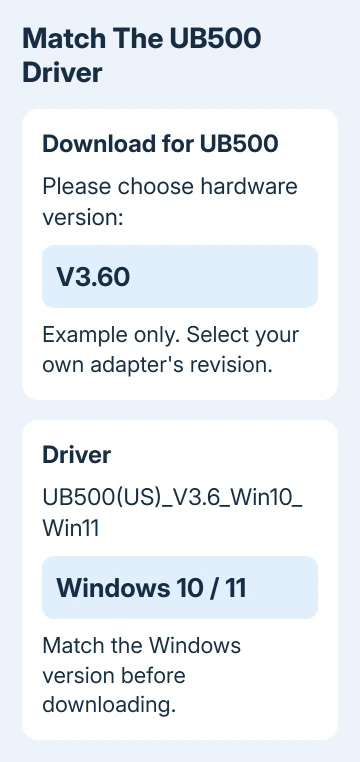
Don't choose a hardware revision simply for its higher number. The package must match the hardware you own. A current UB500 support page can list different downloads from the original UB500 installation examples.
Download the matching package, extract it, and follow its included installation instructions and restart request. For the general uninstall-and-reinstall sequence, use the Bluetooth driver reinstallation steps.
Windows can also search for a driver through Device Manager > Bluetooth, then the adapter's Update driver > Search automatically for drivers. The Windows driver instructions explain the manufacturer-download fallback.
If the automatic search offers no update, stay with your model's support page. Recheck Device status after installation. Keep any remaining error code for support rather than trying unrelated packages.
4. Check the USB connection when the dongle is absent
If inserting the adapter produces no usable Bluetooth entry, connect it directly to another USB port. Remove a hub or extension from this check. Restart the PC and look in Device Manager again.
This tells you whether Windows can't see the dongle or can see it but can't start its driver. The USB Bluetooth setup guide covers the installation stage once Windows can see the device.
Try the dongle on a second computer, disabling a competing built-in Bluetooth radio there too. If that computer detects it, return to the USB or Bluetooth setup on your original PC.
Failure on both computers is useful information for the maker, especially if neither computer detects a newly inserted device. Reinstalling software repeatedly on the first PC won't explain that result.
5. Move to pairing checks when the radio works
After Device status returns to normal, switch your accessory to its pairing mode. Powering it on alone may not make it discoverable. If another connected phone or computer prevents pairing, disconnect that connection first.
On Windows 11, open Settings > Bluetooth & devices > Add device > Bluetooth. On Windows 10, use Settings > Devices > Bluetooth & other devices > Add Bluetooth or other device > Bluetooth.
Select the accessory and finish its prompts. Test its actual function afterward, such as typing or playing sound. If pairing succeeds but audio keeps breaking up, describe that as a connection or sound problem when asking for help.
Send TP-Link Support the model, hardware revision, Windows version, error code, and second-port or PC results. Ask them to confirm the driver package and whether the remaining fault needs repair or warranty service.
The Short Version
For Code 31, disable the competing Bluetooth radio, keep the Microsoft enumerators enabled, and restart. For other errors, match the driver to the dongle's hardware revision. Check USB detection separately from accessory pairing.
Checked November 12, 2026.






