
A USB Bluetooth adapter adds a radio to the PC, but its driver still has to match the adapter. Connect the dongle, install the maker's package if Windows hasn't completed setup, then pair the accessory.
On a laptop replacing built-in Bluetooth, check the adapter maker's instructions before leaving both radios enabled. ASUS documents disabling the internal radio for its USB-BT500 installation problem.
Match the download to the USB adapter
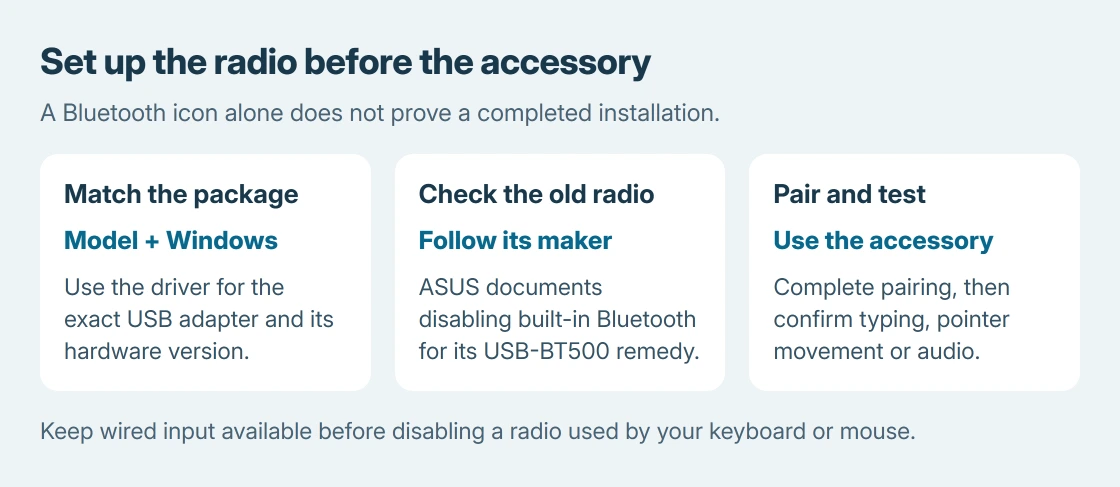
Read the adapter's model and hardware version from its label or packaging. Select that device on its maker's support page, then choose Windows. A Wi-Fi adapter's driver doesn't supply a separate Bluetooth dongle's software.
Microsoft says a driver newer than Windows' automatic search result can be available from the manufacturer in its Bluetooth driver instructions.
Status: ASUS USB-BT500 and TP-Link UB500 installation guidance checked October 25, 2026, alongside Microsoft's driver and pairing instructions. No adapter or paired device was changed.
Extract the downloaded package before running its installer. Follow its connection order and restart request. Save the installer locally before changing radios, especially if a Bluetooth mouse or keyboard is the only available input.
Keep a wired mouse or the laptop's touchpad available during that change. Disabling the radio disconnects accessories using it.
Replacing an internal radio needs a separate check
ASUS' USB Bluetooth installation remedy uses USB-BT500 as its example. It covers an adapter shown as Generic Bluetooth Adapter, or Bluetooth with an exclamation mark, after unsuccessful installation.
The procedure is documented by ASUS: insert the adapter, open Device Manager, disable the built-in Bluetooth radio, then obtain the correct USB-BT500 driver and complete setup.
Select the internal radio itself, not every Bluetooth entry or the new dongle. Record its name so that it can be enabled again if returning to built-in Bluetooth. Follow the relevant model's instructions if using another adapter.
If the original radio merely disappeared and no replacement has been installed, use the missing Bluetooth checks. An internal detection fault and a replacement adapter's installation are separate jobs.
A UB500 can appear before its driver is ready
TP-Link's UB500 installation guidance warns that a Bluetooth icon in Device Manager doesn't establish successful driver installation. Its example changes from Generic Bluetooth Adapter to TP-Link Bluetooth 5.0 USB Adapter.
Those names describe TP-Link's documented UB500 example. Newer hardware revisions can have different versions and names, so check the support page's hardware selector rather than rejecting a device for a different label alone.
For a failed UB500 install, TP-Link supplies a reinstall sequence and a manual-driver fallback. Use the instructions and files for the exact hardware version; an INF filename from an older package isn't universal.
Pair something after Windows recognizes the radio
Enable the Windows Bluetooth switch, then put the accessory into its own pairing mode. On Windows 11, use the Bluetooth device selector in the taskbar controls and choose it under New devices.
Microsoft's pairing instructions document that discovery control. Windows 10 instead offers Settings > Devices > Bluetooth & other devices > Add Bluetooth or other device > Bluetooth.
Test an actual function after pairing: typing, pointer movement or headphone audio. That completion check is ours; a device name appearing during discovery doesn't establish a usable connection.
If the dongle retains a warning after its model-specific installation, contact its maker with the Windows version, hardware revision and Device Manager status code. Avoid disabling more devices while guessing which radio is which.
The Short Version
Install the package for the USB adapter and its hardware version. Handle an internal radio only as the maker instructs, then enable Bluetooth and pair the accessory. Verify its function after pairing rather than stopping at an icon.

Isaac Smith is the founder and editor of PC Glance, a website that covers computers, laptops, and technology. He is a tech enthusiast and a computer geek who loves to share his insights and help his readers make smart choices when buying tech gadgets or laptops. He is always curious and updated about the latest tech trends.