
Yes, Bluetooth works without Wi-Fi or an internet connection. Headphones, speakers, keyboards and mice can connect directly to a nearby phone or computer. Keep Bluetooth turned on; the Wi-Fi switch can stay off.
What you're playing can still need internet access. A downloaded song can play through Bluetooth offline, while an online video needs Wi-Fi or cellular data to load. A connected headset won't supply the missing internet connection.
Separate the Bluetooth connection from the app
Think of a phone playing music through a wireless speaker. Bluetooth carries the sound between those two devices. The music app gets the track separately, from a saved file, an offline download or an online service.
That explains why the speaker can remain connected while playback stops after you leave home. The wireless speaker link can be working perfectly while the app has lost the connection it needs to fetch the next song.
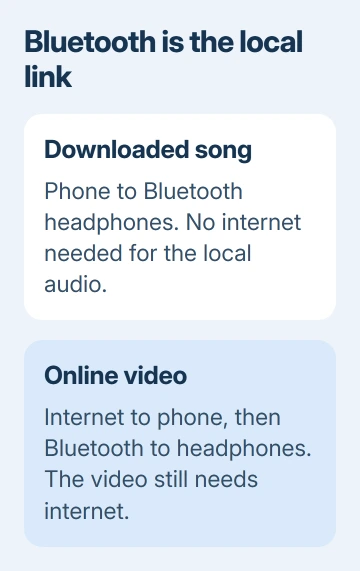
Try a song or audio file you know is stored on the phone. Start it playing, select the Bluetooth speaker as the audio output, then turn off Wi-Fi. If cellular data is also off and it keeps playing, that file works offline.
Don't use an unfamiliar streaming track for this check. An app can keep playing content it has already loaded, which doesn't tell you whether the next track will be available when you're away from a connection.
I'd check the actual playlist before a trip. A download icon and a successful offline play are more useful than discovering on the train that the album was only added to your library.
Connect a phone without joining a Wi-Fi network
Follow the accessory's pairing-mode instructions so your phone can find it. Pairing mode makes it available for a new connection; simply switching it on may reconnect it to a different device instead.
On a Pixel or similar Android phone, open Settings > Connected devices > Pair new device. Choose the accessory's name and follow the pairing request. Other Android brands may put Bluetooth under Connections.
On iPhone, open Settings > Bluetooth and turn it on. Keep the accessory in pairing mode, choose it from the list and enter a code if requested. You won't need a Wi-Fi network name or router password to pair it.
After pairing, look for Connected next to the device. If it only appears as saved or previously paired, tap its name to reconnect. For audio, also check that the app is sending sound to that accessory rather than the phone speaker.
Google explains how to pair and reconnect on supported Android devices. An accessory's setup app can have extra requirements, but that doesn't mean every Bluetooth connection needs Wi-Fi.
Use Bluetooth on a Windows laptop or Mac offline
On Windows 11, open Settings > Bluetooth & devices and turn Bluetooth on. Select Add device > Bluetooth, choose the discoverable accessory, and complete the prompts.
On Windows 10, use Settings > Devices > Bluetooth & other devices > Add Bluetooth or other device > Bluetooth. The menus differ, but neither procedure asks you to join a wireless network first.
On Macs running Ventura 13 or a newer macOS release, open Apple menu > System Settings > Bluetooth. Find the discoverable accessory and click Connect. On older macOS releases, use System Preferences > Bluetooth instead.
A Bluetooth keyboard or mouse can then control the computer while it's offline. An internet connection is needed for an online document to load, not for each keystroke or pointer movement to reach the computer.
If a PC has no Bluetooth hardware, turning on Wi-Fi won't add it. A supported USB Bluetooth adapter can add it, though you may need to download its driver or setup software before using it offline.
Keep Bluetooth on when using Airplane Mode
Airplane Mode and the Wi-Fi switch aren't the same control. Turning on Airplane Mode can also switch Bluetooth off, depending on your device and the settings it remembers. Turn Bluetooth back on if your headphones disconnect.
On a supported Pixel, open Settings > Connected devices > Connection preferences > Bluetooth and turn it on while leaving Airplane Mode on. The phone can remember wireless choices for the next time Airplane Mode is used.
On iPhone, use Settings > Bluetooth to check its actual switch. The Control Center buttons have different behavior: tapping Wi-Fi there disconnects from a network without completely disabling every Wi-Fi feature.
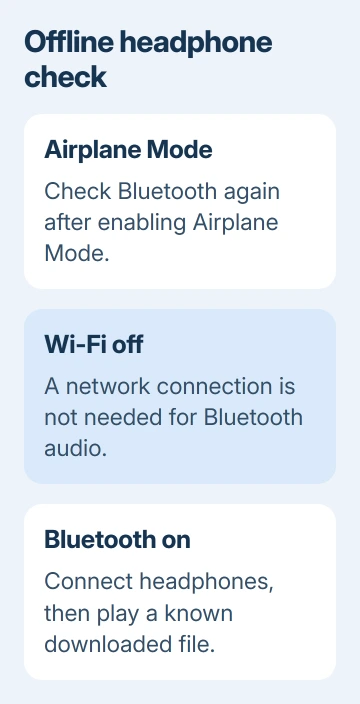
On iPhone, use Settings > Wi-Fi > Wi-Fi off for this check rather than a dimmed Control Center button. Keep Bluetooth on, disable cellular data and play downloaded content to check that it works without internet access.
Recognize features that need more than Bluetooth
A wireless product can support several connection methods. A speaker might accept Bluetooth audio and also offer Wi-Fi playback. Choose its Bluetooth mode when you want a direct connection without a router.
AirPlay, casting and Bluetooth audio aren't interchangeable. Seeing a speaker or TV in one sharing menu doesn't mean it accepts a Bluetooth audio connection. Check the product's connection modes before changing phone settings.
The Bluetooth range guide explains why distance, walls and interference can break a direct connection. Rejoining Wi-Fi won't repair a headset that's simply out of Bluetooth range.
Internet sharing is another separate case. A phone can share its cellular connection over Bluetooth tethering on supported devices. Bluetooth carries that shared connection, but your phone still needs an internet service to share.
Streaming over cellular data also uses your mobile plan, even though Bluetooth carries the sound from your phone to the headphones. Turning Wi-Fi off doesn't make an online music service free of data use.
Follow the failed connection to the right place
If a local file plays through the phone speaker but not the paired headset, check the selected sound output, accessory volume and charge. Then reconnect it using its saved Bluetooth entry.
For a connection that keeps dropping on a PC, the Windows Bluetooth pairing checks cover the radio and driver. For content that won't load anywhere, check the phone or laptop's internet connection instead.
When the accessory still won't pair, give its maker the exact model and the phone or computer's software version. Ask for its pairing-mode procedure and whether its first-time setup needs a companion app or internet download.
The Short Version
Bluetooth doesn't require Wi-Fi or internet access. Pair the accessory with Bluetooth enabled, then use local files or completed offline downloads. Online content, account setup and internet sharing can still need a separate connection.
Checked November 8, 2026.

Isaac Smith is the founder and editor of PC Glance, a website that covers computers, laptops, and technology. He is a tech enthusiast and a computer geek who loves to share his insights and help his readers make smart choices when buying tech gadgets or laptops. He is always curious and updated about the latest tech trends.