
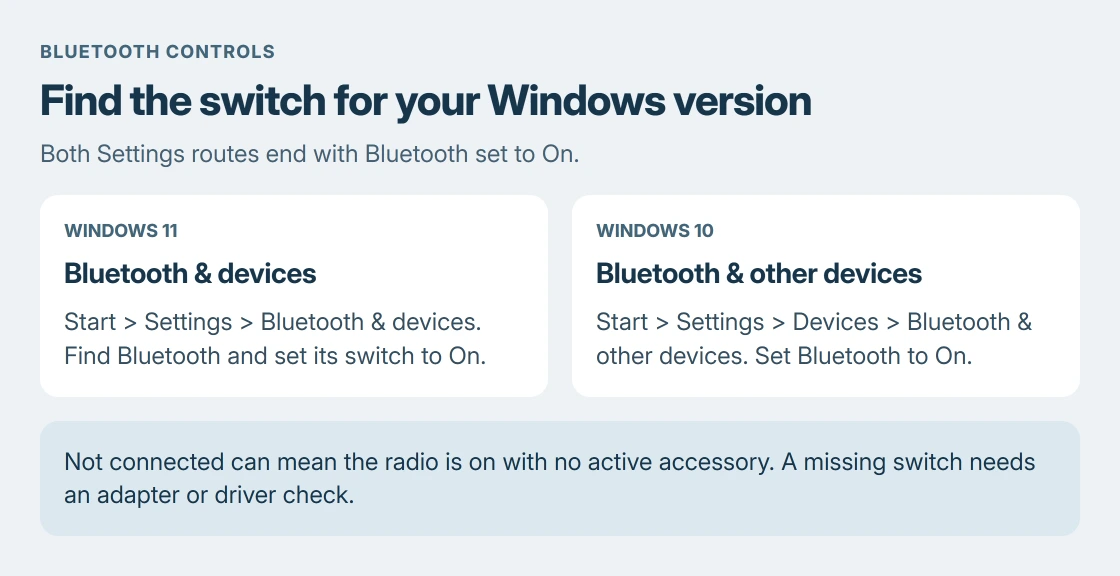
Bluetooth turns on from Windows Settings: open Bluetooth & devices on Windows 11, or Devices > Bluetooth & other devices on Windows 10. Set the Bluetooth switch to On. A missing switch needs a different check from one that is simply off.
The taskbar also has a shortcut. Turning the radio on lets Windows use Bluetooth, but a new mouse or headset still needs to be paired afterward.
Turn it on in Windows 11 Settings
Open Start > Settings > Bluetooth & devices. Find Bluetooth and change its switch to On. Leave it there while connecting the accessory.
Microsoft documents both the Settings and taskbar methods on its Bluetooth on/off page. Settings is the useful starting point when the taskbar tile is hard to find.
Status: Microsoft's Bluetooth controls checked on 24 October 2026 for Windows 11 plus Windows 10. No radio or paired accessory was changed.
Check the switch's state rather than waiting for a device name. On confirms that Bluetooth has been enabled. An accessory appearing in a separate device list answers a later question: whether that accessory is connected.
If the switch cannot be found, go to the missing-control section in this guide. Repeatedly opening the pairing window cannot supply an unavailable radio.
Find the older control on Windows 10
Choose Start > Settings > Devices > Bluetooth & other devices, then set Bluetooth to On. Windows 10 groups this page inside Devices; it does not use Windows 11's top-level Bluetooth & devices category.
The Add Bluetooth or other device button starts pairing. Use it after enabling Bluetooth, rather than treating that button as the radio's power switch.
Windows 10 remains usable, although standard support ended in October 2025. Its Bluetooth control cannot extend security-update eligibility.
Use the taskbar tile for a quicker change
On Windows 11, select the network, speaker or battery area beside the clock. Select the main Bluetooth tile to toggle the radio. The small chevron opens device controls instead.
Microsoft states that an enabled tile can show Connected, Not connected, or a connected device's name. Not connected therefore does not mean Bluetooth is off. It can mean the radio is ready with no active accessory.
On Windows 10, open Action center beside the clock and select Bluetooth. Choose Expand if the tiles are collapsed. The highlighted tile indicates an enabled radio.
If Windows 10 has no tile, use Settings > System > Notifications & actions > Edit your quick actions. Choose Add, then Bluetooth when available. The Settings switch remains an alternative to this shortcut.
When neither location has a Bluetooth switch
Microsoft says an absent setting can mean the PC has no Bluetooth adapter or its adapter driver is missing. A desktop with Wi-Fi does not automatically have Bluetooth as well; check its model specifications.
If Bluetooth worked previously and has disappeared, follow the missing Bluetooth control checks. That guide deals with a radio Windows has stopped detecting, rather than a normal on/off change.
A computer sold without Bluetooth needs compatible Bluetooth hardware before these controls can work. If a new PC should include it, give its manufacturer the model number and explain which controls are absent.
Connect the accessory after enabling the radio
Turn on the accessory and use its documented pairing control. Windows being ready does not put a headset or mouse into discovery mode.
Continue with the Windows pairing procedure once the Bluetooth switch is on. If the radio works but one accessory stays absent, check that accessory's battery and pairing instructions with its maker.
Keep a wired input device available before turning Bluetooth off when a Bluetooth keyboard or mouse is the only way to control the PC. Switching it off disconnects the devices using that radio.
The Short Version
Enable Bluetooth in Settings, using the route for the Windows version installed. An enabled radio can still say Not connected. Missing controls need an adapter or driver check; adding an accessory is a separate pairing step.

Isaac Smith is the founder and editor of PC Glance, a website that covers computers, laptops, and technology. He is a tech enthusiast and a computer geek who loves to share his insights and help his readers make smart choices when buying tech gadgets or laptops. He is always curious and updated about the latest tech trends.