

A missing Bluetooth taskbar icon often means its shortcut is hidden or switched off. Open Bluetooth settings first. If Bluetooth turns on and your devices work, restore the icon without reinstalling the driver.
A missing tray icon, Quick Settings tile and Bluetooth switch are different problems. The first two change how you open Bluetooth controls. If the Settings switch is gone, check the Bluetooth adapter and driver instead.
In this guide
1. Check whether Bluetooth still works
On Windows 11, open Start > Settings > Bluetooth & devices. Look for the Bluetooth switch and check whether it's on. On Windows 10, use Settings > Devices > Bluetooth & other devices.
Try a device you already paired, such as your mouse or headphones. If it connects, the Bluetooth adapter is working. Leave its driver alone while you restore the missing shortcut.
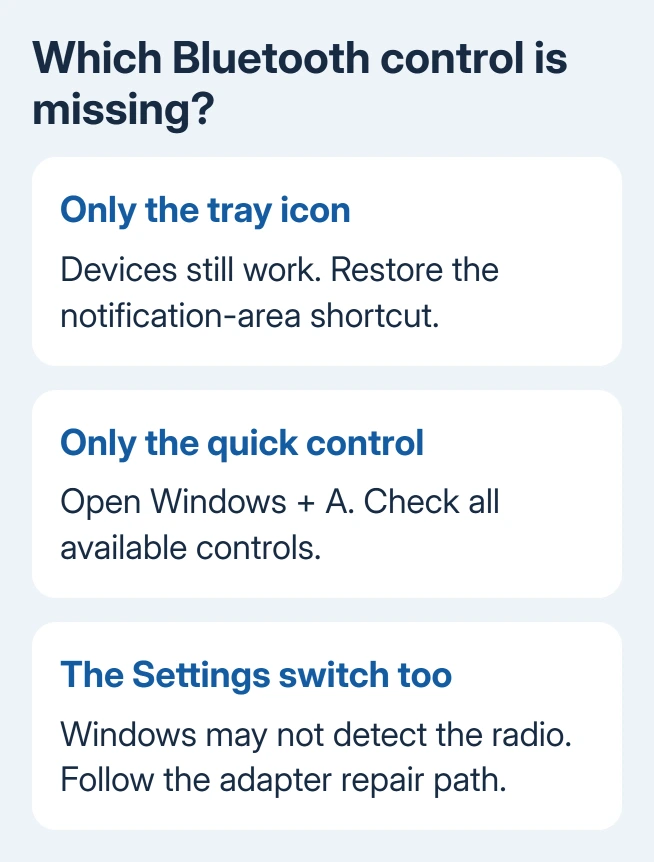
Press Windows + A as another quick check. Windows 11 opens Quick Settings, while Windows 10 opens Action Center. Its Bluetooth control can still be there even when the shortcut beside the clock is missing.
The Windows Bluetooth controls let you switch the radio on through Settings. You don't need the small tray icon to connect a device or use Bluetooth.
If the switch is absent too, go to section 5. The shortcut checkbox can't bring back a Bluetooth adapter that Windows isn't detecting.
2. Restore the notification-area icon
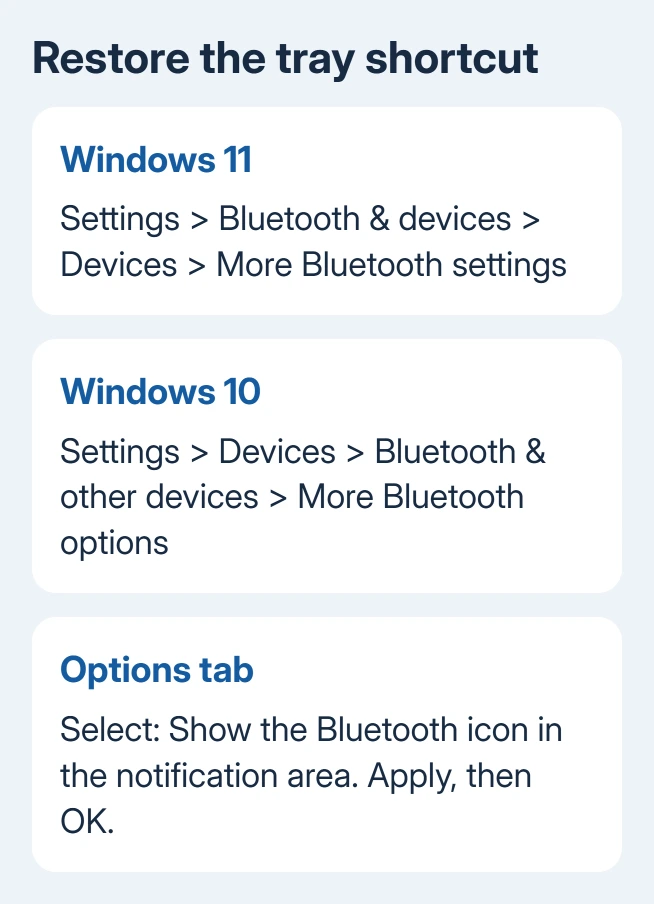
Search Start for Bluetooth and open Bluetooth and other devices settings. On Windows 11, open Devices within Bluetooth & devices, then look under Related settings for More Bluetooth settings.
On Windows 10, find More Bluetooth options on the Bluetooth & other devices page. The link can sit along the side or farther down the page, depending on the window's size.
Open that link and select the Options tab in the Bluetooth Settings dialog. Select Show the Bluetooth icon in the notification area, choose Apply if available, then select OK.
ASUS' missing-icon instructions include this checkbox. It controls the small Bluetooth shortcut, rather than whether the computer has a Bluetooth radio.
Check beside the clock again. Open the hidden-icons panel if the shortcut isn't immediately visible. When the icon returns, right-click it to check that its Bluetooth menu opens.
I'd stop there if your devices already work. Removing a working adapter to repair a hidden shortcut creates a bigger job than the original problem.
3. Keep a restored icon visible by the clock
A restored shortcut can still sit in the hidden-icons panel. Open that panel beside the clock and look for the Bluetooth symbol before deciding the checkbox failed.
On Windows 11, right-click unused taskbar space and open Taskbar settings. Look for Other system tray icons. Older Windows 11 releases can call this area Taskbar corner overflow.
If that older heading seems gone, the missing overflow-option guide shows the renamed tray section and Hidden icon menu control.
If Bluetooth appears in that list, enable its entry. If you can drag the icon out of the hidden-icons panel, move it beside the clock. Check the result after closing the panel.
On Windows 10, open Settings > Personalization > Taskbar. Under Notification area, open the icon-selection link, then turn on Bluetooth if it's listed.
These controls decide where an existing icon appears. They don't add a missing radio, and Bluetooth can be missing from the list if its software hasn't added a tray icon yet. Return to section 2 if the icon is missing everywhere.
For the surrounding layout controls, the Windows taskbar settings guide explains labels, alignment and the tray area. Pinned app buttons in the middle of the taskbar use different controls from Bluetooth's notification icon.
4. Find the Bluetooth control in Quick Settings
Press Windows + A on Windows 11 and look through the Quick Settings panel. On newer layouts, scroll through the available controls. Bluetooth can be outside the first group you see.
On an older layout with an edit control, use Edit quick settings > Add > Bluetooth, then Done, if Bluetooth is available to add. A newer scrolling panel won't necessarily show that older edit workflow.
Windows 10 uses Expand in Action Center to show the complete set of tiles. If Bluetooth is still absent, open Settings > System > Notifications & actions > Edit your quick actions, then choose Add > Bluetooth.
Check the Bluetooth control in that panel. Quick Settings and the notification area are separate parts of Windows, so fixing one doesn't automatically change the other.
If Bluetooth can't be added and the Settings switch is also gone, check the Bluetooth adapter in section 5. Repeatedly rearranging the taskbar won't fix that case.
5. Handle a missing radio separately
Microsoft recommends a complete power-off when Bluetooth disappears on Windows 11. Hold Shift, select Start > Power > Shut down, wait one minute, then turn the PC on.
Save your work before shutting down. After starting again, return to Bluetooth settings and check whether the switch is back. A normal Restart isn't the specific power-off procedure in those instructions.
If the switch remains absent, open Get Help and run its Bluetooth troubleshooter. Also right-click Start > Device Manager and check for your Bluetooth adapter and any warning on it.
The missing Bluetooth repair guide covers the deeper driver, service and hardware checks. Follow that path when the radio has vanished, rather than continuing to repair its tray shortcut.
If the switch still won't return, give your PC maker's support the exact model, Windows version and Device Manager status. Ask for the supported Bluetooth driver and any model-specific firmware repair for a disappearing adapter.
The Short Version
Check that Bluetooth works in Settings, then enable its notification-area checkbox and check the hidden-icons panel. A missing Quick Settings tile has its own controls. If the switch is gone too, follow the missing-adapter repair steps.
Checked November 13, 2026.






