

The old Taskbar corner overflow label is now Other system tray icons in Windows 11 Settings. Open that section and enable Hidden icon menu to restore the control for tucked-away app icons beside the clock.
That menu is separate from the overflow for open app buttons when the taskbar fills up. If one app's tray icon is missing, check whether the app is running. The menu switch can't display an icon the app hasn't created.
In this guide
1. Find Other system tray icons in Taskbar settings
On unused taskbar space, right-click and choose Taskbar settings. The full route is Settings > Personalization > Taskbar. Expand Other system tray icons, then look for Hidden icon menu.
Turn Hidden icon menu on. At the taskbar's clock end, select Show hidden icons. The small pop-up should contain the running apps whose tray icons aren't displayed beside the clock.
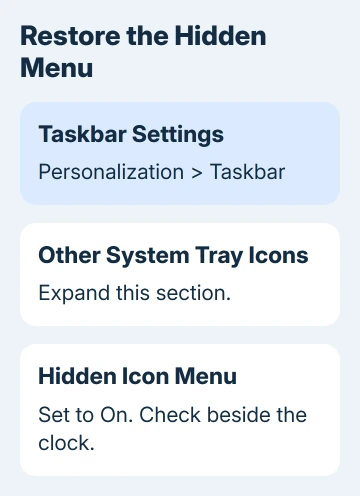
Microsoft says to use Other system tray icons in its taskbar instructions. This is also called the overflow area. Searching for the old heading can make the setting seem removed.
Earlier Windows 11 builds used Taskbar corner overflow. Work with the labels your Settings page displays; an older screenshot's heading isn't a reason to reset Windows or edit the registry.
If the menu returns and contains the expected apps, continue with icon placement in step 2. If one particular app is absent from both the menu and the taskbar, go to step 3 instead.
2. Move important icons out of the hidden menu
Open Show hidden icons. Drag an app icon from the pop-up onto the visible system tray beside the clock. Release it there, then open the menu again to check where that icon now lives.
To tuck an icon away, drag it back into the overflow area. The app keeps running. This changes where its control appears; it doesn't uninstall the app, sign it out, or stop its background work.
The switches under Other system tray icons also let you choose which available app icons appear in the tray. Turn on the ones you need within easy reach, such as your sync app or password manager.
You don't need every background utility on display just to reach one useful control. I'd keep the few icons you actually click visible, then use the hidden menu for the rest.
Hiding a VPN icon doesn't disconnect its VPN. Similarly, hiding OneDrive's cloud doesn't pause synchronization. Open the app's own controls if you want to change what it does, rather than where its icon sits.
If Bluetooth alone is absent even though other tray icons work, use the Bluetooth tray-icon repair. Its notification-area control is separate from this general menu setting.
3. Start an app that's missing from both places
Search Start for the missing app and open it. Give it time to sign in or finish starting, then check both the visible tray and Show hidden icons. Some apps show a tray icon only while the part that runs in the background is active.
If the icon appears after you start the app, the hidden menu itself works. Check the app's preferences for an option to run at startup or keep running when its window closes. The wording depends on the application.
For Windows startup controls, open Settings > Apps > Startup. Find that app and enable it if you want it to launch at sign-in. Leave unrelated utilities unchanged; enabling everything adds unnecessary work at startup.
On some applications, closing the main window leaves a tray process running. Others quit completely when their window closes. Check what happens with your app; tray icons don't all follow the same rule.
If the app never shows a tray icon, check its own support instructions. A normal taskbar button for an open window doesn't mean the app also supports a separate tray control.
If the app starts but Settings lists no icon for it, note its version and ask its developer about support for system tray icons. Windows can arrange the icons an app provides, but it can't create one for it.
4. Separate the app-button overflow from the tray menu
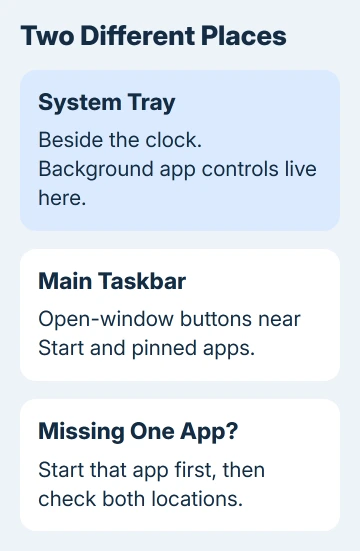
Look at what you're trying to open. Icons beside the clock belong to the system tray. Buttons for open application windows occupy the main taskbar, usually near Start and your pinned shortcuts.
When the main taskbar runs out of room, Windows can put additional app buttons into a separate overflow menu. Hidden icon menu controls the tray area, so it doesn't turn that app-button menu on or off.
Close an unneeded application window and check whether the missing app button becomes visible. That helps you tell a crowded taskbar apart from a missing tray icon without changing any settings.
An app can have both: a main button for its open window and a small background control beside the clock. Moving one doesn't move the other. Identify which control disappeared before changing its startup behavior.
If buttons exist but hovering over them shows no labels or details, the taskbar hover-label checks address that different failure. Tray placement won't repair a broken hover display.
5. Handle a setting that is still unavailable
If Other system tray icons is absent entirely, press Windows+R, enter winver, and note both the version and build numbers. Confirm the PC is running Windows 11 before following Windows 11 menu names.
Windows 10 uses Settings > Personalization > Taskbar, then Select which icons appear on the taskbar for notification-area app icons. Its separate Turn system icons on or off page handles built-in controls.
On Windows 11, install the updates offered through Settings > Windows Update, then restart. Reopen Taskbar settings afterward. Check the menu again once you've completed the update's requested restart.
For a managed PC with restricted personalization, ask IT about taskbar policy. Send the Windows build and the exact missing heading, rather than asking for every hidden icon to be enabled.
On a personal PC with a current build and no available control, open Get Help from Start. Ask about the missing Other system tray icons section and include a cropped Settings image without account details.
In the original forum thread, the asker said the explanation cleared up their confusion. Later replies still questioned the menu's behavior. Check its purpose and labels before assuming Windows needs repair.
The Short Version
Open Taskbar settings, expand Other system tray icons, and enable Hidden icon menu. Move the app icons you need into the visible tray. If an app is absent everywhere, start it and check its own tray and startup settings.
Checked November 16, 2026.






