
Taskbar hover labels can disappear when an app starts with Windows. Click empty taskbar space and hover again. If the details return, check startup apps before changing permanent icon labels.
One owner traced this to Omen Gaming Hub and fixed it by removing the app. They also mentioned later Windows updates in an edit, so check what affects your PC before assuming Omen causes every missing tooltip.
1. Check whether clicking the taskbar restores the details
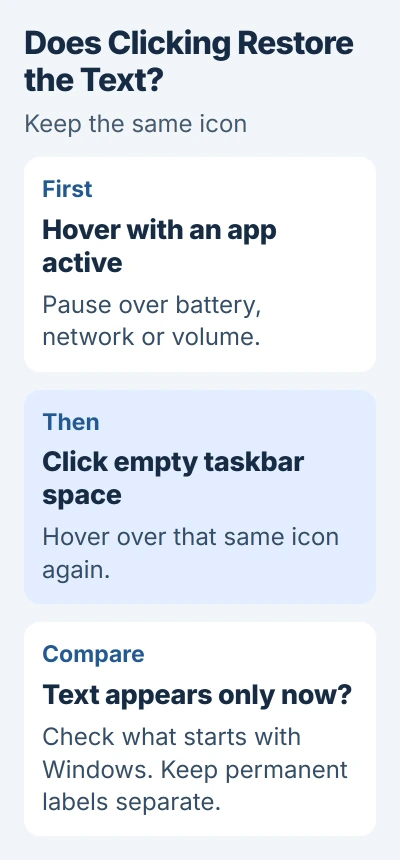
Open a normal app, such as File Explorer, and leave its window active. Move the pointer over the taskbar's battery, network or volume icon, then pause long enough for its usual text to appear.
Click some empty taskbar space, then hover over that icon again. If the text appears only after you click, your PC is behaving like the owner's did.
The owner also heard notifications and saw app badges, but the usual desktop banners didn't appear. In their Microsoft Q&A follow-up, they said removing the preinstalled gaming app fixed the taskbar and notifications.
Keep two kinds of labels separate. A tooltip is the temporary text shown on hover. A permanent app title beside an icon is controlled by the Combine taskbar buttons setting for hiding labels, which the taskbar customization guide explains.
That dropdown can keep window titles visible beside the icons. It doesn't fix missing battery or network details on hover. Check which kind of text is missing before changing the layout.
2. Restart Explorer once and repeat that comparison
Finish any file-copy operation, then press Ctrl+Shift+Esc to open Task Manager. On Processes, find Windows Explorer, select it and choose Restart task, or right-click it and choose Restart.
The taskbar and desktop can briefly disappear while Explorer restarts. Once they return, reopen the same app and repeat the hover test from step 1 with that window active.
If the hover text returns, restarting Explorer helped for now. If it disappears again when another program starts, note which one. That timing tells you more than restarting Explorer over and over.
In the Omen case, restarting Explorer and the computer had already failed. The owner said reinstalling Windows hadn't fixed it either. I'd check startup apps before taking on that much work.
Blank icons are a separate problem. If the icon itself is empty but clicking it still works, use the taskbar icon cache repair. Don't start by deleting the cache when hover text appears after you click the bar.
3. Test the relevant startup app before removing it
Open Settings > Apps > Startup. If Omen Gaming Hub is listed, switch it off and restart Windows. Microsoft documents these startup controls for apps registered to launch at sign-in.
After signing in, test the hover text before opening the gaming app. Turning off startup doesn't remove the app. Opening it yourself would spoil the check of how the taskbar behaves without it running.
If the app isn't listed, check its own startup setting. Some software starts through background services or its own settings, so it can run automatically without appearing in this list.
Try one relevant change at a time. I'd start with the program whose launch matches the moment the labels disappear, especially if its icon briefly appears and vanishes as the owner's did.
If the problem continues with that startup entry off, put the setting back and continue. Turning off startup and restarting is a way to check the app. The owner's confirmed fix was uninstalling Omen.
4. Uninstall an implicated app only if you can do without it
For a program you don't use, open Settings > Apps > Installed apps, find its name, open the three-dot menu and select Uninstall. Follow the prompts and restart afterward.
The Windows app-removal instructions cover this route. Check the app's purpose first if you rely on it for device settings or other features.
The owner didn't use Omen Gaming Hub. They noticed the tray worked until the app started, removed it, and reported that the problem was solved. In an edit, they also said two later updates might have helped.
That makes Omen a sensible app to check, though removing it won't fix every taskbar problem. If you need it, check for updates or tell its support team how the taskbar behaved with startup turned off before removing it.
After signing in, test again with a window active and the pointer over the same taskbar icon. Check a normal notification too if its banner was also missing.
5. Use a clean boot when the interfering app is unclear
If no single program stands out, follow the Windows clean-boot procedure. It starts Windows with extra startup software turned off. Check the taskbar in that state.
Press Windows+R, enter msconfig, and open Services. First check Hide all Microsoft services. Then choose Disable all. Note which entries you change to help you restore their previous settings.
In Startup, choose Open Task Manager. Turn off the startup entries that are currently on. Close Task Manager, confirm the changes in System Configuration and restart. Leave the Boot tab's advanced settings alone.
If hover text works now, reenable a group of items, restart and test again. Try smaller groups until you find the app or service that makes the text disappear, then report it to its developer.
Put your startup settings back afterward. If the clean boot makes no difference, send a report through Feedback Hub. Include the Windows version from winver, which icons are affected and whether clicking the taskbar brings their text back.
The Short Version
Compare hover text with an app active and after clicking the taskbar. Restart Explorer once, then check programs launching at sign-in. Omen removal fixed one reported case; a clean boot can help identify a different startup conflict.
Checked November 5, 2026.

Isaac Smith is the founder and editor of PC Glance, a website that covers computers, laptops, and technology. He is a tech enthusiast and a computer geek who loves to share his insights and help his readers make smart choices when buying tech gadgets or laptops. He is always curious and updated about the latest tech trends.