A printer that prints other files but won't print PDF documents can struggle with the PDF's fonts or graphics. Try Print > Advanced > Print as Image in desktop Acrobat Reader. A disabled Print button can mean the PDF restricts printing.
Match the next check to the symptom: nothing leaves the queue, one PDF fails, or every PDF fails while ordinary documents still print.
In this guide
1. Try Print as Image when other documents print
Print as Image sends a picture of each page instead of asking the printer to process the PDF's individual fonts and drawing instructions. It's a useful first fix for missing text, blank output, or a PDF job that never finishes.
Download the PDF, then use desktop Acrobat or Acrobat Reader to open that local file. The setting isn't part of every browser's built-in PDF viewer.
- Press Ctrl+P in Windows or Command+P on a Mac.
- Select your physical printer, then choose Advanced in Acrobat's print window.
- Enable Print as Image and select OK.
- Test an affected page on its own before printing the rest.
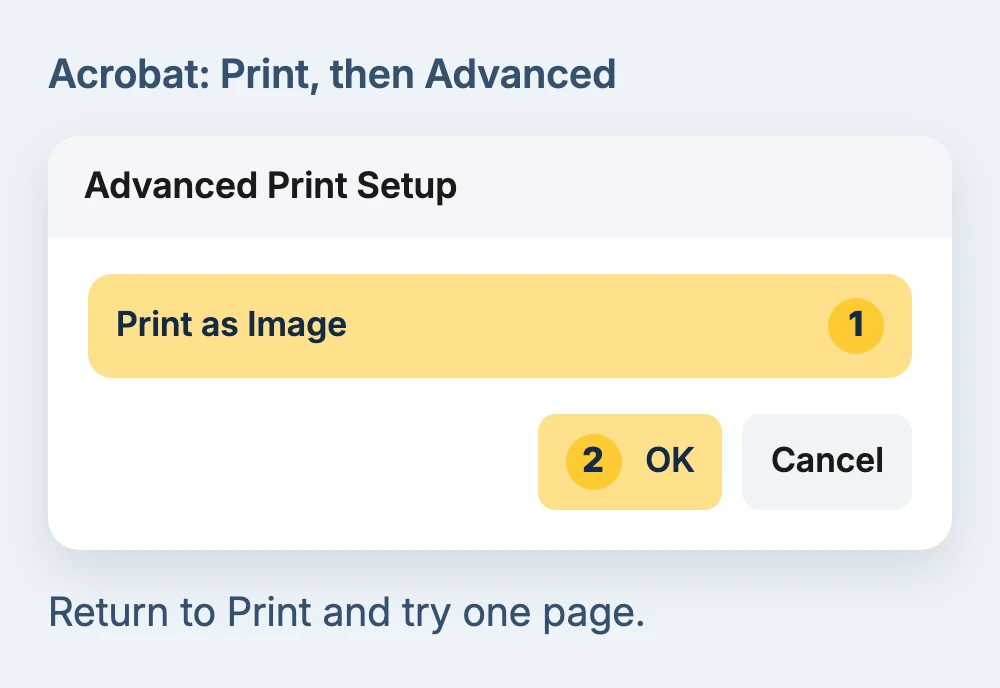
Canon says its PDF printing instructions include this workaround. If that page prints correctly, keep the setting for this document rather than reinstalling a working printer.
Image printing can take longer and soften fine text. I'd use it to get the document printed now, then check the original PDF if sharp diagrams or small type matter. If nothing prints, try the next comparison.
2. Separate one damaged PDF from an app problem
Open a different PDF in the same app and send one page to the same printer. Choose an unrelated document so you're testing different content.
If the second PDF prints, the first document needs attention. Download it again from its original location, save it locally, and reopen that new copy. A fresh download helps when the saved attachment is incomplete or damaged.
For a file you created, open its source document and export a new PDF. For a form someone sent you, ask them to export another copy. Test the replacement before discarding your original.
If several unrelated PDFs fail, open one in a different installed PDF app. On a Mac, try printing from Preview. On Windows, Edge can open a local PDF through Open with in File Explorer.
If the second app prints successfully, the first viewer or its settings need attention. I'd check those before replacing the printer. If both apps fail, continue with the printer choice and permissions checks.
3. Confirm the print destination
Check the PDF app's selected printer, even when the operating system already has a default. The app can remember a previous destination.
Choose the printer's actual name. Microsoft Print to PDF creates another file on Windows, and Save as PDF on a Mac saves a file rather than producing paper. Neither sends the job to your printer.
Check the selected page range and preview as well. A range left over from an earlier job can send different pages than you expect, while a blank page in the document can produce a perfectly blank sheet.
When the destination is correct but the queue stalls, send a small non-PDF document to it. When that fails too, use the printer queue and connection checks instead of changing more PDF settings.
That comparison matters: a paper jam, offline printer, or stopped queue won't be repaired by changing how Acrobat draws a page.
4. A grayed-out Print button can be a restriction
A PDF can allow reading while blocking printing. Opening it successfully doesn't mean the creator allowed a paper copy.
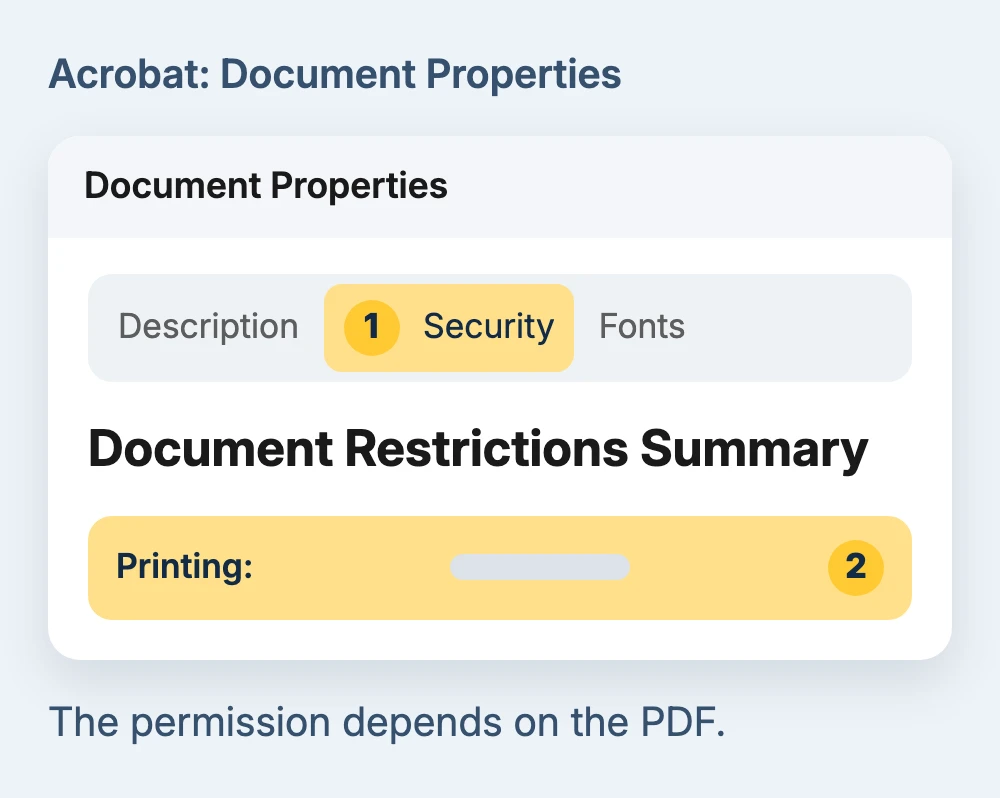
In desktop Acrobat, open Document Properties and select Security. Check Document Restrictions Summary, especially the printing permission. On Windows, Ctrl+D opens Document Properties; on a Mac, use Command+D.
If printing isn't allowed, request a copy with printing enabled from the sender, or ask them to authorize a change to that restriction. A printer driver update won't change the document's permissions.
If printing is allowed but the button remains unavailable, close that document and reopen its saved copy in desktop Acrobat. A viewer embedded in another application can have different controls from Acrobat itself.
Enter a document-opening password to view a protected file. Keep that separate from a permissions password, which controls changes to protected features after the file is open.
5. Update the viewer when all PDFs fail there
If PDFs fail in just one viewer, install its available updates and reopen it. In current Acrobat on Windows, choose Menu > Help > Check for updates. On macOS, choose Help > Check for updates.
Then test the same PDF and printer again. Retest the updated viewer without adjusting anything else. Changing the viewer, driver, and file together hides which part helped.
If the failure affects printing from other apps too, follow the Windows printer troubleshooting steps. They cover connection and driver problems that affect more than PDFs.
Get a replacement driver only for your printer model and operating system. A nearly matching model name can still lead to a driver with incompatible connection or paper controls.
For a missing right-click command, the PDF Print menu guide covers the Windows file menu. A missing command in the file menu is a separate problem from printing inside an open viewer.
When the PDF still won't reach paper
Contact support for your PDF app with its version, your operating system, the exact error, and the result of trying Print as Image. A sample PDF is useful when you have permission to share it.
For a confidential document, describe the results first and ask how to provide a safe sample. If every application fails, report your printer model and whether ordinary documents print to the printer manufacturer instead.
The Short Version
Use Print as Image when PDFs are the only files failing. Compare a second PDF, confirm the physical printer, and check document permissions when Print is disabled. Use printer troubleshooting when other applications can't print either.
Checked November 29, 2026.
 If you have any business, I can build it online