An unsuitable partition or a startup-mode mismatch can make Windows 11 reject Disk 0 Partition 1. Read the full error before deleting anything; it tells you why Setup rejected the partition.
For a clean install on an empty or fully backed-up drive, the usual route is to start the installer in UEFI mode and select unallocated space. Setup then creates the partitions Windows needs.
In this guide
1. Read the full reason beside the selected partition
Select the intended drive entry in Windows Setup and open its error details. Note whether it mentions an MBR partition table, the GPT partition style, or a partition that can't hold Windows. The row number alone won't tell you why.
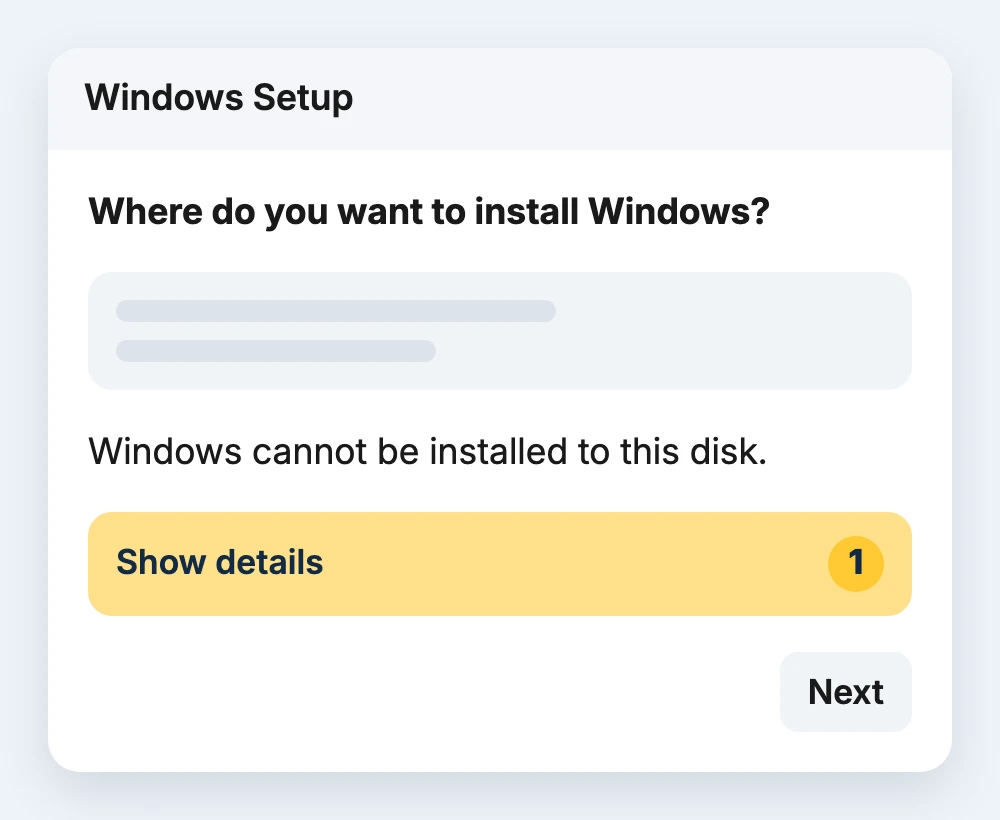
Disk 0 identifies a disk in the current setup session. Partition 1 identifies one section of it. Those labels don't identify the large Windows partition or tell you it's safe to erase.
On a drive already using UEFI, the first partition can be the EFI system partition, which contains startup files. The main Windows partition is separate. A small system or recovery partition isn't the installation target for Windows itself.
If another operating system or valuable files are on the disk, stop before changing partitions. Choose between keeping that installation, replacing it completely, or using a different empty drive.
To try reinstalling while keeping your apps, start Setup from the existing Windows installation. Booting a USB installer and choosing a partition is a different installation route.
2. Match the installer to UEFI and GPT
Windows 11's supported startup configuration uses UEFI, the modern firmware startup mode. Its Windows system disk uses GPT, the modern partition layout. MBR is the older layout associated with Legacy startup.
Microsoft's partition-style instructions explain the mismatch. An installer started in UEFI mode can't install Windows onto a target disk still using MBR.
An error that mentions an MBR partition table and says Windows can only be installed to GPT disks means the installer and disk layout don't match. Choose whether to keep and convert an eligible Windows disk or prepare an empty drive as GPT.
If the error instead says the selected disk is GPT, check how the installer was started. Restart and choose the USB device's UEFI entry in the PC's boot menu. Use the model's boot-menu instructions if the labels differ.
Don't convert a GPT disk to MBR just to make a Legacy-booted installer accept it. For Windows 11, correct the startup mode rather than moving the disk toward an older configuration.
3. Choose whether the existing installation must survive
Keeping your existing Windows system takes more planning than preparing a blank drive. If the computer still starts Windows and you want to retain it, leave Setup and back up before changing its partition layout.
The MBR2GPT conversion guide covers converting an eligible Windows system disk without deleting its data. The tool must pass its checks before converting the disk. After conversion, set the firmware to start Windows in UEFI mode.
I'd use that route only when keeping the installed system is the goal. Deleting partitions in Setup is a clean-install method, not a substitute for converting the disk while keeping Windows and its files.
If Windows doesn't start and files haven't been backed up, recover or copy them before the clean-install steps. A technician can help identify the correct disk and preserve the data when drive letters and sizes are unfamiliar.
You can also install Windows on a spare empty drive. Keep the original disk's contents intact until you've confirmed what you need from it. Don't choose a target by assuming Disk 0 is always the old Windows drive.
4. Let Setup prepare a fully backed-up target
Use this route only when everything on the target drive can be erased. Deleting its partitions removes access to their contents, including recovery tools and personal files. Confirm the physical drive and its capacity before starting.
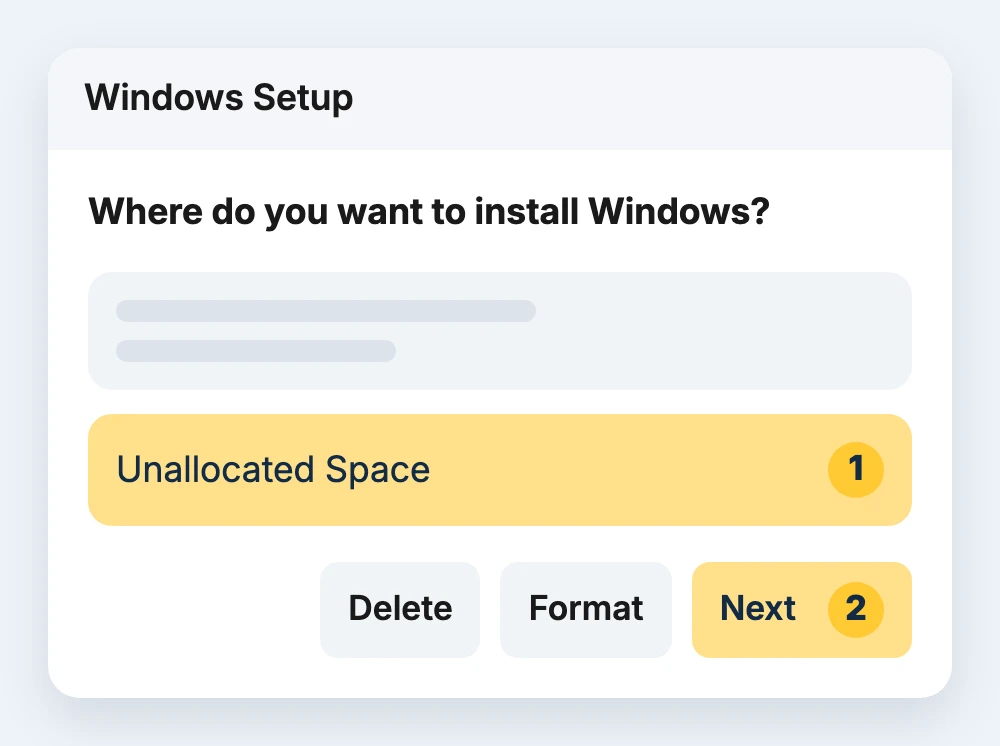
- Shut down the PC and connect the Windows installation USB.
- Start the USB installer in UEFI mode through the PC's boot menu.
- In current Setup, choose Install Windows 11 and I agree everything will be deleted including files, apps, and settings. Follow the key and license prompts to the Select location screen.
- Remove the intended target's partitions using Delete Partition in current Setup, or Delete in older media, until that disk has one area of Unallocated Space.
- Choose Next with the target's unallocated space selected. On current media, review Ready to install and select Install.
Setup detects the UEFI startup mode, prepares the target with GPT, and creates its required partitions. Those new small system partitions are expected. You'll know Setup has accepted the drive when installation begins.
Older media asks for an installation type before drive selection; choose Custom for this clean-install route. Its location screen is called Where do you want to install Windows? rather than the newer Select location wording.
If the target contains several partitions, deleting only Partition 1 won't necessarily change an MBR disk into GPT. Setup handles that change automatically when you remove all the target disk's partitions and select its unallocated space.
5. Check partition type when the disk is already GPT
A UEFI installer can still reject the wrong partition. Check the row's type and size. EFI system, Microsoft reserved, and recovery partitions serve different purposes from the main Windows partition.
Microsoft's UEFI partition layout shows the Windows partition as separate from the partitions that support it. Don't select the first row simply because its number looks like the starting point.
For a clean install erasing the drive, choose unallocated space instead of a small system partition. If you need to keep other files or systems, get help planning the layout before changing partitions.
Formatting one partition changes its file system; it doesn't automatically change the entire disk's partition style. That's why repeatedly formatting the same rejected row can leave the original MBR/GPT error untouched.
When Setup still refuses the drive
Record the complete error, the drive model and capacity, whether the USB was started in UEFI mode, and the target's existing partition layout. Take those details to the PC maker's Windows installation support team.
Ask them to check storage-controller requirements and disk compatibility for that exact model. A different error about missing drivers or an undetected drive needs its own procedure; deleting more partitions won't fix it.
The Short Version
Read the detailed error and match UEFI startup with a GPT target. Preserve files on a used drive. For a backed-up clean install, let Setup create partitions from the intended disk's unallocated space.
Checked November 29, 2026.
 If you have any business, I can build it online