The AMD display driver failed to load warning can follow a disabled adapter or a broken driver update. Restart Windows first, then enable the adapter if it's disabled or roll back the update that started the fault.
A popup about incompatible software needs the Adrenalin matching repair instead. That guide handles an app mismatch with a working graphics driver.
In this guide
1. Restart and read the adapter's status
Save any work you can, then use Start > Power > Restart. After Windows returns, check for the warning before launching a game. Note whether restarting gets the driver working. Use the restart result to decide whether to continue.
Right-click Start, select Device Manager, and expand Display adapters. Double-click the AMD adapter and read Device status on the General tab. Copy the complete status message, including its code.
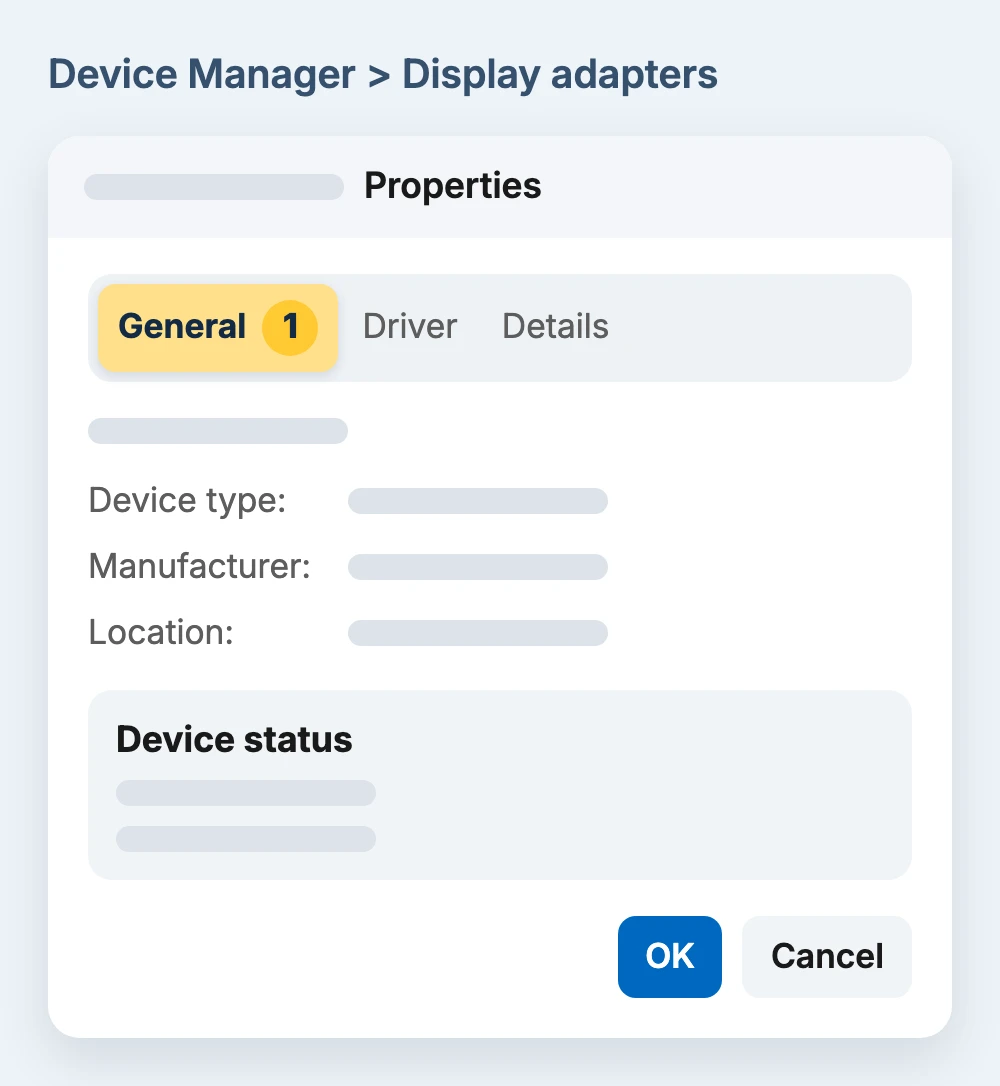
If the device menu offers Enable device, the adapter is disabled. Enable it and recheck its status. If the status code says the device is disabled, try enabling it before removing graphics drivers.
If a warning or driver error appears for that adapter, move to rollback or reinstallation. An error code is useful information for support; it can't distinguish a software fault from faulty hardware on its own.
Compare device status before and after opening a game. If it works after restart but fails when the game opens, report that timing. A device that stays disabled at every startup needs its status checked before another game test.
On laptops with integrated and separate graphics, Device Manager can list more than one adapter. Match the AMD device and its message. Don't remove an Intel or NVIDIA device simply because it's listed next to the Radeon adapter.
If a frozen display prevents access to those controls, use the AMD timeout and missing-pointer recovery steps first. Return to this check once Windows responds.
2. Undo the graphics update that started it
Open the AMD adapter's Properties > Driver tab. Note Driver Provider, Driver Date and Driver Version, then select Roll Back Driver if the fault began after that driver changed.
Microsoft's driver recovery instructions describe rollback through Device Manager. Administrator rights are required. Complete the prompts and restart before checking the adapter again.
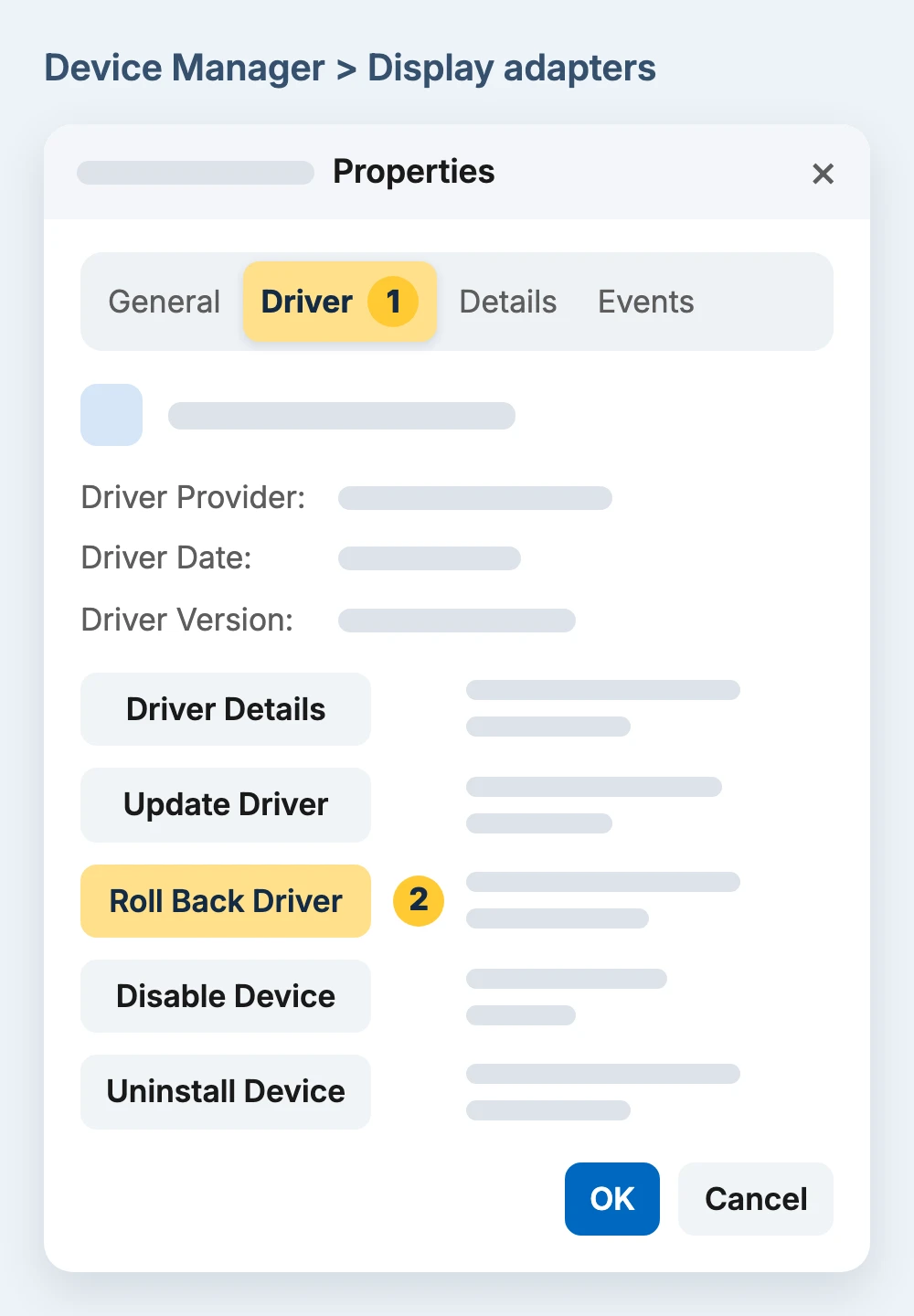
A dimmed Roll Back Driver button calls for a suitable driver installer. Windows has no saved driver it can restore for that adapter. Clicking again won't bring back that missing driver.
Check your laptop or prebuilt computer's support page for the manufacturer's graphics package. Your PC may need a driver made for that system, especially when built-in and separate graphics work together.
For a supported desktop graphics card, get the driver for its exact model and your Windows version from AMD. Don't use a chipset package as a replacement for a Radeon display driver; they handle different parts of the PC.
After installation and restart, return to Device Manager. First, check that the device status is normal and the warning stays gone. Then test the app that originally failed, rather than beginning with an extended stress test.
3. Clean the AMD graphics installation if repair fails
If a suitable driver won't install cleanly or the failure keeps returning, use the AMD Cleanup Utility. Get the replacement graphics installer first, and save your work before starting cleanup.
Run amdcleanuputility.exe. At the Safe Mode prompt, choose Yes. The PC restarts into Safe Mode, the recommended mode for cleanup. Cleanup removes AMD graphics software and its audio components; it isn't for removing AMD chipset drivers.
If Windows Update is running, let it finish before using cleanup. The utility stops when it detects an update in progress. Wait for the normal update process to complete rather than trying to force both operations at once.
Confirm cleanup and let it finish. Removal can briefly interrupt the picture or make the screen flicker. The instructions say cleanup can take up to 15 to 20 minutes, so don't launch a second copy because progress looks slow.
Use View Report to review what was removed, then complete the restart. Install the suitable graphics package and restart as directed. Check Device Manager before reopening Adrenalin and the affected app.
If cleanup creates a new problem, its support page describes using the AMD Cleanup Utility Restore Point through System Restore. Keep that recovery route in mind before repeating the cleanup operation.
When a clean installation still won't load
Write down the device status you're still seeing, graphics-card model, Windows version and installed driver version. Note whether the failure appears at startup, after sleep or when one particular app starts using the GPU.
A blue screen naming atikmpag.sys needs the atikmpag.sys recovery checks as well. Include the stop code when you contact AMD support or your computer manufacturer so they can distinguish it from an app-launch warning.
Ask support to check the device code and the driver your hardware needs. If known-good software still can't start the adapter, request hardware and power checks through the PC or card maker, including warranty service where applicable.
The Short Version
Restart, read the adapter status and roll back an update that started the fault. Use the Adrenalin guide for a software mismatch. If normal installation fails, use AMD Cleanup Utility, reinstall the right package and check the status again.
Checked November 29, 2026.
 If you have any business, I can build it online