An unable to connect to NVIDIA message can block a driver download while the graphics card still works. For an urgent update, get the matching driver from NVIDIA's website and bypass the app's failing connection.
Check which program shows the message first. GeForce Experience, NVIDIA app, and GeForce NOW do different jobs. For a cloud gaming connection failure, check the streaming service; local driver-download repairs address a different problem.
In this guide
1. Separate the app message from a lost connection
Identify the program from its window title. GeForce Experience is the older desktop companion; NVIDIA app manages local drivers and graphics features. GeForce NOW streams games from a remote computer.
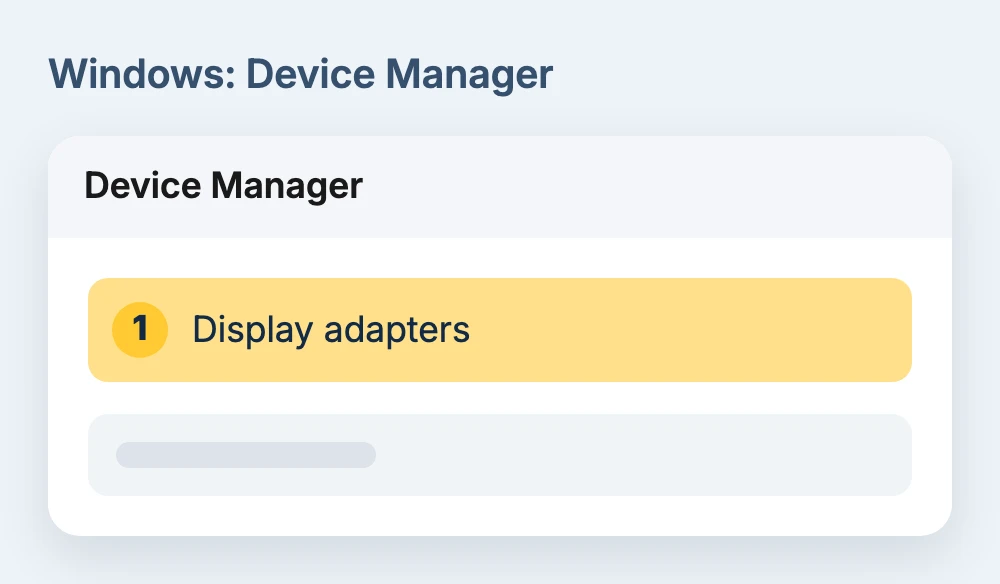
To find your GPU (graphics card) model, open Device Manager > Display adapters. Windows 10 and 11 both put Device Manager in Start's right-click menu. Read the NVIDIA entry; a laptop can also list integrated graphics.
If the error appears while downloading a driver, start with the manual download in the next section. If it appears only during sign-in, check whether you need an account for the task before changing your Windows setup.
Open an ordinary website and the NVIDIA driver website in your browser. If both fail, work through the Windows Wi-Fi connection checks first. An app reinstall won't restore a computer's missing internet connection.
If ordinary browsing works but the NVIDIA site fails, retry later or compare another trusted connection. Note whether the browser also fails; that difference helps support check for a network restriction.
Keep your firewall and Windows protection enabled, and don't delete service files mentioned in old repair instructions.
2. Download the matching driver without the app
Open the official driver download page in your browser. Its Manual Driver Search lets you download a driver package without using the app's download panel.
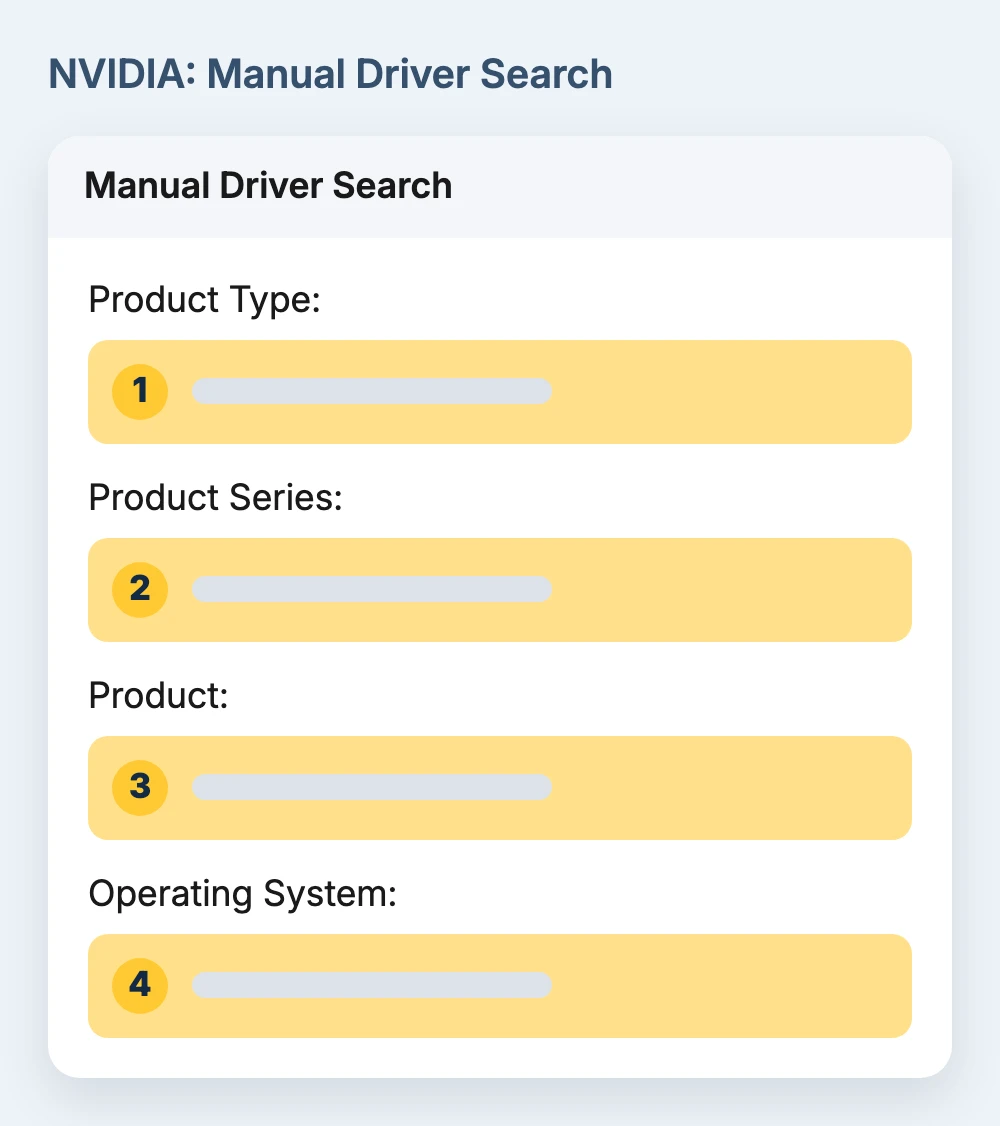
- Identify the exact graphics card model.
- Open Manual Driver Search on the official website.
- Select the matching product family and model, plus the installed operating system.
- Choose the appropriate driver result and read its supported products.
- Download and run that package, following its installation prompts.
For a laptop, pay attention to notebook models and any driver guidance from the laptop maker. A similar desktop product name isn't enough to choose a package for a portable computer.
Game Ready drivers focus on games; Studio drivers focus on creative applications. Pick a driver that suits your work and supports your GPU, rather than downloading whichever result appears newest.
I'd use this route first when a driver update is the urgent job. You can finish the update without waiting for the app to connect. It doesn't change an account password or repair a cloud gaming session.
3. Finish the installation before judging the result
Save your open work and let the driver installer finish. Follow any restart request it displays. Don't launch another driver installer over one that's already running.
Once installation finishes, open Device Manager > Display adapters, right-click the NVIDIA adapter, and choose Properties > Driver. Compare the installed driver information with the package you selected.
The driver can install successfully even while the app still shows a connection error. The graphics software can be current even if the companion app still can't reach its online service.
Our guide to restarting after an NVIDIA driver update covers installation completion and checking the result. Use that check before repeating the same download.
If setup refuses the package, copy its exact message. Unsupported hardware, a wrong Windows package, and a failed internet request need different repairs. Recheck the product selection when setup reports incompatible hardware.
4. Use the supported companion app for the hardware
For a machine still running GeForce Experience, check the current NVIDIA app download and its supported hardware before trying old network-service repairs.
NVIDIA's launch guide describes an optional login for rewards alongside the app's driver and graphics features. Those basic driver and graphics features work without signing in.
Older hardware needs special attention. Don't assume the newest standalone app installer supports every GeForce card. Check the model against the vendor's current compatibility information before replacing a working installation.
If setup returns the specific code 0xE6000000, use the NVIDIA app installation error guide. That page covers the separate package route for older GPU families instead of handling that code as a connection fault.
After installing a compatible app, reopen Drivers and try its download. If the manual package installed but the app still fails, tell support those two results. Repeating the successful driver install won't explain the app failure.
5. Treat GeForce NOW as a streaming problem
GeForce NOW runs your game on a remote gaming system. Updating the local driver isn't the same as restoring access to that service, and an app download error doesn't explain every failed cloud session.
Check the GeForce NOW service status for an incident affecting the service or region you use. Read each incident's details: an incident affecting one part of the service doesn't always affect everything else.
When an incident matches the failure, watch its updates, then retry when service returns. If there is no matching incident, note whether the failure happens at sign-in, launching a game, or joining the stream.
Give GeForce NOW support the exact error, affected game, region, and time of the failure. Providing that information keeps the support discussion focused on the stream rather than an unrelated desktop driver reinstall.
Send support the two results that matter
For a persistent NVIDIA app connection failure, use the support route linked from the official NVIDIA website. Include Windows version, GPU model, app version, error wording, and whether the browser could download the matching driver.
For a PC your organization controls, ask the administrator to review access to the failing NVIDIA service. Include the time and the app that failed. Don't change the organization's proxy or security policy yourself.
The Short Version
Identify the failing program. For a driver download, use the official manual search with your exact GPU model, then verify installation. Check app compatibility for setup errors and service status for GeForce NOW failures.
Checked November 29, 2026.
 If you have any business, I can build it online