
An AMD timeout means the graphics driver took too long to respond to Windows. When the mouse pointer disappears at the same time, reset the graphics driver with Windows + Ctrl + Shift + B. The screen might flicker or the PC might beep.
If the desktop returns, save your work before tackling repeated timeouts. A pointer that disappears while everything else keeps working needs separate attention from a frozen display or a game that crashes with an AMD timeout notice.
In this guide
1. Recover the display with the keyboard
Press Windows + Ctrl + Shift + B once and give the display a moment to respond. This resets the graphics driver. It can help when the desktop image has frozen but the PC is still running.
Microsoft recommends the shortcut in its blank-screen troubleshooting steps. If the screen recovers, check whether the pointer moves and whether the affected app still responds.
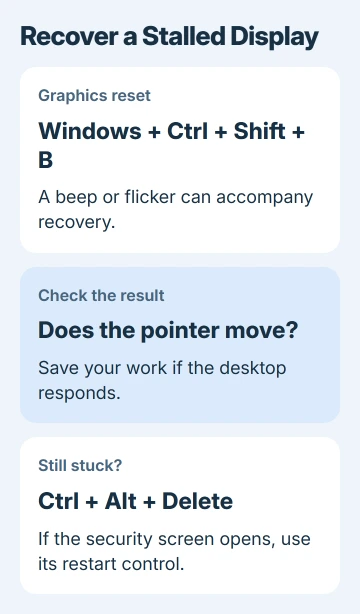
If the shortcut doesn't restore control, press Ctrl + Alt + Delete. A visible security screen tells you Windows can still display that interface. If returning to the desktop fails, select Restart from that screen's power control.
If neither shortcut does anything, the whole system may be stuck. A forced power-off can lose unsaved work, so reserve that for an unresponsive PC rather than using it as the first timeout fix.
After recovery, try the mouse on the desktop. If apps remain responsive and only the pointer is missing, use the Windows missing-pointer checks. A graphics timeout doesn't automatically mean the mouse driver needs replacing.
2. Record the installed driver and the failing task
Open Device Manager, expand Display adapters, then open the Radeon adapter's Properties > Driver tab. Write down the version and date. They help you check whether the trouble began when the driver changed.
An ATI EEU Event ID 16386 can instead involve a leftover background service; match its source before applying that older repair.
Note whether the timeout occurs in one game, during video playback, after waking the PC or across ordinary desktop use. Write down the game's name and the exact timeout message. If only one app fails, include its version too.
On a laptop with integrated and separate graphics, Device Manager can list two adapters. Check the AMD adapter involved rather than assuming the first listed device is the one that changed.
If this started right after an update, try rolling back the driver next. If it was happening before the update or the driver installation is damaged, try a clean graphics-driver installation instead.
AMD's system stability guidance includes driver release notes, stock settings and earlier working driver versions. The timeout message alone won't tell you which cause applies to your PC.
The AMD SCSI startup-error guide covers a separate storage-controller problem. That route applies to startup failures following the named storage update.
3. Roll back a graphics update that started the trouble
In Device Manager > Display adapters, open the AMD adapter's Properties, select Driver, then choose Roll Back Driver. Follow the prompts and restart Windows before comparing the same task again.
These Device Manager controls apply to Windows 10 and Windows 11. If Roll Back Driver is unavailable, an earlier driver isn't available for Windows to restore there. Clicking again won't bring back a missing driver package.
For a laptop or all-in-one, check your manufacturer's graphics package for that model. Display controls and switching between graphics adapters can depend on the manufacturer's driver setup.
For a desktop Radeon card, use the driver package matching its model and Windows version. Read that version's release notes for the application or symptom involved before assuming a newer version will fix it.
After rebooting, retry the task that produced the timeout. If the earlier driver fixes it, keep the working version details. If the same timeout returns, a clean installation is the next useful driver check.
4. Clean the graphics installation when rollback isn't enough
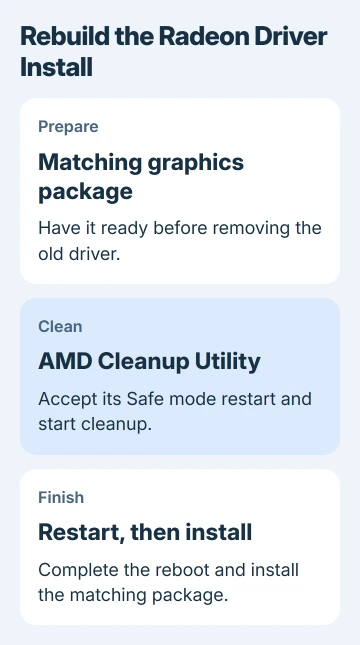
Have the correct replacement graphics package ready before removing the current one. Save your work and allow any Windows Update installation to finish first. The cleanup utility can stop when Windows Update is running.
Run AMD Cleanup Utility and accept Yes when it offers to restart into Safe mode. Safe mode is recommended for this utility. When it explains what cleanup will do, choose OK to start removing the old graphics software.
The utility removes AMD graphics and audio drivers and software. It doesn't remove or change AMD chipset drivers. That distinction matters when you're deciding what to reinstall afterward.
The screen can flicker or briefly go blank during cleanup. Wait for its completion message instead of starting a second copy. Depending on the amount to remove, the process can take 15 to 20 minutes.
Choose View Report if you want to see what was removed, then Finish. Accept the restart prompt. You need to restart for the cleanup changes to take effect. Closing the final window isn't enough.
Install the replacement graphics package and follow its restart prompts. If cleanup causes a new problem, open Windows System Restore and use the AMD Cleanup Utility Restore Point to go back.
5. Return custom tuning to stock before blaming hardware
If you overclocked or undervolted the system, return those settings to normal, then repeat the task that failed. Changing clock speed or voltage can affect stability, even when lighter tasks appear fine.
Check airflow as well. Give the PC's vents space and look for a fan or dust problem. A desktop's graphics card, power connections and power supply also need checking when failures continue across driver versions.
I'd involve the PC builder or a repair shop before reseating parts if you're unfamiliar with the hardware. Give them the GPU model, driver versions tried and the task that causes the timeout.
If the same app keeps failing, report it through AMD's Bug Report Tool or your PC maker's support. Explain what happened with normal tuning and a clean driver installation so support knows what you've tried.
The Short Version
Reset the display driver with Windows + Ctrl + Shift + B and save your work. Undo a troublesome driver update or cleanly reinstall it. For recurring failures, check stock tuning, cooling and power, then report the task that triggers them.
Checked November 12, 2026.






