

A missing mouse pointer can be hidden while typing, difficult to see, or absent only inside one app. Move the mouse, then press Windows+D to check the desktop before changing drivers or reconnecting equipment.
If the pointer returns on the desktop, focus on the app where it vanished. If it stays invisible everywhere, the keyboard can reach Windows' pointer-location and visibility controls.
Check whether the pointer is hidden or cannot move
Stop typing and move the mouse across the desktop. Check every connected screen. Press Alt+Tab to compare another open app; a pointer that appears there points to an app-specific display problem.
For disappearance confined to Outlook, use the Outlook pointer checks. That guide covers an app-specific failure, including a PowerPoint-related trigger.
Status: Windows 11 and Windows 10 mouse controls checked November 3, 2026. Microsoft's location circle and typing-visibility settings are documented; no pointer fault was reproduced here.
A visible pointer that stays in one place needs the mouse and touchpad response checks. Changing its color cannot reconnect a device or enable a disabled laptop touchpad.
Reach the location control without using the mouse
Press Windows+R, enter this Settings address, then press Enter:
ms-settings:mousetouchpadMicrosoft documents that address in its Windows Settings reference. It opens the mouse settings page without requiring a pointer click.
In Windows 11, use Tab to reach Additional mouse settings, then Enter. On Windows 10 the link is called Additional mouse options. Shift+Tab moves backward if the keyboard focus passes it.
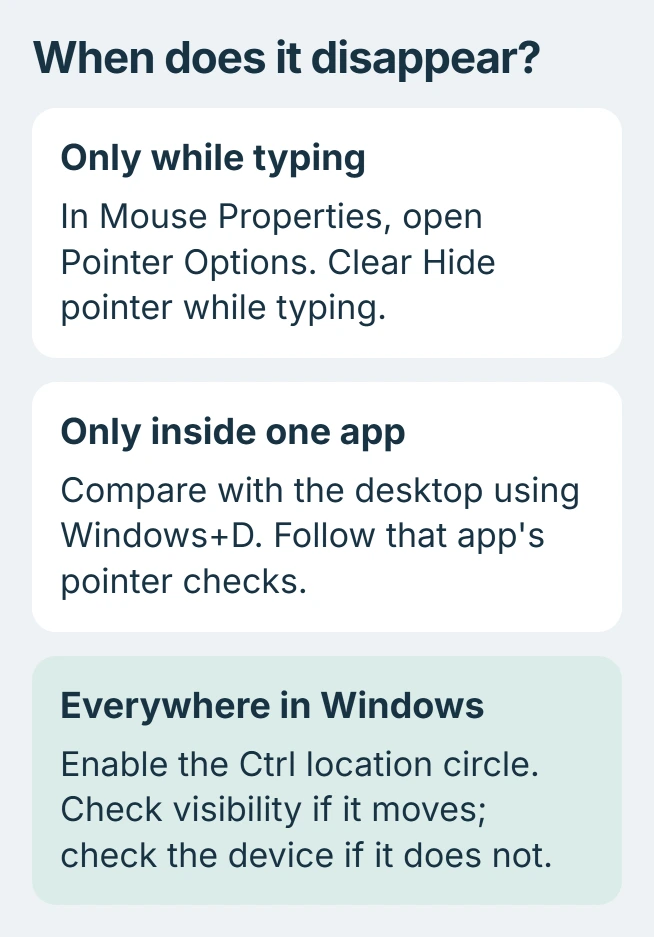
In Mouse Properties, press Ctrl+Tab until Pointer Options is selected. Tab to the checkbox whose label describes showing the pointer's location when CTRL is pressed. Use Space to select it if it is clear.
Tab to OK and press Enter. Now press Ctrl by itself. Microsoft says Windows draws a circle around the pointer in its mouse settings guide.
Pressing Ctrl before enabling that checkbox does not guarantee a circle. If the circle appears, use its position to locate the pointer and check whether moving the mouse changes that position.
Stop the pointer vanishing during typing
Return to Pointer Options and clear Hide pointer while typing. Confirm with OK, then test in the text field where the pointer previously vanished.
Microsoft states that this setting hides the pointer so it does not obstruct typed text. Turning it off changes that behavior; it does not repair every invisible-pointer fault.
If the pointer still disappears only in one program, save unfinished work and reopen that program. Report the specific app and action if the behavior persists while the desktop pointer remains visible.
Make a hard-to-see pointer easier to spot
On Windows 11, open Settings > Accessibility > Mouse pointer and touch. Increase Size and choose a Mouse pointer style that contrasts with the background where it gets lost.
On Windows 10, the corresponding controls are under Settings > Ease of Access > Mouse pointer. Use the size and color options there.
The keyboard route is Windows+R followed by this address and Enter:
ms-settings:easeofaccess-mousepointerUse Tab to move between controls, arrow keys to adjust a focused slider or option group, and Space to activate a focused control. These changes are for visibility; keep the result comfortable on the apps used most often.
When the device itself is unresponsive
For a USB mouse, try its receiver or cable directly in another computer port. Check the battery or charge on a wireless model. A working spare mouse helps separate that device from a wider Windows problem.
Microsoft's mouse troubleshooting recommends connection and hardware checks before replacing equipment. If a spare works, contact the affected mouse's maker.
If the pointer stays absent in several apps with a responsive keyboard and working spare mouse, ask Microsoft Support for help. Include the Windows build, Ctrl-circle result and whether typing affects visibility.
The Short Version
Compare the desktop with the affected app, then use the keyboard to enable Windows' Ctrl location circle. Check typing visibility and contrast when the pointer still moves; check the input device when it cannot move at all.

Isaac Smith is the founder and editor of PC Glance, a website that covers computers, laptops, and technology. He is a tech enthusiast and a computer geek who loves to share his insights and help his readers make smart choices when buying tech gadgets or laptops. He is always curious and updated about the latest tech trends.