
Your mouse pointer vanishes the moment it moves over classic Outlook, yet emails still light up as you pass them. I would look at PowerPoint before you restart, because an owner found the trigger there.
Microsoft says it is still investigating this one. Over 30 people on its Q&A board have reported the same fault since December 2025.
What Microsoft has confirmed
Microsoft's known issue page describes it plainly: "you may find that the mouse pointer or mouse cursor disappears as you move the pointer over the Outlook interface."
The clue is in the next line: "Although the mouse pointer is not there, the email in the message list will change color as you hover over it." So the pointer still works. It just is not drawn.
It is not only Outlook either. Microsoft adds: "This issue has also been reported with OneNote and other Microsoft 365 apps to a lesser degree."
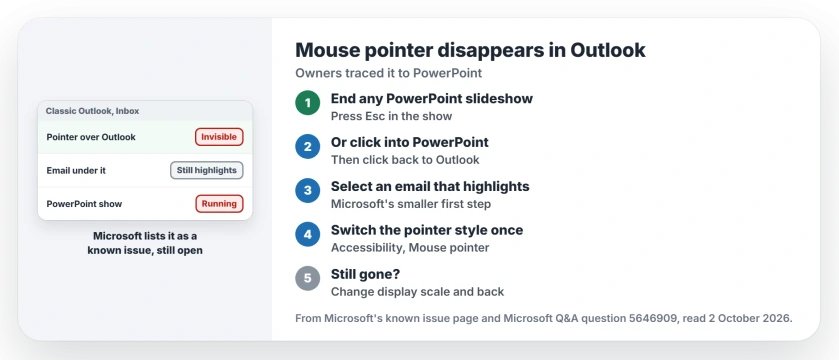
Status: checked 2 October 2026. Microsoft is still investigating. Ending a PowerPoint slideshow left running fixed it for owners, and clicking into PowerPoint brings the pointer back.
1. Look for a PowerPoint slideshow
This is the answer more than 50 people marked helpful. In their words: "Sometimes I keep PowerPoint presentation on slideshow in the background and seems that the mouse disappear when I am working on Outlook."
Their fix: "Disable the Slideshow will return everything on normal". Another owner tested it and wrote back: "WOW!! it's working thanks!!"
So check your taskbar for a PowerPoint window. If a show is running, even on another screen, press Esc in it and go back to Outlook.
2. Click into PowerPoint and back
No slideshow? Microsoft's own workaround still involves PowerPoint: "Open PowerPoint and click into an editable window in PowerPoint and then click back to Outlook and check if you have your mouse pointer again."
Owners agree. One wrote: "I consistently can get the pointer back by clicking on a powerpoint window and clicking the title bar". Another followed Microsoft's page, opened a slide, and had the pointer back over Outlook.
Microsoft also suggests a smaller first step. Hover over your message list until an email changes shade, then select that email.
3. Switch the pointer style once
An owner on a locked-down work PC found a quicker route. Open Settings, then Accessibility, then Mouse pointer and touch, and pick a different pointer style.
The pointer came straight back in Outlook and OneNote. Asked how long it lasted, they said that after the first switch "it does not go missing again". Switch back to your usual style afterwards if you like.
Ours: that Settings route is the standard Windows 11 one. The owner reached the same option through their mouse settings.
4. Or change the display scale and back
Another owner found this works for their wife's PC: "change the display DPI (from 100% to 125%) and then change it back".
That setting is in Settings, System, Display, under Scale. It forces Windows to redraw everything, your pointer included.
5. Restart if nothing else works
A restart clears it for many owners, though not all. One wrote: "Same issue here, but a restart does not fix the issue."
That is user-reported, and it is why the PowerPoint steps come first. They take seconds, and you keep your open work.
What will not bring it back
Turning off Hide pointer while typing in Mouse settings did not help the owner who tried it. Repairing Office and opening Outlook in Safe Mode were suggested too, with no owner reporting a fix from either.
If Outlook will not even start, the Outlook start-up page sorts it by what you see. And if its search box comes back empty, the Outlook search page covers that fault.
Copilot went missing from classic Outlook too after a recent build, and the Copilot page lists Microsoft's workarounds.
Why does my mouse pointer disappear in Outlook?
It is a known classic Outlook fault that Microsoft is still investigating. For many owners a PowerPoint slideshow running in the background set it off.
How do I get my cursor back in Outlook?
End any PowerPoint slideshow, or click into a PowerPoint window and back to Outlook. One owner also got it back by switching the pointer style once.
Does restarting fix the disappearing pointer?
Often, but not always. Some owners still lost it after a restart, so try the PowerPoint steps first.
The Short Version
- The pointer vanishes only over classic Outlook.
- Emails still highlight, so the pointer still works.
- Microsoft is still investigating it.
- End any PowerPoint slideshow running behind it.
- Or click into PowerPoint and back to Outlook.
- Switching the pointer style once also works.
- A restart helps many owners, not all.
Where to Next
Check your taskbar for a PowerPoint window now. If a slideshow is running, end it and move your mouse back over Outlook.
If your pointer still vanishes with PowerPoint closed, share your Outlook build number with me. I will track every new trigger that turns up.

Isaac Smith is the founder and editor of PC Glance, a website that covers computers, laptops, and technology. He is a tech enthusiast and a computer geek who loves to share his insights and help his readers make smart choices when buying tech gadgets or laptops. He is always curious and updated about the latest tech trends.