Incompatible macro or add-in code can trigger Excel's Compile error in hidden module message. Start with Safe Mode, then update the add-in or ask the workbook author to correct the code.
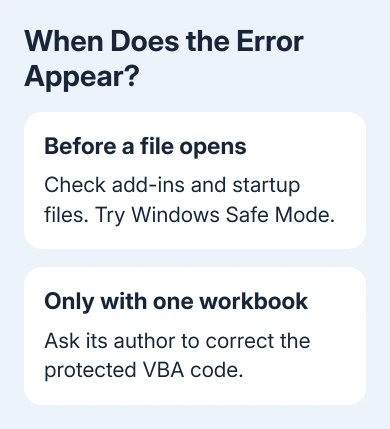
Hidden refers to protected programming code, not a hidden worksheet. Unhiding sheets won't repair it. Check when it appears: before any file opens, or only after you open a particular workbook. Use that timing to choose your checks.
In this guide
1. Check when the message appears
Close the error message and note the module name it includes. Keep the exact spelling so your IT team or the add-in maker can recognize which part is failing.
Save your work and quit Excel. Reopen it from Start and create an empty workbook. An error now points to software Excel loads at startup. If it appears only with a particular file, that file's macros need checking.
VBA is the programming language used by many Excel macros, which automate actions, and older add-ins. Excel needs to prepare that code before running it. A compilation error means something in that preparation failed.
Microsoft explains that a protected module can hide the specific error. That short message doesn't tell you which line is broken, and it doesn't mean every workbook is damaged.
Write down whether the problem began after an Office update, a new add-in or a move to another computer. Include that history when you report the error. Continue with Safe Mode for a startup error.
2. Start Excel without its usual extras
On Windows, press Windows + R, enter excel /safe, then press Enter. There is a space between excel and /safe. The title bar should identify Safe Mode.
Open a blank workbook first. If Excel now opens without the message, something Excel skips in Safe Mode is involved. That includes add-ins and startup files; further checks will tell you which one causes it.
I'd check add-ins before reinstalling Office. A reinstall can leave the same incompatible add-in ready to load again. Disabling it temporarily lets you compare normal startup with and without it.
The command is for Excel on Windows. Don't enter it in macOS Terminal. On a Mac, record whether a blank workbook opens normally and use Tools > Excel Add-ins to review Excel add-ins instead.
If the error still appears with one workbook, go to the workbook section. If it disappears in Safe Mode, return to normal Excel and check its installed extras next.
3. Disable the affected add-in and get its update
In Windows Excel, choose File > Options > Add-ins. At the bottom, select COM Add-ins in the Manage menu, then choose Go. Note the selected entries before changing them.
Clear those add-ins' checkboxes, choose OK, then quit and reopen Excel normally. If the message disappears, enable one entry at a time and restart between changes. Check the add-in that brings the message back.
Also check Excel Add-ins in the same Manage menu. These are a separate list. A clean COM Add-ins result doesn't rule out an Excel add-in that loads VBA code.
Leave that entry unchecked until its maker or your organization supplies a compatible release. Tell them the module name and your Office version. Don't turn on every macro security option to force old code to run.
For a file that instead keeps reporting an external workbook connection, the Excel Break Links checks address references stored in cells and other workbook features. That's a different problem from code failing to compile.
If no listed add-in explains the startup error, tell IT the error still appears with those entries disabled. Excel startup files can also cause it. Ask IT to check their contents instead of deleting files you don't recognize.
4. Match the code to your Office installation
In Excel for Windows, open File > Account > About Excel. Record the product, version and whether the About dialog says 32-bit or 64-bit. Windows being 64-bit doesn't tell you which Office edition is installed.
A workbook or add-in written for 32-bit Office can contain code that needs changes for 64-bit Office. Send the Office information to the developer so they can supply the right version or revise that code.
Switching between 32-bit and 64-bit Office isn't the first repair I'd choose. Other add-ins may depend on the current installation, and an updated add-in or workbook can save you from changing the whole Office setup for one file.
Install the updates your organization approves. If you manage Office yourself on Windows, File > Account > Update Options > Update Now checks for Office updates when that control is available.
An update can help compatibility, but protected code still needs its own repair when it contains the error. With an organization-managed Excel installation, ask IT for the compatible add-in package instead of installing a random copy.
5. Send a protected workbook back to its author
When only one workbook causes the message, keep the original and work with a copy. Tell the sender which action triggers it: opening the file, pressing a worksheet button or closing the workbook.
If you own the VBA project and have permission to edit it, use the project's approved method to remove its protection and run the code again. You can then see the specific code error and correct it.
Without access to the protected code, ask the author for an updated workbook. Include the module name, Excel version and whether Office is 32-bit or 64-bit. A worksheet password and a VBA project password protect different things.
An Excel save error on a Mac needs its own checks when saving is the actual failure. Don't assume that a save problem and a hidden-module message have the same repair.
If the author can't reproduce it, send a sample that still triggers the error but contains no private information. Your IT team or the add-in maker should compare the failing Office installation with the one used to build the code.
The Short Version
Check whether startup or one workbook triggers the message. Use Windows Safe Mode, review COM and Excel add-ins, and record whether Office is 32-bit or 64-bit. Update the affected component or have its author correct the protected VBA code.
Checked November 13, 2026.