

A missing Toshiba touchpad cursor can mean the pad is disabled even though Device Manager reports a working driver. Open Mouse Properties and check its Enable control first, especially when the function key hasn't helped.
If an external mouse moves the pointer normally, start with the built-in pad. If both devices move things on screen but the pointer is invisible, check its visibility instead. Those two situations need different fixes.
In this guide
1. Enable the touchpad inside Mouse Properties
Press Windows + R, type main.cpl, and press Enter. This opens Mouse Properties without needing to find the pointer. Use Ctrl + Tab to move through its tabs.
On older Toshiba laptops with Synaptics software, look for Device Settings. Other driver packages use names such as Advanced or TouchPad. The available tabs depend on the installed driver, so a missing Synaptics tab isn't itself an error.
Use Tab to reach the device list, select the built-in touchpad with the direction keys, then move to Enable and press Enter. Apply the change if the dialog remains open. Try moving a finger across the pad.
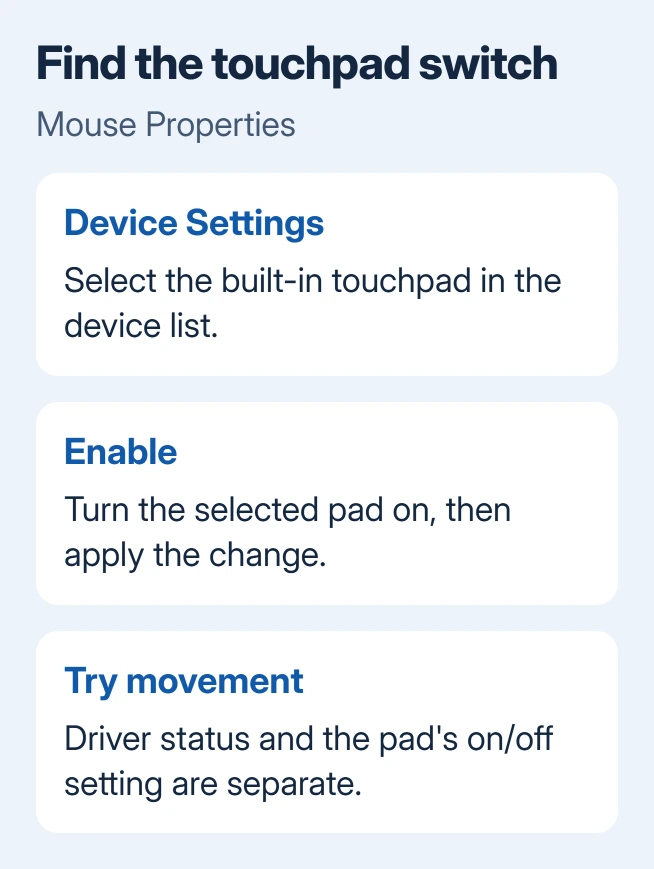
One owner of a Toshiba L50-B confirmed this fixed their missing pointer after the driver had already appeared up to date. Their touchpad was disabled in Device Settings. It also explained why one Windows account worked while another didn't.
If the pad works in another account, check your account's settings before arranging a hardware repair. Sign in with the account affected by the missing pointer, then check the Enable control.
I'd check this before removing drivers. The driver can be working even while its control panel has the pad switched off. If the pad is already enabled or the control isn't present, check the model's physical shortcut next.
2. Use the switch that matches your Toshiba model
Look for the touchpad symbol on the function-key row. Some Toshiba models put it on F5, others on F9. Press the marked key once and test movement. If nothing changes, try it while holding Fn.
Don't cycle through every function key. The symbol identifies the intended control, and other keys can change the display or wireless connection. A second press of the same working shortcut switches the pad off again.
Some models put an enable/disable button between keyboard and touchpad. Others use a double-tap in the pad's upper-left corner, marked with a touchpad-disable symbol. Use the corner method only on a pad with that marking.
Match the control to your model. Tapping an unmarked corner won't add a feature the pad doesn't have. If the pad was switched off, the right shortcut should restore movement immediately.
When the shortcut fails but Mouse Properties works, use that software control. Repeated Fn presses won't help if the software that runs the shortcut is missing. Check Windows' switch next if neither control works.
3. Check Windows' touchpad switch and mouse preference
On Windows 11, open Settings > Bluetooth & devices > Touchpad. On Windows 10, use Settings > Devices > Touchpad. Turn Touchpad on if that switch is available.
Without a mouse, press Windows + I to open Settings, then use its search box to search for touchpad settings. Tab moves between controls, Shift + Tab moves back, and Space changes a selected switch or checkbox.
Expand the touchpad section if available. Find Leave touchpad on; its label ends when a mouse is connected. Select that checkbox, disconnect any USB mouse receiver, and test the pad alone.
Older Toshiba drivers can keep this preference in Mouse Properties instead. If Settings has only basic sensitivity controls, return to the manufacturer's tab rather than looking for a switch that isn't available there.
A working USB mouse is useful while making these changes. It doesn't mean the pad has failed. For a computer where both inputs stop together, use the broader touchpad and mouse checks rather than changing only a Toshiba preference.
4. Separate an invisible pointer from a pad that won't move
Open main.cpl again and choose Pointer Options. Select Show location of pointer (the checkbox mentioning CTRL), apply it, then press Ctrl. A circle marks the pointer's position.
Move your finger and press Ctrl again. If the circle changes position, Windows is receiving your movements, so check why the pointer is hard to see. If it stays fixed, repeat with a USB mouse to compare the two devices.
In the same tab, clear Hide pointer while typing if the pointer disappears during keyboard use. On the Pointers tab, select a standard Windows scheme if a custom pointer has become hard to see. Apply it and retest.
The missing Windows pointer guide covers visibility changes in more detail. Stay with the touchpad controls when an external mouse is visible and moves normally, but the built-in pad still produces no movement.
5. Repair the driver only after the switches check out
Restart Windows normally once. If the pad remains unavailable, Microsoft's touchpad repair steps recommend updating its driver and, if needed, reinstalling the device.
Press Windows + R, enter devmgmt.msc, and press Enter. Use Tab to reach the device tree. Look under Human Interface Devices first. Also check Mice and other pointing devices. The right direction key expands the selected category.
Select the identified touchpad and press Shift + F10 for its menu. Try Update driver first. For a failure that followed a driver update, check whether Properties > Driver > Roll Back Driver is available.
For a reinstall, choose Uninstall device on the touchpad entry, then restart. After restarting, Windows tries to install the touchpad again. Leave other HID entries alone; similar names can represent different controls.
When the touchpad still won't respond
Give Dynabook support the full Toshiba model code, Windows version, USB-mouse result and whether the pad works in another account. Ask for a matching touchpad driver and hardware check. A generic cursor download won't enable a missing pad.
The Short Version
Check the touchpad's Enable button in Mouse Properties first. Then use the model's marked shortcut and Windows touchpad switch. Compare a USB mouse and pointer visibility before repairing the identified touchpad driver.
Checked November 17, 2026.
 If you have any business, I can build it online






