AMD Adrenalin won't open when the installed driver and control software don't match. Run the AMD Software Compatibility Tool if the launch alert reports incompatible software.
A driver-only installation needs the control software added instead. If the app closes without an alert, check other causes. Start by restarting Windows and checking which graphics hardware and installation type your computer uses.
In this guide
1. Restart Windows and keep the exact launch message
Save your work and choose Start > Power > Restart. After signing in again, search Start for AMD Software and open the result. Opening it through search lets you try the current app without relying on an old desktop shortcut.
Save a screenshot of any compatibility alert for the matching-tool step. If the app is missing, check the installation type instead. A missing app and a compatibility alert need different fixes.
Right-click Start, choose Device Manager, then expand its Display adapters category. Note the graphics device names. A laptop may show two entries: its built-in graphics plus a dedicated graphics processor. Read both entries.
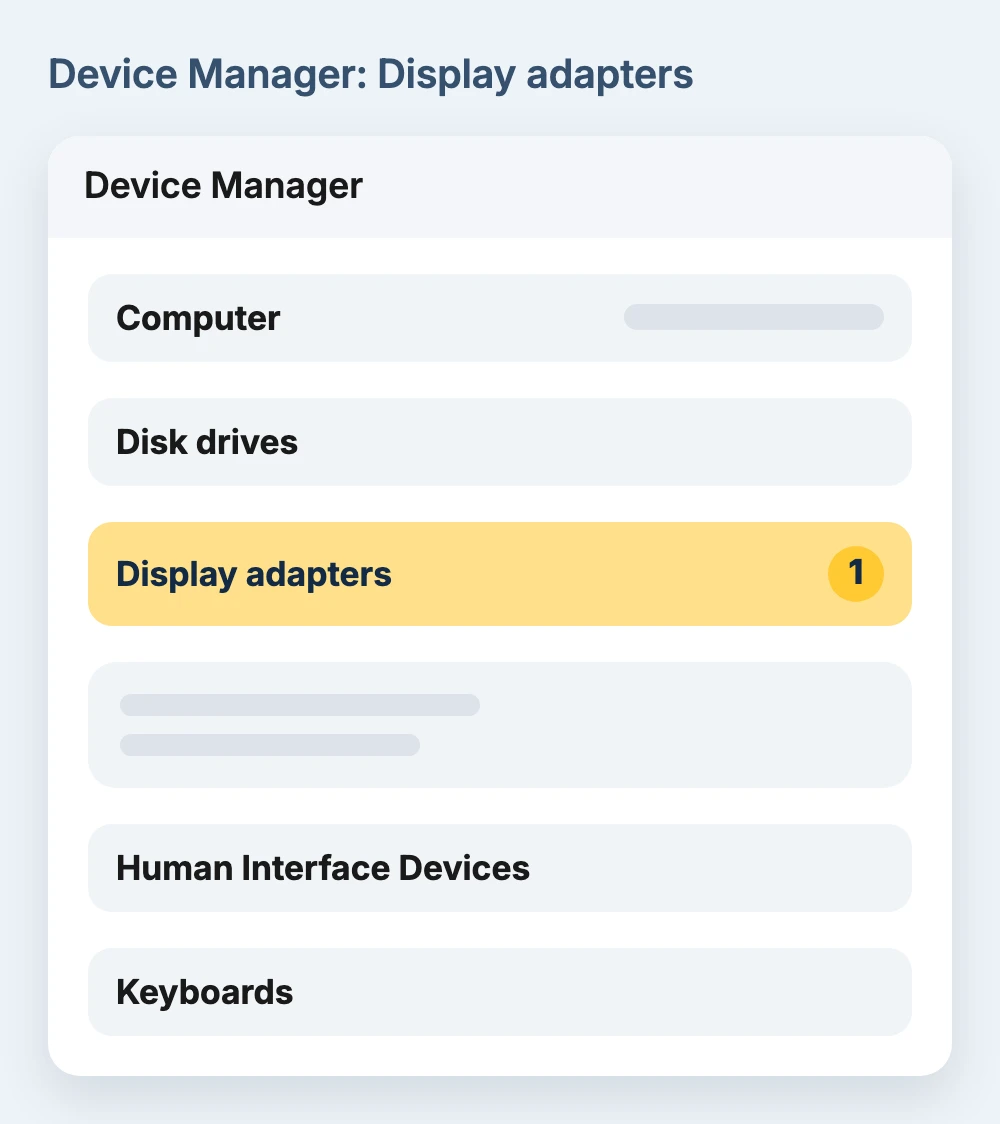
Microsoft Basic Display Adapter means the basic display driver supplied with Windows is active. For supported Radeon hardware, follow the graphics-driver update steps to replace that basic driver. Relaunching the shortcut won't install it.
If the PC has no supported AMD graphics hardware, Adrenalin isn't the right control app. An AMD processor alone doesn't mean every graphics feature in the package applies to your computer.
2. Use the compatibility tool for the mismatch alert
AMD's Software Compatibility Tool is meant for the launch message about incompatible software and the installed graphics driver. Download it from that support page and run it.
The tool should find and install a compatible AMD Software version for the driver already installed. That saves you guessing which app version belongs with your driver.
Open AMD Software after it finishes. If the control panel now opens, check that your usual display and graphics controls are available. Keep a note of the tool's result if the same launch error returns.
For graphics drivers released early through Windows Insider, a matching AMD Software release may not yet exist. In that case, repeatedly installing the same public app won't create a compatible version.
If the tool reports that it can't provide a match, save its message for support. Next, find a graphics package intended for your hardware. Don't download an old control-panel installer from an unfamiliar mirror.
3. Check whether the installation included the app
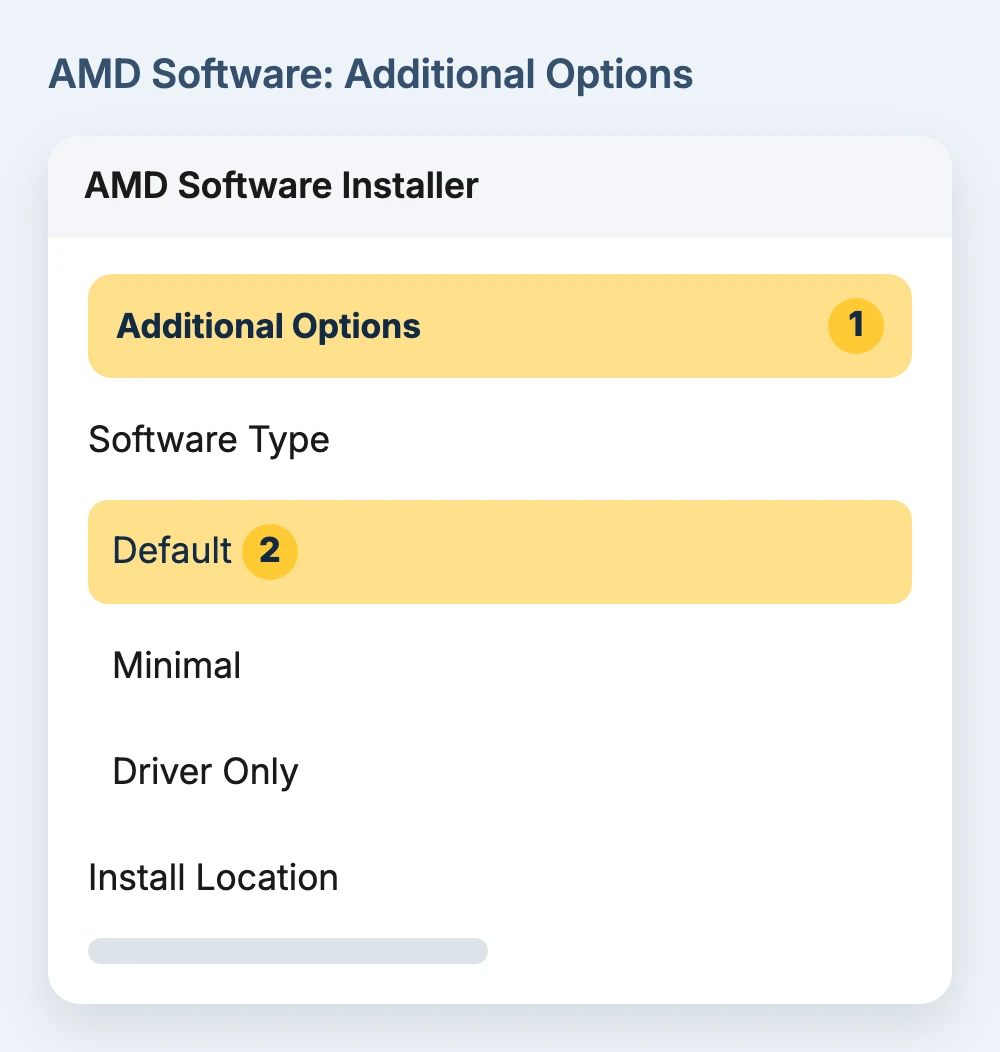
A Driver Only installation provides the graphics driver without the AMD Software control panel. If that option was used, that's why the app is missing. It doesn't mean the display driver failed to install.
Minimal includes basic software controls but leaves out advanced functions such as performance tweaking and recording. A panel that opens without those functions needs feature checks rather than a launch repair.
The Default installation provides the software's full feature set for supported hardware. If you want its controls, rerun the correct installer and choose a type that includes AMD Software.
For laptops and all-in-one computers, visit the manufacturer's support site, find your exact model, and check its graphics downloads first. AMD recommends the maker's customized package when the general driver causes trouble.
For a desktop Radeon card, use the official driver selector or auto-detect installer. Check the exact graphics model and supported Windows version. A newer package for a different hardware family isn't a better match.
4. Install a matching driver and software package
Download the package you've chosen before removing anything.
Keep the installer easy to find after restarting. Let unfinished Windows updates complete, including their requested restart. If the installer says an update is in progress, finish that update first.
Run the downloaded installer, let it check compatibility, and follow its installation prompts. Use a software installation type that includes the controls you need. When installation finishes, restart if requested.
During graphics installation, the display may flicker or briefly go blank. Allow the installer to finish, then open AMD Software from Start. Check the install result rather than deciding from the screen flicker alone.
Error 205 means installation completed, but Windows Update may have reverted the driver version. If the mismatch returns immediately, deal with that driver change before installing again.
The Windows driver update options explain where Windows gets drivers. For a new failure after an update, record the current driver details before changing them.
Once the panel opens, the launch problem is fixed. If a game still crashes, work through its graphics checks and check whether it uses the settings you intended.
5. Use cleanup only after the ordinary repair fails
I'd leave cleanup until the matching-package installation has failed. Have the replacement installer ready: AMD Cleanup Utility removes the AMD graphics software and its graphics and audio driver components.
Use the official utility and accept its Yes prompt to restart into safe mode, which is the recommended way to run it. Save open work first because the cleanup process includes restarts.
Choose OK to begin cleanup. When it completes, use View Report if you need the removal details, then Finish. Restart to apply the changes before installing your replacement graphics package.
The utility doesn't remove AMD chipset drivers. It can also stop if Windows Update is running. Let the update finish, then follow the utility's instructions rather than forcing the two processes to run together.
If the app still fails after a clean matching installation, use AMD support or the laptop maker's support. Give the GPU model, Windows build, driver version, install type, exact error, and cleanup report if one was created.
For an AMD blue screen naming atikmpag.sys, use the driver-timeout checks. Tell support whether only the control panel fails or the graphics driver also stops working.
The Short Version
Use the compatibility tool for the mismatch alert. Check that the installation includes AMD Software, install a package matched to the graphics hardware, and use cleanup only if a regular reinstall fails.
Checked November 27, 2026.
 If you have any business, I can build it online