
To update a graphics driver in Windows 11, check Windows Update and its optional drivers. If it has no matching package, use the computer maker's driver or the graphics maker's package for your exact adapter.
The adapter name matters more than the processor's badge on the case. A laptop can have Intel graphics plus an NVIDIA or AMD chip, so check what's installed before choosing a package. Update the device you actually have.
1. Identify the graphics adapter and its current version
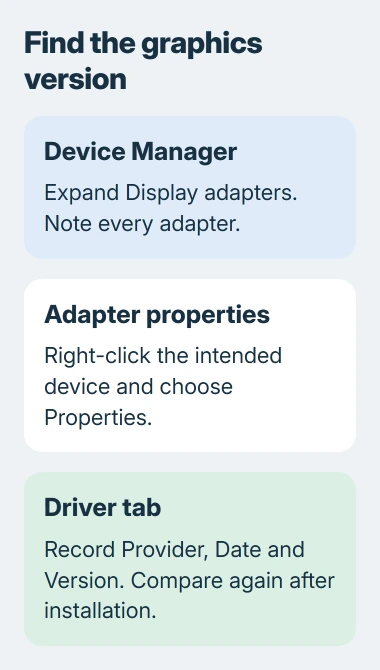
Right-click Start, select Device Manager, and expand Display adapters. Note every listed adapter. One entry may handle graphics inside the processor; another can be a separate chip for demanding tasks.
Right-click the adapter you plan to update, choose Properties, then open Driver. Note Driver Provider, Driver Date and Driver Version so you can check what changed after the update.
Don't disable one adapter just because the other sounds faster. Laptop display connections and power-saving features can depend on both. Seeing two names doesn't mean Windows accidentally installed the same hardware twice.
For a prebuilt computer, note its full model too. The PC specifications guide shows where to find it. Use the complete model name or number; computers in the same series can have different graphics hardware.
If the entry reads Microsoft Basic Display Adapter, Windows is using its basic display driver. Use your computer's exact model to find the right driver for its graphics chip (GPU), rather than guessing which chip it has.
2. Check Windows Update and its optional driver list
Open Settings > Windows Update, then choose Check for updates. Let the offered updates finish. Save your work before restarting if asked, then return to Settings if more updates are waiting.
For an optional graphics package, open Windows Update > Advanced options > Optional updates. Expand Driver updates when that section appears. Select the matching graphics driver and choose Download and install.
Microsoft recommends Windows Update as the normal driver route. You have to select optional drivers yourself. An empty optional list means none are offered there for your PC.
Restart after installation, then check the adapter's Driver tab again. Compare the version with the one you noted. Windows Update may have finished without changing that graphics driver.
Select the graphics package you need rather than every optional driver. Updating unrelated devices at the same time makes it harder to explain which change caused a new problem.
3. Prefer the laptop maker's package for its display features
On a laptop or an all-in-one PC, start with the manufacturer's driver for your full model and Windows 11. It can include changes for how that computer switches graphics chips, connects displays and manages power.
An OEM driver is the version your computer's manufacturer supplies. Its date may be older than a package on the graphics maker's site. Check the supported models and release notes before deciding you've found the wrong download.
AMD's switchable-graphics instructions recommend OEM packages. The built-in and separate graphics chips need compatible drivers. When installing both manually, install the built-in graphics driver first.
I'd use the laptop package first when brightness, sleep or an external display is the problem. For a desktop graphics card that needs a newer game fix, try a matching package from the graphics maker next.
If your laptop maker offers both graphics packages, follow its installation order. Newer version numbers alone don't tell you whether two packages are supported together, so check that before mixing them.
4. Match a manual download to the actual GPU
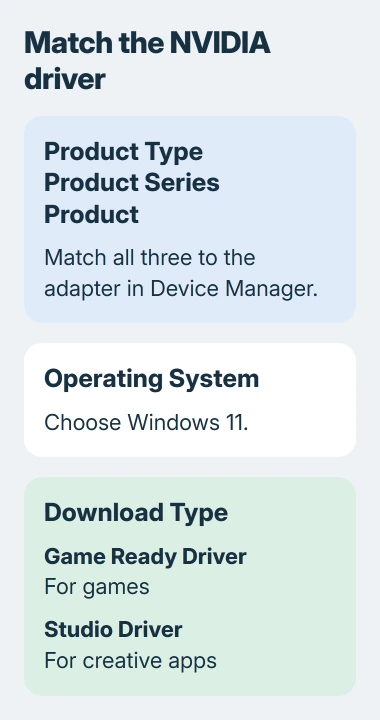
For an NVIDIA card, open the official driver page and find Manual Driver Search. Match the product category, series and exact product to the adapter you noted, then choose the matching Windows 11 operating system.
Notebook and desktop cards can have similar names. Match the complete adapter name, rather than the first result containing the same number. Read the download page's supported products before saving its installer.
For GeForce cards, Game Ready Driver targets games; Studio Driver targets creative applications. Read the release notes and choose for the apps you use. Pick one package; they aren't two updates to install together.
For Radeon hardware, the Adrenalin installation guide lists the supported systems and installation steps. The installer checks compatibility and can reject an unsupported graphics chip or operating system.
For Intel laptop graphics, use the computer maker's supported package first. If it lacks the update you need, ask about a compatible generic package for that adapter. Another graphics brand's installer can't update it.
For NBA 2K26 closing during play, match the Arc 140V fix to the adapter, then compare the Steam files and affected mode.
5. Install, restart and check the actual result
Save your work, close games and other apps that use graphics heavily, then run the matching installer. Read which components it offers and use the standard installation for a routine update.
In current Adrenalin installers, Accept & Express Install uses the default setup. Additional Options can offer less software or just the driver. The names and choices depend on your hardware and package.
Leave Factory Reset unselected for an ordinary update unless a specific repair procedure calls for it. It removes earlier AMD packages, so you can't use that installation to roll back to the drivers you had before.
A brief display flicker can occur while the driver changes. Finish the installer and restart if requested. Then revisit Device Manager > Display adapters > Properties > Driver for the same adapter you checked at the start.
Check the version, then try what led you to update: open the game, try the external display or check the missing display control. If the version changed, the driver updated; trying the same task tells you whether it helped.
If the new driver leaves Battlefield 6 crashing, compare its launcher files and error type next.
If the update fails or makes the display worse
Save any installer error code and check whether Windows is waiting for a restart. If the installer says your hardware isn't compatible, find a package that matches instead of forcing that installer to continue.
When a new driver causes trouble, open its Driver tab and use Roll Back Driver if available. If that button is unavailable, ask the computer or graphics maker for the supported earlier package and installation instructions.
The general Windows driver guide covers other update choices. Give support the adapter, both driver versions, installer error and the task that fails. Those details help them see what changed.
The Short Version
Identify the GPU, note its version and check Windows Update, including optional drivers. Prefer the laptop maker's package when available. Match downloads carefully, install, restart and check the version and original symptom.
Checked November 5, 2026.

Isaac Smith is the founder and editor of PC Glance, a website that covers computers, laptops, and technology. He is a tech enthusiast and a computer geek who loves to share his insights and help his readers make smart choices when buying tech gadgets or laptops. He is always curious and updated about the latest tech trends.