

A damaged installation, graphics driver or overlay can cause Borderlands 4 to crash on PC. Update the game and verify its files before reinstalling it. Steam and Epic provide their own repair controls.
For AMD crashes triggered by fast travel to Upper Dominion after the October 22 update, the listed workaround is Adrenalin 26.8.1. That case can also cause repeated crashes on launch, so don't automatically install a newer driver for it.
In this guide
1. Install updates and note the action that fails
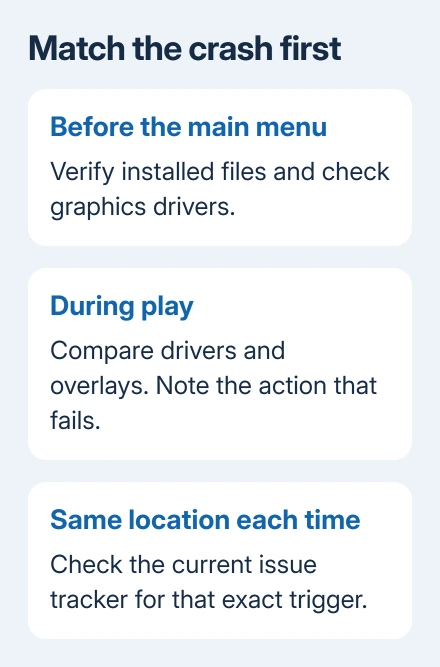
Close Borderlands 4 and let Steam or Epic finish any available game update. Relaunch and try the action that triggered the crash. Note whether the game closes before its menu, while loading a character or after several minutes of play.
Borderlands Support recommends file checks, driver updates and testing with overlays turned off in its PC troubleshooting guide. Choose the repair that fits the failure you're seeing.
For AMD hardware and a crash specifically when fast traveling to Upper Dominion, use the listed driver workaround: return to Adrenalin 26.8.1, then try launching.
If 26.8.1 was your previous package, open Device Manager > Display adapters, select the AMD adapter and open Properties > Driver > Roll Back Driver when available. Check that it restored 26.8.1 before starting the game.
If Roll Back Driver isn't available or would restore another version, ask AMD or your laptop maker for the 26.8.1 installer matching your GPU. Include the Upper Dominion issue link. Don't substitute a package for another graphics chip.
Don't assume every crash on an AMD PC is that issue. If it also fails before the main menu or in unrelated places, continue with file and driver checks. Record the exact error text if a crash window appears.
Before changing several settings, write down your current graphics preset and resolution. That gives you a practical way to restore them after comparing the next launch.
2. Verify the installation through Steam or Epic
In Steam, right-click Borderlands 4 in your Library and choose Properties. Open Installed Files, then select Verify integrity of game files. Allow verification to complete, including any downloads to replace files.
In Epic Games Launcher, find the game in Library, open the three-dot menu, choose Manage, then Verify. Use the launcher you installed the game through. Windows doesn't have a separate repair button for this job.

I'd verify files before reinstalling after an interrupted download. Verification replaces missing or damaged installation files without requiring you to download the whole game to replace a small part.
Launch when the process finishes. If it now reaches the menu, load the same character and repeat the original action. Reaching the title screen tells you it can start, but you'll need to play to check whether the original crash is fixed.
If you close the PC during repair, Steam cannot continue its downloads while it is off. Keep it awake until verification and replacement downloads finish.
3. Update the graphics driver, then allow shaders to finish
Except for that AMD Upper Dominion issue, use the installed NVIDIA app, AMD Software or Intel graphics software to check the current GPU driver. Laptop owners should check their maker's supported package for customized drivers.
Restart Windows when the driver installer asks, then relaunch the game. A driver update and a game update are separate jobs; you need to check both separately.
Shader compilation prepares graphics work for your particular hardware. The support guide estimates about 10 minutes on many PCs. For an unusually long compilation, it recommends restarting the game and computer.
Once the game runs, avoid changing graphics options after every short hitch. Changing them can require shaders to compile again. The guide asks players to allow at least 15 minutes of play when judging a graphics change.
That wait applies to a running game. A process that has already closed with a crash report won't recover because you leave the launcher open longer. Continue with overlays if it keeps closing.
For severe slowdown rather than closure, try a lower preset and an appropriate upscaling method in Options > Visuals > Advanced > Resolution Scaling. Check whether it still crashes as well as whether it runs more smoothly.
4. Close overlays and compare a clean launch
Turn off the Steam overlay through Steam > Settings > In Game by disabling the Steam Overlay switch. Close other overlay tools, such as Discord's overlay or a performance-monitoring overlay, for the comparison.
An overlay adds its own interface over the running game. Turning it off lets you check whether that extra software is involved, without changing your character or reinstalling the game.
Launch and repeat the same action that caused the crash. If it runs normally, restore one overlay at a time and compare again. That tells you which extra program needs an update or should stay off for this game.
If there is no change, return the overlays to your preferred setup before testing something else. That way, you'll know which change actually helped if the crashes stop.
For errors during installation as well as gameplay, include that detail in the support request. If both installation and gameplay fail, support may need checks outside the game's graphics settings.
5. Check processor stability for affected Intel desktops
The official troubleshooting page flags instability with some Intel 13th- and 14th-generation processors. If your system uses one, check the PC or motherboard maker's applicable BIOS and stability guidance for the exact model.
Use Task Manager > Performance > CPU to read the processor name. This check isn't a reason for every Intel laptop owner to flash a BIOS, and a game crash by itself doesn't identify a defective processor.
If that guidance applies to your PC, follow the manufacturer's update process with reliable power. Keep this separate from experimental voltage changes or an overclocking preset shared for a different board.
If several demanding games also crash, report the other affected games to your PC maker as well. Ask whether the processor and firmware combination needs its stability update or a hardware assessment.
For a PC that restarts instead of just closing the game, check the restart symptoms too. Tell support if the whole PC restarts. That's a different symptom from the game closing back to Windows.
Report a repeatable crash with the details support needs
Use the Borderlands Support request form if these checks don't resolve it. Include Steam or Epic, the installed game version, CPU, GPU, driver version and the action immediately before the crash.
The bug-report instructions explain what to include. For a mission or fast-travel failure, give its exact name and whether another character reaches the same location.
Support may request DxDiag and MSinfo, reports describing your computer's hardware and Windows setup. Follow its attachment instructions rather than posting the reports publicly. Keep a copy of any crash message with the ticket.
If a Windows component error also appears outside the game, use the relevant Windows repair guidance. Don't start with system repairs for a crash confined to one known game location.
The Short Version
Verify Borderlands 4 through Steam or Epic, then compare drivers and overlays. The listed AMD Upper Dominion workaround is Adrenalin 26.8.1. Check applicable firmware guidance for affected Intel desktops.
Checked November 10, 2026.
 If you have any business, I can build it online






