
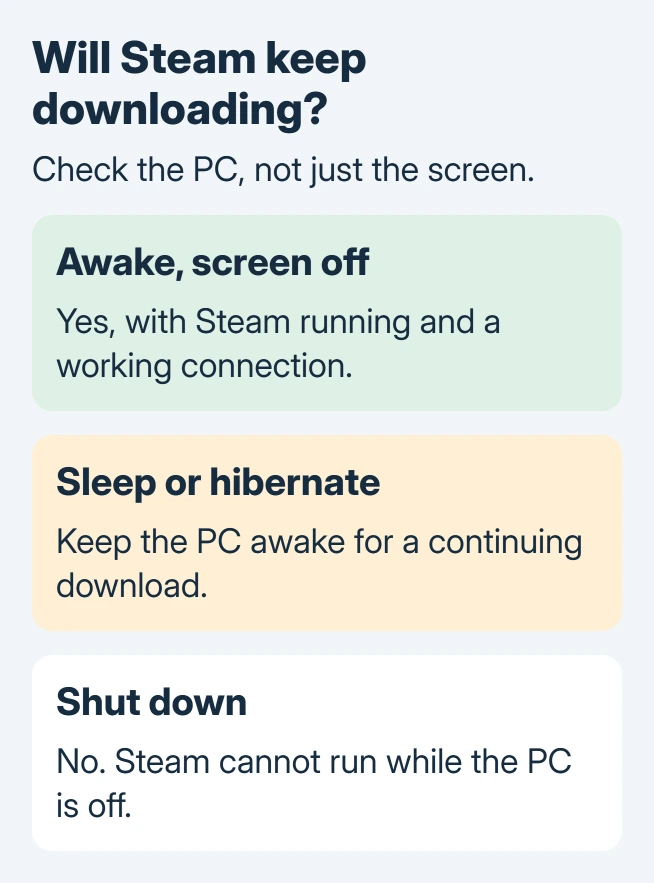
Steam cannot download games while the PC is shut down. Leave the computer awake with Steam running; its screen can go dark without stopping the transfer. Screen-off and sleep are separate settings.
Sleep and hibernation are unsuitable for a continuing Steam download too. A phone can request an installation remotely, but it still needs an active Steam session on the destination computer.
Separate a dark display from a sleeping PC
The monitor going dark does not necessarily stop Windows or Steam. A sleep timeout changes the computer's operating state; a screen timeout only controls the display. Check which timeout is ending the download.
Microsoft documents these separate controls in its Windows 11 power settings. Keep the display timer short if desired while allowing the computer to remain awake.
Status: Steam remote-download requirements and Microsoft's power-state guidance checked November 2, 2026. These steps target Windows 11; no download or power setting was tested.
Modern Standby is not a dependable exception. Microsoft states that Windows suspends desktop applications during its low-power phase in the Modern Standby documentation.
Some background system activity can continue in standby. That does not mean an ordinary desktop game's download continues with it. Keep Windows awake for the transfer instead of relying on network activity during sleep.
Allow enough awake time for the download
Keep a plugged-in laptop on a hard, flat surface with unobstructed vents. Leave its lid open for this procedure, so the lid action cannot override the idle timer.
- Open Settings > System > Power & battery in Windows 11.
- Expand Screen, sleep, & hibernate timeouts. Some builds label this area Screen and sleep.
- For plugged-in power, set Make my device sleep after to Never for the download session, noting the previous choice.
- Leave Turn my screen off after at the display interval you prefer.
- Start the download in Steam and inspect its Downloads view before walking away.
This change affects automatic idle sleep. It does not override a manual shutdown or every power-related setting. Microsoft says a laptop can sleep when its lid closes; the lid-action guide explains that separate control.
If the PC still enters a low-power state after idle sleep is disabled, check the independent hibernation timer. Avoid changing several power controls without checking which one actually triggered.
After the game finishes, restore the original sleep interval. A temporary download session should not silently become a permanent change to everyday power use.
Once installation finishes, open the game's actual directory through Steam if a mod or support request needs its program files.
Remote Downloads still require the computer to be running
Valve's Remote Downloads instructions require Steam to remain open on the PC or Mac. Signing into the website from a phone does not turn a shut-down computer into a download server.
For a computer already running Steam, sign into the same account on Steam's website. Open the profile's Games list, select All Games, find the title and use its install control when the destination session is available.
The remote list reflects the installation state of the active computer. Refresh it to check progress. Use this with a private computer you control, rather than leaving an account active on a shared public PC.
Still stalled with the PC awake?
The practical check is ours: return to Steam's Downloads view and read the game's status. A paused item, a schedule, a storage error and a lost network connection need different responses from a computer that fell asleep.
If the transfer remains stalled while Windows is awake, record the displayed status and available disk space for Steam Support. Changing the screen timer cannot repair a full drive or an error reported by the client.
The Short Version
Keep the PC awake and Steam open; the screen can turn off. Check idle sleep, lid action and any separate hibernation timer. Remote Downloads sends instructions to a running computer and cannot download onto one that is shut down.

Isaac Smith is the founder and editor of PC Glance, a website that covers computers, laptops, and technology. He is a tech enthusiast and a computer geek who loves to share his insights and help his readers make smart choices when buying tech gadgets or laptops. He is always curious and updated about the latest tech trends.