

Steam's native Chromebook beta ended on January 1, 2026, so an old installation that won't open may be part of that discontinued beta. Check which Steam app or installer you have before deleting Linux files or resetting your Chromebook.
A Windows installer, the Steam mobile app and the former Chromebook beta are different things. To play now, use a supported computer or check whether a cloud gaming service carries the exact Steam game you own.
1. Identify which Steam installation is failing
Open the Launcher and look at how you installed Steam. The former native beta used a Steam installer entry on supported Chromebooks. A file downloaded for Windows, such as an .exe, isn't that Chromebook app.
The Steam mobile app handles purchases, account security and community features. It isn't the desktop game client. Steam Link streams from a running computer, rather than running its games locally.
If you installed Steam through Linux, check its package and your Chromebook's processor. Removing Linux also removes other apps and files stored there, so leave it in place while checking the launch error.
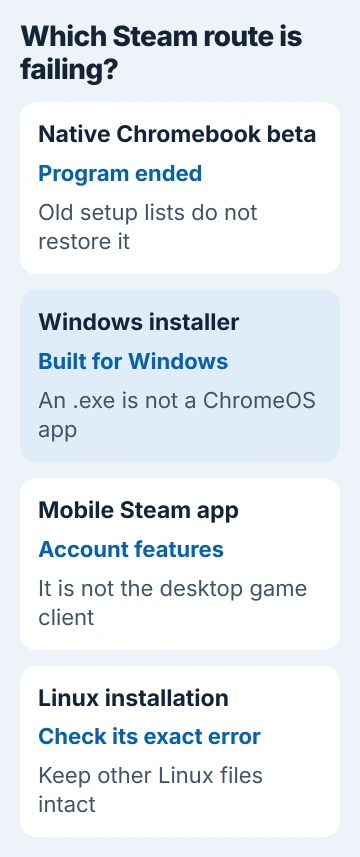
In Google's Chromebook community answer, an owner accepted the beta's closure as the reason Steam stopped working. Deleting Linux hadn't fixed it.
Some installations kept working for a while after the end date, but that doesn't mean they can be reliably fixed if they stop later. The old setup instructions and device lists still refer to the discontinued beta.
If Steam opens but one game won't run, say that when asking for help. A game you can't access, a sign-in problem and a Steam app that never opens each need different checks.
2. Leave the Linux environment and local saves intact
Don't remove Linux or Powerwash the Chromebook simply to try the old beta again. Neither action brings back the beta. First save any local files you need and check the game's own save-transfer instructions.
The Chromebook Linux application guide explains how Linux apps differ from an ordinary download. Getting one Linux app to work doesn't mean a Windows game installer will run there unchanged.
If your Linux copy won't open, copy the error before changing packages. Include your model, processor and ChromeOS version when asking for help. Commands meant for another Linux system can make the original error harder to track down.
If a school or employer manages your Chromebook, ask its administrator whether gaming and Linux are allowed. They may have hidden the installation controls. Switching ChromeOS channels won't remove those restrictions.
3. Open your library on a supported computer
The most direct alternative is to install Steam on a computer its current desktop app supports. Use the official Steam download page and choose the installer for that computer's operating system.
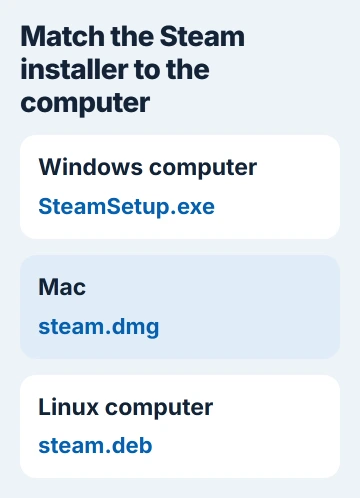
Sign in with the Steam account that owns the game. Check that the game itself supports that computer too. A working Steam client on a Mac doesn't make a Windows-only title compatible with macOS.
Keep the files still on your Chromebook until you've checked your saved progress. A game listed in your Steam library confirms ownership, but doesn't tell you whether all your saves reached the new computer.
If the compatible PC begins downloading and then stops, check its Downloads status and power settings. The Steam download and sleep guide explains why the client and receiving computer need to stay running.
I'd check this route before buying a replacement Chromebook for one game. A newer ChromeOS model doesn't restore the old beta, while access to a compatible computer may already solve the practical problem.
4. Check the exact game before choosing cloud play
Cloud gaming runs the game on a remote computer and streams the picture to your Chromebook. It can provide another way to play, but only when the service supports the game and the store version attached to your account.
NVIDIA's GeForce NOW FAQ lists Steam as a supported store. Search the current catalog for your game's full title, then check that it offers the Steam version before choosing a membership.
Owning a game on Steam doesn't make it available on every cloud service. A listing for another store may not work with your copy. Match the store, game name and edition to the one you own.
Each service has its own access rules and memberships. Check the listing for your account and region before paying, rather than assuming you'll be able to play every game in your Steam library.
To play, open the service's supported browser player and follow its account and store sign-in prompts. This creates a streaming session; it doesn't reinstall the retired native Steam beta on the Chromebook.
5. Check the Chromebook's connection for streaming
The current ChromeOS requirements list a Chromebook with at least 4 GB RAM. For the connection, the listed minimum is 15 Mbps for 720p at up to 60 frames per second, or 25 Mbps for 1080p at 60.
These requirements are for streaming the game from another computer. Your connection also needs a short enough delay to the service's data center. Use its network test instead of judging by download speed alone.
Try Ethernet or a reliable 5 GHz Wi-Fi connection, and pause other large transfers while checking play. Reduce the stream quality if the service's network results call for it, then compare the same scene again.
If ordinary pages won't load either, fix the internet connection before trying the game again. A streaming player that starts but stutters needs connection checks; the retired beta's availability is a separate issue.
6. Get help for the actual failure
For an account or purchase problem, tell Steam Support what's wrong and name the game. If cloud play fails, send that service the error message, game, store you selected and network-test result.
If your Linux copy fails, include the terminal output and how you installed it. The Chromebook maker can help with device or connection problems, but can't bring back the discontinued beta.
If neither a supported computer nor an available cloud listing can run the game, a ChromeOS setting won't make it compatible. Check those requirements before buying another title for this device.
The Short Version
Identify the app first. The native Chromebook beta ended, Windows installers aren't ChromeOS apps, and Linux errors need their own details. Keep local files while checking a compatible computer or the exact game's cloud availability.
Checked November 5, 2026.

Isaac Smith is the founder and editor of PC Glance, a website that covers computers, laptops, and technology. He is a tech enthusiast and a computer geek who loves to share his insights and help his readers make smart choices when buying tech gadgets or laptops. He is always curious and updated about the latest tech trends.