

For Don't Starve problems on a Mac, verify the Steam files first. Then match the fix to what happens when you press Play: a damaged-app warning, a crash after enabling mods or a black screen with sound.
These steps cover the original Don't Starve for Mac. Check the title shown in Steam: Don't Starve Together uses different settings and support instructions.
1. Restart Steam and verify the installed game
Quit the game and Steam, then restart the Mac. Open Steam again and select Don't Starve in Library. Let any pending game download finish before trying to launch it.
Right-click the game, choose Properties, then open Installed Files. Select Verify integrity of game files and wait for the process to finish. Steam checks the installation and replaces missing or damaged game files.
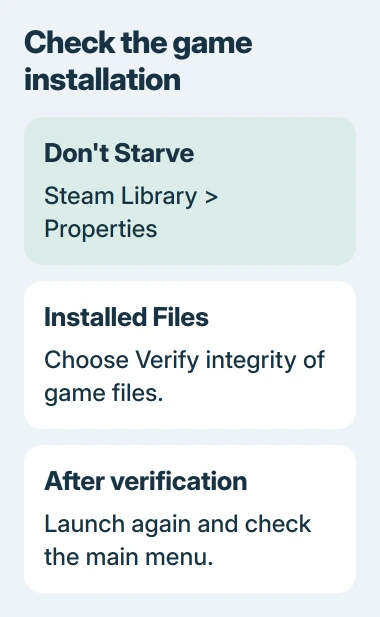
The file verification instructions explain this repair. Launch the game afterward and check whether it reaches the main menu. If it does, try the action that previously caused the crash.
Reaching the menu doesn't tell you whether a particular world or mod works. Note whether the game fails before the menu, while loading a world or during play, then use the matching section.
Some local settings files can fail verification without needing replacement. If you see that message, move to the section for your symptom instead of running verification over and over.
2. Handle the damaged-app warning through the Mac
For a warning naming dontstarve_steam as damaged, return to the game in Steam. Right-click it and choose Manage > Browse local files. This opens the installed game's folder in Finder.
Control-click the game app and choose Open, then choose Open on the warning if macOS offers it. Klei's Mac warning procedure uses this route.
Newer macOS versions can handle approval differently. If the app is still blocked after you try to launch it, open System Settings > Privacy & Security. Look for its Open Anyway control and read the warning.
Use this exception only for your genuine Steam installation. Apple's app security instructions explain the risk of allowing a blocked app and how malware warnings differ.
Enter your administrator details if asked, then launch the app again. Once it opens, try its normal Play button in Steam. This approval applies to the game; you shouldn't need to turn off protection for every app.
If macOS gives no way to approve the app, or says it will damage your computer, send the complete warning to support before continuing. Treat an unidentified-developer warning and a malware alert as separate problems.
3. Start without mods before repairing a saved world
If the main menu opens but a world crashes, disable installed mods in the game's Mods menu. Try a separate world with no mods first. That lets you check normal play without changing the save you're trying to keep.
A mod is an add-on that changes the game. A mod that used to work can fail after a game update. Check its description for compatibility with your game version and installed expansions.
The Mac troubleshooting guide recommends disabling mods and checking compatibility. If the game works without mods, restore each mod separately and test again until the crash returns.
Back up important saves before changing a world that depends on mods. Removing an add-on can change what's in that world. Using a separate test world keeps your main progress out of each trial.
When one mod consistently brings the crash back, leave it disabled and report the result to its author. If the game crashes with all mods disabled too, continue with the display or system checks.
4. Reset display settings for a black screen with sound
A running game with music but no picture needs its display settings checked. Quit Don't Starve completely. In Finder, choose Go > Go to Folder, then enter this folder path:
~/Documents/Klei/DoNotStarve/Find settings.ini. Copy it somewhere safe, then remove that file from the DoNotStarve folder. The next launch returns the game's settings and display output to their defaults.
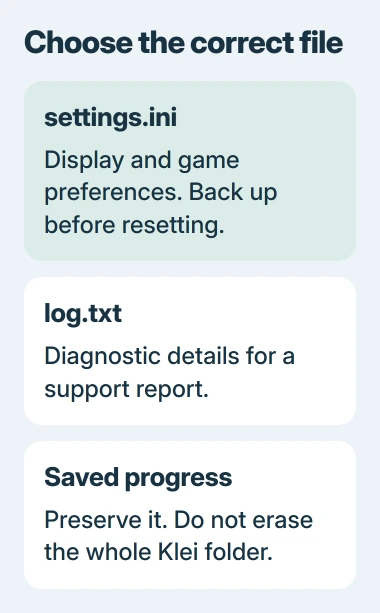
This reset addresses unsupported display settings that can leave you with sound but a black screen. It won't fix every crash or broken saved world.
Leave the rest of the Klei folder in place; deleting it would affect more than display settings. The game folder guide explains why installed files and saved progress are stored separately.
Launch again and check whether the menu is visible. If the default settings restore the picture, change display options one at a time. If the screen stays black, keep that result for the support report.
5. Check updates and graphics options for the actual Mac
Open System Settings > General > Software Update and check for an update that fits your setup. Older macOS releases use System Preferences > Software Update. Install the update, restart if asked, then try the same game action.
Mac graphics updates come through system software, rather than a Windows graphics-driver installer. Check the game's current system requirements before planning a major macOS upgrade, particularly on an older computer.
Some older Intel MacBook Pro models have two graphics processors. On those models, try using the dedicated processor instead of automatic switching. This option isn't available on every Mac.
If you see Automatic graphics switching under Battery options or the older Energy Saver pane, turn it off and try the game. The graphics performance controls explain where to find it.
If that control is missing, skip it. It doesn't apply to Apple silicon Macs or Intel models with only one graphics processor. I'd check your Mac model before spending time looking for the option.
6. Send the game log with the exact failed action
After another failed launch or crash, find log.txt in the same DoNotStarve folder. The game log instructions show where the original game stores it on a Mac.
Include your Mac model, macOS version, game version, enabled expansions and when it fails. Say what happened after verifying files, trying play without mods or resetting settings. Those details give support a useful starting point.
For a Mac that refuses permission before the game starts, compare the application permission checks. For a game crash after launch, send the report to the game's support team or bug tracker.
The Short Version
Verify the Steam files, handle an app block through macOS, and compare play without mods. Reset settings.ini for black output with sound. Try graphics switching only where offered, then send log.txt if play still fails.
Checked November 5, 2026.

Isaac Smith is the founder and editor of PC Glance, a website that covers computers, laptops, and technology. He is a tech enthusiast and a computer geek who loves to share his insights and help his readers make smart choices when buying tech gadgets or laptops. He is always curious and updated about the latest tech trends.